Getting Started
These sections provide instructions to make your first Catalyst Center Global Manager (CCGM) API request. Learn how to get an authorization token.
The CCGM API support standard REST methods, including POST, GET, PUT, and DELETE through HTTPS. Use JSON format for all payloads sent to and received from the REST interface.
Below is high-level description of the API resources:
Intent API (Northbound)
The Intent API is Northbound REST API that exposes specific capabilities of the CCGM platform.
Figure: Developer Toolkit on CCGM
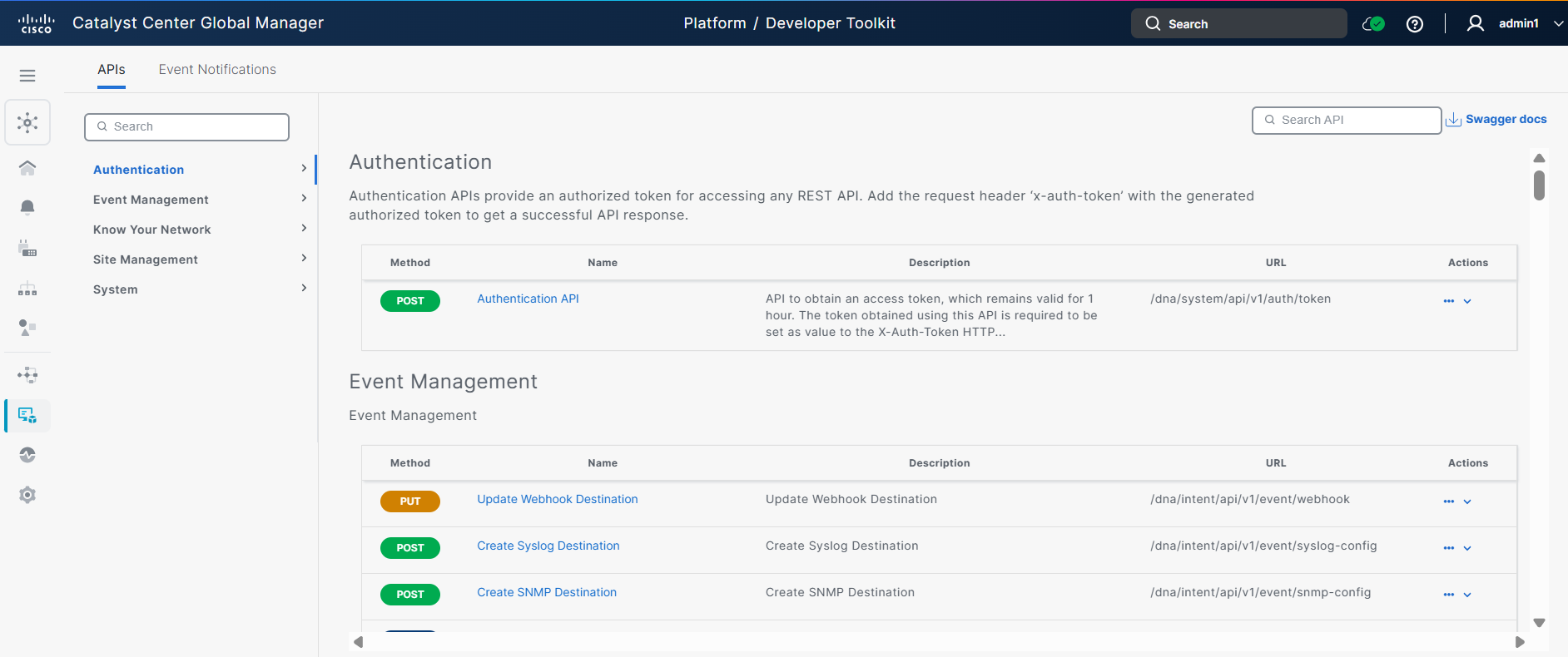
The Intent API organizes hierarchically into functional 'domains' such as Authentication, Event Management, Know Your Network, Site Management, and System.
Below is high-level description of the API resources:
- Event Management - Monitor, subscribe to, and receive real-time event notifications from the network infrastructure.
- Issues - Get alerts for various analytics across CCGM members.
- Site Management - Provision enterprise networks with zero touch deployment and manage the activation and distribution of software images in the network.
- Clients - Retrieve the endpoint summary across CCGM members.
- Health and Performance - Enable continuous monitoring, alerting, and management of system and application states to maintain optimal operation and quickly address issues.
- Sites - Retrieve fabric summary, site health summary, virtual network summary, fabric site summary, transit network summary, and SDA summary across CCGM members.
- Backup - Create, update, or delete backup and backup configurations.
- User and Roles - Add, update, and delete users and roles. You can also use these APIs to add or update the custom AAA attribute for external authentication.
- Devices - Retrieve switch device summary, network summary, wireless device summary, and route device summary across CCGM members. You can also retrieve device health data based on specified filters.
- Member - Retrieve the list of Controllers present in CCGM. You can also use these APIs to retrieve or update any specific Cotroller.
- Site Design - Automate and manage the physical layout and positioning of network devices, particularly access points, within a site. Site Design API may change underlying Controllers.
- Authentication - Receive an authorized token for accessing any REST API.
- Restore - Trigger restore workflow of a specific backup.
Base URL
Every API request begins with a base URL of your CCGM instance.
{ https://<CCGM-IP-ADDRESS>}
API Path Prefixes
CCGM API are organized under different path prefixes based on their functional domain:
| Path Prefix | Description | Example |
|---|---|---|
/dna/intent/api/v1/ |
Intent API for event management and subscriptions | Event webhooks, SNMP config, Syslog destinations |
/data/api/v1/ |
Data aggregation API for monitoring and analytics | Network summary, site health, alerts |
/globalManager/system/api/v1/ |
System management API | Backup/restore, user management, diagnostics |
Example: Complete API Request URL
To retrieve the network summary, construct the full URL by combining the base URL with the operation path:
https://<CCGM-IP-ADDRESS>/data/api/v1/aggregateSummaries/networkSummary
cURL Example:
curl -X GET "https://YOUR-CCGM-IP/data/api/v1/aggregateSummaries/networkSummary" \
  -H "X-Auth-Token: YOUR-TOKEN-HERE" \
  -H "Content-Type: application/json"
Hello World
This example uses Postman (a freely available application) to make REST calls against CCGM. After installing Postman, complete this exercise to send a simple API request to CCGM.
Note: See Cisco Catalyst Center Global Manager Deployment Guide for using your own CCGM for the exercise. After deploying, click the menu icon and choose Platform > Manage > Bundles to enable the REST API bundle. After enabling the REST API bundle, wait four minutes before attempting to issue a REST request to CCGM.
CCGM accepts REST requests from authenticated users only. To authenticate to CCGM, you must submit your user credentials. Successful authentication returns an authorization token that you can use to issue subsequent requests.
Generating an Authorization Token
Prerequisites: You need an authorization token. For authentication details and cURL examples, see the Authentication page. The steps below show the same process using Postman.
To generate an authorization token:
Launch Postman if you have not done so already.
Create a new request. On the Postman home page, click on Create a request or use the "+" tab to open a new request tab.
Select HTTP Method. From the drop-down on the left of the URL field, select POST.
Supply the REST request URL.
Enter the request URL in the text field next to the request-type menu, replacingIP-addresswith the IP address of your CCGM instance. The URL must be of the form:
https://<IP ADDRESS>/dna/system/api/v1/auth/tokenTo set Authorization, go to the Authorization tab and choose Basic Auth. In the login form, enter a valid username and password for your CCGM instance.
Click Send.
Postman sends the request to the CCGM instance and displays the response. If your login is successful, CCGM returns a 200 response and a JSON response body that looks like:
{
  "Token": "eyJ0eXA ... O5uEMR-tc"
}
This JSON body contains a single JSON object that defines a key-value pair. A colon (
:) separates the"Token"key from its associated value. This value is the authorization token itself. Both the key and the value appear inside double-quotation (") marks.Note: To improve readability, this listing omits part of the value. The token that CCGM returns is longer than this example listing.
Troubleshooting
If you received a status code other than 200, check these and then retry your request:
- Recheck the URL that you supplied.
- Make sure that you specified POST as the action.
- Make sure that you turned off SSL Verification in Postman.
Network Summary Example
Follow the steps below to use the authorization token in a request for a Network Summary:
Create a request. To create this request, you can use a procedure similar to the one that you used in the previous section. Add this data to the request:
Set the request type to
GET.Enter the REST request URL. The URL is:
https://<IP ADDRESS>/data/api/v1/aggregateSummaries/networkSummaryReplace
IP_addresswith the IP address of your CCGM instance.
Add an X-Auth-Token header to your request. This header provides the authorization token that you generated in the previous section of this exercise.
- Click Headers.
- In the key field, type X-Auth-Token.
- In the value field, paste the value of the
"Token"JSON object that your token-generation request returned. Do not include the quotation marks.
Send the request.
Click Send. Postman sends the request to CCGM and displays its response.
A successful request results in a response that contains a JSON object containing the key "response".
Note: If you query a CCGM instance and some of the controllers do not send a response to the query for any reason, the metadata block in the response reports which controllers succeeded, which failed, and why. Below is an example of such a scenario:
{
    "response": {
        "networkDeviceCount": 35219,
        "networkDeviceGoodHealthCount": 20700,
        "networkDeviceGoodHealthPercentage": 58.78,
        "endpointCount": 299494,
        "endpointGoodHealthCount": 160688,
        "endpointGoodHealthPercentage": 53.65,
        "wirelessEndpointCount": 199462,
        "wirelessEndpointGoodHealthCount": 160627,
        "wirelessEndpointGoodHealthPercentage": 80.53,
        "wiredEndpointCount": 100032,
        "wiredEndpointGoodHealthCount": 61,
        "wiredEndpointGoodHealthPercentage": 0.06,
        "accessDeviceCount": 8173,
        "accessDeviceGoodHealthCount": 32,
        "accessDeviceGoodHealthPercentage": 0.39,
        "coreDeviceCount": 16,
        "coreDeviceGoodHealthCount": 16,
        "distributionDeviceCount": 1955,
        "distributionDeviceGoodHealthCount": 12,
        "distributionDeviceGoodHealthPercentage": 0.61,
        "routerDeviceCount": 8,
        "routerDeviceGoodHealthCount": 8,
        "routerDeviceGoodHealthPercentage": 100,
        "apDeviceCount": 25036,
        "apDeviceGoodHealthCount": 20601,
        "apDeviceGoodHealthPercentage": 82.29,
        "wlcDeviceCount": 31,
        "wlcDeviceGoodHealthCount": 31,
        "wlcDeviceGoodHealthPercentage": 100,
        "wirelessDeviceCount": 25067,
        "wirelessDeviceGoodHealthCount": 20632,
        "wirelessDeviceGoodHealthPercentage": 82.31,
        "applicationCount": 0,
        "criticalAlertCount": 31,
        "majorAlertCount": 210,
        "minorAlertCount": 34,
        "infoAlertCount": 0,
        "alertCount": 275,
        "siteCount": 25836,
        "controllerCount": 10,
        "coreDeviceGoodHealthPercentage": 100
    },
    "version": "1.0",
    "metadata": {
        "trackingId": "5f4747c9-8c71-4476-b6ff-b803dd52f2e9",
        "cached": true,
        "controllerStatus": {
            "status": "Completed",
            "totalControllers": 15,
            "succeeded": 10,
            "progress": 0,
            "excluded": 0,
            "startTime": 1763050490213,
            "endTime": 1763050497103,
            "failed": [
                {
                    "name": "10.104.127.214",
                    "ip": "10.104.127.214",
                    "status": "FAILURE",
                    "errors": [
                        {
                            "api": "workflow",
                            "message": "{\"errorCode\":\"CONTROLLER-UNREACHABLE\",\"errorDescription\":\"Controller is marked as unreachable\",\"errorType\":\"API-CALL-ERROR\"}"
                        }
                    ]
                },
                {
                    "name": "121.0.6.102",
                    "ip": "172.20.55.102",
                    "status": "FAILURE",
                    "errors": [
                        {
                            "api": "workflow",
                            "message": "{\"errorCode\":\"CONTROLLER-UNREACHABLE\",\"errorDescription\":\"Controller is marked as unreachable\",\"errorType\":\"API-CALL-ERROR\"}"
                        }
                    ]
                },
                {
                    "name": "10.170.101.47",
                    "ip": "172.28.169.47",
                    "status": "FAILURE",
                    "errors": [
                        {
                            "api": "workflow",
                            "message": "{\"errorCode\":\"CONTROLLER-UNREACHABLE\",\"errorDescription\":\"Controller is marked as unreachable\",\"errorType\":\"API-CALL-ERROR\"}"
                        }
                    ]
                },
                {
                    "name": "172.28.169.93_post upgrade",
                    "ip": "172.28.169.93",
                    "status": "FAILURE",
                    "errors": [
                        {
                            "api": "workflow",
                            "message": "{\"errorCode\":\"CONTROLLER-UNREACHABLE\",\"errorDescription\":\"Controller is marked as unreachable\",\"errorType\":\"API-CALL-ERROR\"}"
                        }
                    ]
                },
                {
                    "name": "121.0.1.24",
                    "ip": "172.20.55.24",
                    "status": "FAILURE",
                    "errors": [
                        {
                            "api": "workflow",
                            "message": "{\"errorCode\":\"CONTROLLER-UNREACHABLE\",\"errorDescription\":\"Controller is marked as unreachable\",\"errorType\":\"API-CALL-ERROR\"}"
                        }
                    ]
                }
            ]
        }
    }
}