Getting Started
The following sections provide instructions to make your first API operation request using Postman. Learn how to get an authorization token, troubleshoot errors, and get device inventory. You can send REST requests to the Catalyst Center Always-on Sandbox using Postman.
Standard REST methods are supported on the API operations, which include POST, GET, PUT and DELETE operations through HTTPS. All payloads to and from the REST interface must be in JSON format.
Below is a high-level description of the API resources:
- Cisco IMC - Manage the connections between Cisco IMC and Cisco Catalyst Center.
- Authentication - Receive an authorized token for accessing any REST API.
- Health and Performance - Enable continuous monitoring, alerting, and management of system and application states to maintain optimal operation and quickly address issues.
- Licences - View, manage, and monitor Cisco product licenses, including Smart Account licenses, with features like license details, usage tracking, compliance alerts, and automated reporting.
- Fabric Wireless - Manage fabric wired devices by automating onboarding, provisioning, and management of fabric wireless access points and features.
- SDA - Manage and automate Software-Defined Access (SDA) fabric components, including provisioning and managing fabric devices, Layer 2 and Layer 3 handoffs, anycast gateways, multicast virtual networks, port channels, transit networks, and virtual networks.
- Wired - Manage fabric wired devices, including creation, update, and deletion of edge, border, user devices, and authentication profiles.
- Wireless - Manage and provision non-fabric wireless devices, including Enterprise SSIDs, wireless profiles, RF profiles, and access points.
- ITSM - Get details of the various third party (ITSM) integrations that are supported.
- Event Management - Monitor, subscribe to, and receive real-time event notifications from the network infrastructure.
- ITSM Integration - View details of integration flow components that enable integration between Catalyst Center and other third party systems of various Domains like ITSM, IPAM, and so on.
- Applications - Monitor, analyze, and manage network application data and policies programmatically.
- Clients - Retrieve and analyze client information with various filtering and analytics capabilities.
- Compliance - Create, retrieve, update, delete, and manage compliance policies, rules, conditions, and variables, enabling automated network configuration compliance checks and remediation workflows within the platform.
- Devices - Create, manage, and retrieve detailed device information using attributes like timestamp, MAC address, UUID, name, nwDeviceName, capabilities, interfaces, config, certificate status, specific field values, modules, and VLAN data.
- EOX - Access and manage end-of-life compliance data for network devices, enabling automated tracking of hardware, software, and module lifecycle milestones.
- Industrial Configuration - Manage and configure industrial network features such as REP (Resilient Ethernet Protocol) rings for both fabric and non-fabric deployments, enabling automation of industrial network resiliency and device grouping configurations within the platform.
- Issues - Retrieve, query, count, update, resolve, and ignore network assurance issues, enabling detailed issue management and analytics through filters and specific issue IDs.
- Security Advisories - Create trials, trigger scans, and retrieve detailed information about security advisories affecting network devices, including counts, advisory details by ID, and device-specific advisory data, enabling automated detection and management of vulnerabilities in network devices.
- Sensors - Manage and monitor network sensors, enabling provisioning, activation, and retrieval of sensor-driven test results to assess and troubleshoot wireless network health effectively.
- Sites - Manage and retrieve energy consumption data and related metrics for sites, enabling querying, counting, and detailed retrieval of site energy information within the network management platform.
- Topology - Display and manage the network topology, including the topology of areas, sites, buildings, and floors.
- Users - Manage user roles, permissions, and authentication settings within the Catalyst Center platform.
- Command Runner - Run diagnostic CLI commands, such as show commands, on selected devices and view the command output, supporting troubleshooting and device reachability validation within the inventory.
- Discovery - Create, manage, and monitor network device discovery jobs, scan the network using various parameters such as IP address ranges or protocols, and integrate discovered devices into the inventory for further management and assurance.
- File - Manage and interact with files related to device inventory,configurations and operations.
- Path Trace - Run a path trace between two nodes in the network, which can be wired or wireless hosts or Layer 3 interfaces.
- Reports - Get actionable insights into network operational efficiency and generate reports in multiple formats with flexible scheduling and configuration options.
- Tag - Manage device tags, enabling grouping of devices based on attributes or rules; create, apply, and remove both static and dynamic tags to organize and automate inventory management efficiently.
- Task - View, edit, stop, and delete tasks that represent operations scheduled or run on the platform.
- AI Endpoint Analytics - Manage custom endpoint profiling rules—importing, exporting, editing, and deleting—for precise identification and machine learning-based grouping and anomaly detection.
- Application Policy - Create, edit, deploy, and delete application policies, facilitating automation and consistent policy enforcement across the network.
- Configuration Archive - Managing configuration archives to ensure network configuration consistency and visibility over time.
- Configuration Templates - Import, export, and manage device configuration templates to automate and standardize device provisioning and ongoing configuration changes for efficient network automation and orchestration.
- Device Onboarding (PnP) - Enable automated, zero-touch onboarding and provisioning of network devices by allowing devices to securely connect to Catalyst Center upon power-up, be claimed by administrators, and receive appropriate configuration templates, software images, and policies for seamless integration into the network inventory and management system.
- Device Replacement - Automate replacing faulty devices by provisioning the replacement with the original device’s configuration, licenses, and software images through a zero-touch Plug and Play (PnP) workflow.
- LAN Automation - Enable zero-touch provisioning by automating device discovery, onboarding, and Layer 3 underlay network provisioning from factory-default state, supporting multi-hop automation and link management
- Network Settings - Manage configuration parameters that control device operations across the network, including settings for AAA servers, DHCP servers, NTP servers, and security, enable centralized and customizable network device communication and management.
- Site Design - Manage site-related elements such as areas, buildings, floors, and access point positions, and facilitate detailed site and wireless infrastructure design and management.
- Software Image Management (SWIM) - Automate the software upgrade lifecycle, mark images as golden, distributing images, and monitor upgrade progress with pre- and post-deployment validations, enabling closed-loop automation for software image management.
- Backup - Create, update, or delete backup and backup configurations.
- Cisco Trusted Certificates - Import trusted certificate into a truststore.
- Health and Performance - Get system performance data by retrieving average cluster KPIs such as CPU utilization, memory utilization, and network rates.
- Licenses - Manage device licenses by providing capabilities to view license details, register smart licenses, change license levels, and monitor license usage and compliance across devices and virtual accounts within the platform.
- Platform - Get specific capabilities of the Catalyst Center platform.
- Restore - Trigger restore workflow of a specific backup.
- System Software Upgrade - Manage software releases, including downloading, upgrading, installing, and uninstalling software packages on the system, enabling automated and controlled system software upgrades within the Catalyst Center platform.
- User and Roles - Add, update, and delete users and roles. You can also use these API to add or update the custom AAA attribute for external authentication.
- System Settings - Update and retrieve system-wide configuration settings such as AP PnP location and wireless settings, enabling centralized management of system parameters via API calls.
Base URL
Every API request begins with a base URL of your Catalyst Center instance.
   {
     https://<IP ADDRESS>
   }
Replace IP ADDRESS with the IP address of your Catalyst Center instance. For example, to use the DevNet Always-On Sandbox, replace IP-address with the sandboxdnac.cisco.com domain name.
API Path Prefixes
Catalyst Center API are organized under different path prefixes based on their functional domain:
| Path Prefix | Description | Examples |
|---|---|---|
/dna/intent/api/ |
Intent API for event management and subscriptions | Event webhooks, Licensing, SNMP config, Syslog destinations |
/dna/data/api/ |
Data aggregation API for monitoring and analytics | Network summary, site health, alerts |
/dna/system/api/ |
System management API | Backup/restore, user management, diagnostics |
Example: Complete API Request URL
To get the list of network devices, construct the full URL by combining the base URL with the operation path:
https://<IP ADDRESS>/dna/intent/api/v1/network-device
cURL Example:
curl -X GET "https://<IP ADDRESS>/dna/intent/api/v1/network-device" \
  -H "X-Auth-Token: YOUR-TOKEN-HERE" \
  -H "Content-Type: application/json"
Catalyst Center Environment
If you don’t have access to the Catalyst Center environment, we have you covered.
The DevNet Sandboxes provide developers with zero-cost, easy access to the Catalyst Center platform to develop and run code against 24x7. Catalyst Center is available as ALWAYS-On DevNet Sandboxes for the following deployment:
Catalyst Center Always-On Sandbox
Hello World
This example uses Postman (a freely available application) to make REST calls against a Catalyst Center appliance. After installing Postman, , complete this exercise to send some simple API operation requests to Catalyst Center.
Note: To use your own Catalyst Center appliance for this tutorial, you must first install the Catalyst Center platform application and then enable the REST API bundle. After enabling the REST API bundle, wait four minutes before attempting to issue a REST request to Catalyst Center.
Installing Postman
Get Postman from the Postman homepage and follow the instructions to install it on your development machine.
Configure Postman to accept self-signed certificates:
Launch Postman.
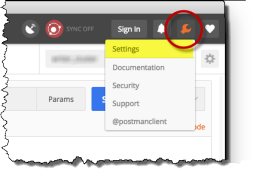
At the upper-right corner of Postman, click the wrench icon and choose Settings from the drop-down menu.
Figure: Opening Postman Settings
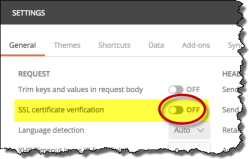
In the Request section, set SSL certificate verification to OFF.
Figure: Allowing self-signed certificates in Postman
Dismiss the Settings window by clicking X in the upper-right corner of the window.
Generating an Authorization Token
Prerequisites: You need an authorization token. For authentication details and cURL examples, see the Authentication page. The steps below show the same process using Postman.
To generate an authorization token, take the following steps:
Launch Postman if you have not done so already.
Create a new request. Make sure the Create New tab is selected in Postman's opening screen. Click the Request button in the Building Blocks section.
Postman shows the Create dialog box. Give your new request a name and description, then save it to a new or existing collection.Set the request type to
POST.For new requests, Postman sets the default request type to
GET. You need to change this setting toPOSTfor this particular request.Supply the REST request URL.
Enter the request URL in the text field next to the request-type menu, replacingIP-addresswith the IP address of your Catalyst Center instance. For example, to use the DevNet Always-On Sandbox, replaceIP-addresswith thesandboxdnac.cisco.comdomain name. The URL must be of the following form:
https://<IP ADDRESS>/dna/system/api/v1/auth/tokenNote: To find your Catalyst Center version number, choose About Catalyst Center from the "gear" menu
 on any page of the Catalyst Center user interface.
Choose Basic Auth.
In the Authorization tab below the URL field, pull down the Type menu and select
Basic Auth. Postman displays a login form.In the login form, enter a valid username and password for your Catalyst Center instance.
Note: For the DevNet Always-On Sandbox, use the following credentials:
- Username:
devnetuser - Password:
Cisco123!
- Username:
Send the request.
Click Send.
Postman sends the request to the Catalyst Center instance and displays the response. If your login is successful, Catalyst Center returns a 200 OK response and a JSON response body that looks like the following example:
{
  "Token": "eyJ0eXA ... O5uEMR-tc"
}
This JSON body contains a single JSON object that defines a key-value pair. A colon (
:) separates the"Token"key from its associated value. This value is the authorization token itself. Both the key and the value are surrounded by double-quotation (") marks.Note: To improve readability, this listing omits part of the value. The token that Catalyst Center returns is much longer than this example listing.
Troubleshooting
If you received a status code other than 200 OK, check the following and then retry your request:
- Recheck the URL that you supplied.
- Make sure that you specified POST as the action.
- Make sure you turned off SSL Verification in Postman; see Installing Postman.
- If you are using your own Catalyst Center appliance or a reservation-based DevNet Sandbox, you may encounter bug CSCvn64908. To work around this problem, disable the REST API bundle, re-enable it, then wait four minutes before issuing a REST call. See Enabling the Catalyst Center REST API Bundle in Reserved Sandboxes.
Device Inventory Example
To use the authorization token in a request for a device inventory, take the following steps:
Create a request. To create this request, you can use a procedure similar to the one that you used in the previous section. Add the following data to the request:
Set the request type to
GET.Enter the REST request URL. The URL is of the following form:
https://<IP ADDRESS>/dna/intent/api/v1/network-deviceReplace
IP_addresswith the IP address of your Catalyst Center instance. For example, to use the DevNet Always-On Sandbox, replaceIP-addresswith thesandboxdnac.cisco.comdomain name.
Add an X-Auth-Token header to your request. This header provides the authorization token that you generated in the previous section of this exercise.
- Click Headers.
- In the key field, type X-Auth-Token.
- In the value field, paste the value of the
"Token"JSON object that your token-generation request returned. Do not include the quotation marks.
Send the request.
Click Send. Postman sends the request to the Catalyst Center instance and displays its response.
A successful request results in a response that contains a JSON object containing the key "response". The value of "response" is an array of objects, each of which describes a device in the Catalyst Center inventory.
Note: If you query a Catalyst Center instance that has not yet discovered any network devices, the result contains no devices. To see a fully populated result, issue this request to the Catalyst Center instance in the DevNet Always-On Sandbox. For more information about device discovery, see "Discover Your Network" in the Catalyst Center User Guide.
Here's an example response, from the Catalyst Center instance in the DevNet Always-On Sandbox:
    {
      "response": [
        {
          "type": "Cisco ASR 1001-X Router",
          "errorCode": null,
          "softwareVersion": "16.6.1",
          "errorDescription": null,
          "lastUpdateTime": 1516993572109,
          "tagCount": "0",
          "location": null,
          "family": "Routers",
          "lastUpdated": "2018-01-26 19:06:12",
          "hostname": "asr1001-x.abc.inc",
          "inventoryStatusDetail": "<status><general code=\"SUCCESS\"/></status>",
          "role": "BORDER ROUTER",
          "macAddress": "00:c8:8b:80:bb:00",
          "roleSource": "AUTO",
          "bootDateTime": "2018-01-11 15:47:04",
          "collectionStatus": "Managed",
          "interfaceCount": "10",
          "lineCardCount": "9",
          "lineCardId": "a2406c7a-d92a-4fe6-b3d5-ec6475be8477, 5b75b5fd-21e3-4deb-a8f6-6094ff73e2c8, 8768c6f1-e19b-4c62-a4be-51c001b05b0f, afdfa337-bd9c-4eb0-ae41-b7a97f5f473d, c59fbb81-d3b4-4b5a-81f9-fe2c8d80aead, b21b6024-5dc0-4f22-bc23-90fc618552e2, 1be624f0-1647-4309-8662-a0f87260992a, 56f4fbb8-ff2d-416b-a7b4-4079acc6fa8e, 164716c3-62d1-4e48-a1b8-42541ae6199b",
          "managementIpAddress": "10.10.22.74",
          "memorySize": "3956371104",
          "platformId": "ASR1001-X",
          "reachabilityFailureReason": "",
          "reachabilityStatus": "Reachable",
          "series": "Cisco ASR 1000 Series Aggregation Services Routers",
          "snmpContact": "",
          "snmpLocation": "",
          "tunnelUdpPort": null,
          "waasDeviceMode": null,
          "apManagerInterfaceIp": "",
          "associatedWlcIp": "",
          "upTime": "15 days, 3:18:52.33",
          "serialNumber": "FXS1932Q1SE",
          "softwareType": "IOS-XE",
          "locationName": null,
          "collectionInterval": "Global Default",
          "instanceUuid": "d5bbb4a9-a14d-4347-9546-89286e9f30d4",
          "id": "d5bbb4a9-a14d-4347-9546-89286e9f30d4"
        },
        {
          "type": "Cisco Catalyst 9300 Switch",
          "errorCode": null,
          "softwareVersion": "16.6.1",
          "errorDescription": null,
          "lastUpdateTime": 1516993573093,
          "tagCount": "1",
          "location": null,
          "family": "Switches and Hubs",
          "lastUpdated": "2018-01-26 19:06:13",
          "hostname": "cat_9k_1.abc.inc",
          "inventoryStatusDetail": "<status><general code=\"SUCCESS\"/></status>",
          "role": "ACCESS",
          "macAddress": "f8:7b:20:67:62:80",
          "roleSource": "AUTO",
          "bootDateTime": "2018-01-11 14:42:33",
          "collectionStatus": "Managed",
          "interfaceCount": "41",
          "lineCardCount": "2",
          "lineCardId": "feb42c9f-323f-4e17-87d3-c2ea924320cb, 0f0c473e-b2e0-4dcf-af11-9e7cf7216473",
          "managementIpAddress": "10.10.22.66",
          "memorySize": "889225280",
          "platformId": "C9300-24UX",
          "reachabilityFailureReason": "",
          "reachabilityStatus": "Reachable",
          "series": "Cisco Catalyst 9300 Series Switches",
          "snmpContact": "",
          "snmpLocation": "",
          "tunnelUdpPort": null,
          "waasDeviceMode": null,
          "apManagerInterfaceIp": "",
          "associatedWlcIp": "",
          "upTime": "15 days, 4:23:48.72",
          "serialNumber": "FCW2136L0AK",
          "softwareType": "IOS-XE",
          "locationName": null,
          "collectionInterval": "Global Default",
          "instanceUuid": "6d3eaa5d-bb39-4cc4-8881-4a2b2668d2dc",
          "id": "6d3eaa5d-bb39-4cc4-8881-4a2b2668d2dc"
        },
        {
          "type": "Cisco Catalyst 9300 Switch",
          "errorCode": null,
          "softwareVersion": "16.6.1",
          "errorDescription": null,
          "lastUpdateTime": 1516993864882,
          "tagCount": "1",
          "location": null,
          "family": "Switches and Hubs",
          "lastUpdated": "2018-01-26 19:11:04",
          "hostname": "cat_9k_2.abc.inc",
          "inventoryStatusDetail": "<status><general code=\"SUCCESS\"/></status>",
          "role": "ACCESS",
          "macAddress": "f8:7b:20:71:4d:80",
          "roleSource": "AUTO",
          "bootDateTime": "2018-01-11 14:43:33",
          "collectionStatus": "Managed",
          "interfaceCount": "41",
          "lineCardCount": "2",
          "lineCardId": "789e00f9-f52d-453d-86c0-b18f642462ee, 242debfd-ff6c-4147-9bf6-574e488c5174",
          "managementIpAddress": "10.10.22.70",
          "memorySize": "889225280",
          "platformId": "C9300-24UX",
          "reachabilityFailureReason": "",
          "reachabilityStatus": "Reachable",
          "series": "Cisco Catalyst 9300 Series Switches",
          "snmpContact": "",
          "snmpLocation": "",
          "tunnelUdpPort": null,
          "waasDeviceMode": null,
          "apManagerInterfaceIp": "",
          "associatedWlcIp": "",
          "upTime": "15 days, 4:28:05.82",
          "serialNumber": "FCW2140L039",
          "softwareType": "IOS-XE",
          "locationName": null,
          "collectionInterval": "Global Default",
          "instanceUuid": "74b69532-5dc3-45a1-a0dd-6d1d10051f27",
          "id": "74b69532-5dc3-45a1-a0dd-6d1d10051f27"
        },
        {
          "type": "Cisco Catalyst38xx stack-able ethernet switch",
          "errorCode": null,
          "softwareVersion": "16.6.2s",
          "errorDescription": null,
          "lastUpdateTime": 1516992954094,
          "tagCount": "0",
          "location": null,
          "family": "Switches and Hubs",
          "lastUpdated": "2018-01-26 18:55:54",
          "hostname": "cs3850.abc.inc",
          "inventoryStatusDetail": "<status><general code=\"SUCCESS\"/></status>",
          "role": "CORE",
          "macAddress": "cc:d8:c1:15:d2:80",
          "roleSource": "MANUAL",
          "bootDateTime": "2018-01-11 15:20:34",
          "collectionStatus": "Managed",
          "interfaceCount": "59",
          "lineCardCount": "2",
          "lineCardId": "15d76413-5289-4a99-98b6-fcacfe76b977, f187f561-9078-4f30-b1a1-c6c6284bd075",
          "managementIpAddress": "10.10.22.69",
          "memorySize": "873744896",
          "platformId": "WS-C3850-48U-E",
          "reachabilityFailureReason": "",
          "reachabilityStatus": "Reachable",
          "series": "Cisco Catalyst 3850 Series Ethernet Stackable Switch",
          "snmpContact": "",
          "snmpLocation": "",
          "tunnelUdpPort": null,
          "waasDeviceMode": null,
          "apManagerInterfaceIp": "",
          "associatedWlcIp": "",
          "upTime": "11 days, 15:11:14.80",
          "serialNumber": "FOC1833X0AR",
          "softwareType": "IOS-XE",
          "locationName": null,
          "collectionInterval": "Global Default",
          "instanceUuid": "8be78ab1-d684-49c1-8529-2b08e9c5a6d4",
          "id": "8be78ab1-d684-49c1-8529-2b08e9c5a6d4"
        }
      ],
      "version": "1.0"
    }