Sample App Test Plan
The test plan executed to validate the sample app and the obtained result are provided here as an additional reference. It can be used as an example when developing your own app.
This test plan is divided into four main sections:
i. Environments: List of devices and their operating system versions used in the tests.
ii. Test cases: Table of individual tests with steps and acceptance criteria. These tests make up the test cycles.
iii. Test cycles: Table with executed test cycles. Each test cycle comprises of a group of test cases that must be executed to achieve a certain behavior.
For example, the Test Cycle #1 (Successful Login/Register with Google) includes Test Case #1 (Open Application), Test Case #2 (Register - Authentication with Google) and Test Case #3 (Register - Successful authentication with Google). In this test cycle, the tests #1, #2 and #3 must be executed to test a Successful Login/Register with Google.
iv. Results: Result obtained when executing each test cycle in each of the environments.
Environments
Android Devices
| Device Name | Device Operating System | |
| 1 | Google Pixel 3a | Android version 11 (Beta) |
| 2 | Google Pixel 5 | Android version 11 and higher |
| 3 | Google Pixel 6 | Android version 12 and higher |
| 4 | Motorola G6 Plus | Android version 9 |
| 5 | Samsung S10 | Android version 10 or higher |
| 6 | Samsung S22 | Android vesion 13 and higher |
iOS Devices
| Device Name | Device Operating System | |
| 1 | iPhone 7 | iOS version 13.5 |
| 2 | iPhone 11 | iOS version 13.7 |
| 3 | iPhone 13 | iOS version 16 |
| Device Name | Device Operating System | |
| 1 | Samsung S10 | Android version 10 or higher |
| 2 | Motorola G6 Plus | Android version 9 |
| 3 | Google Pixel 3a | Android version 11 (Beta) |
| 4 | Samsung S22 | Android vesion 13 and higher |
| 5 | Google Pixel 5 | Android version 11 and higher |
| 6 | Google Pixel 6 | Android version 12 and higher |
| 7 | iPhone 7 | iOS version 13.5 |
| 8 | iPhone 11 | iOS version 13.7 |
| 9 | iPhone 13 | iOS version 16 |
Test cases
For each test case, the following information is provided:
- Test Case: The name of the test case, which gives a brief introduction of what the test is about
- Preparation: Prerequisites to be met before executing the test case
- Execution: The steps involved in executing the test case
- Acceptance Criteria: Expected result if the test case is successful
- Image: Wherever applicable, a screenshot illustrating the expected final result
| Test Case | Preparation | Execution | Acceptance Criteria | Image | |
| 1 | Open application | After installing the application on the device, the application file must be created, using the authentication type as login in the Constant.kt file. | Open the application | It should display a screen with the following items: - the Open Roaming logo; - “To enjoy seamless and secure WiFi, please choose an account for activation”;v Continue with Apple button; - Continue with Google button; - OAuth Token button; - Loyalty Program button; - Cisco logo |
 |
| 2 | Register - Authentication with Google | Execute test #1 | Click on Continue with Google | It should redirect the user to the Google authentication page. |  |
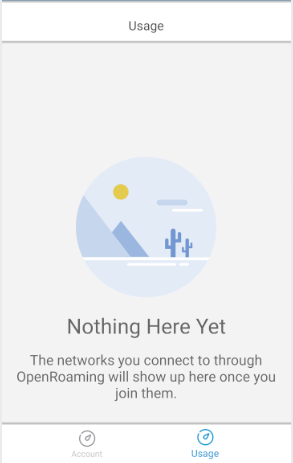
| 3 | Register - Successful authentication with Google | Execute test #2 | Insert valid Google e-mail and password | It should login with success and redirect the user to the Usage Statistics screen. If history is available, the usage statistics data is displayed. If not, a Nothing Here Yet screen is displayed. At the bottom, a navigation bar with the Account and Usage Statistics buttons is displayed. |
 |
| 4 | Register - Unsuccessful authentication with Google | Execute test #2 | Insert invalid Google e-mail and password. | It should display a failure message. | 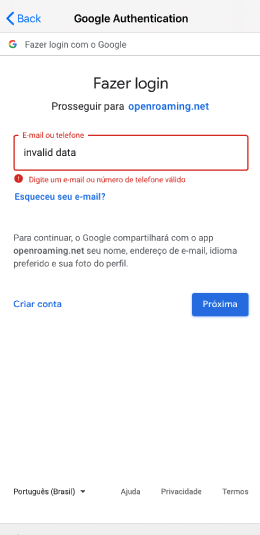 |
| 5 | Register - Authentication with Apple | Execute test #1 | Click on Continue with Apple. | It should redirect the user to Apple authentication. | 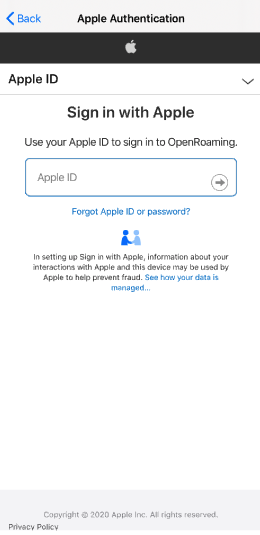 |
| 6 | Register - Successful authentication with Apple | Execute test #5 | Insert valid Apple ID and password. | It should login with success and redirect the user to the Usage Statistics screen, displaying usage statistics data. At the bottom, it should display a navigation bar with Account and Usage Statistics buttons. | |
| 7 | Register - Authentication with Apple failed | Execute test #5 | Insert invalid Apple ID and password. | It should display a failure message. | 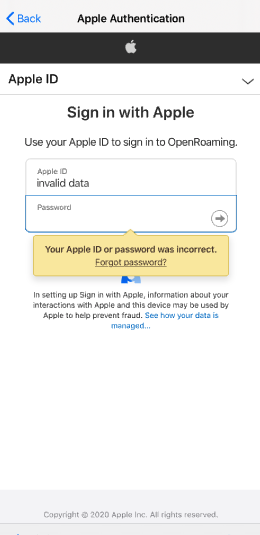 |
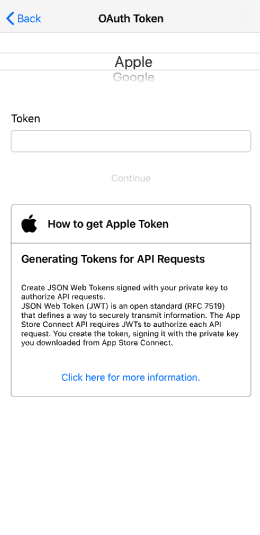
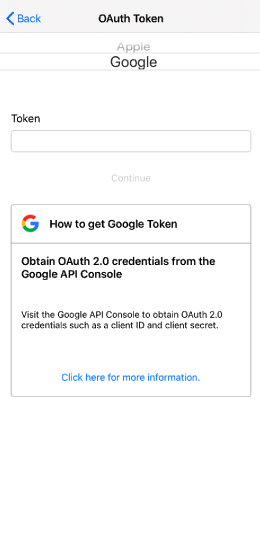
| 8 | Register - Go to OAuth Token screen | Execute test #1 | Click the OAuth Token button | It should redirect to a Register screen, displaying the fields: - A checkbox with the options Google and Apple; - A textfield with the label Token; - Continue button; - Instructions on how to obtain the authentication token. |
  |
| 9 | Register - Successfully authenticate with Google authentication token | Execute test #8 | Choose the Google checkbox, insert the authentication token in the text field, and click Continue. | It should login with success and redirect the user to the Usage Statistics screen, displaying usage statistics data. At the bottom, it should display a navigation bar with Account and Usage Statistics buttons. | |
| 10 | Register - Successfully authenticate with Apple authentication token | Execute test #8 | Choose the Apple checkbox, insert the authentication token in the text field, and click Continue. | It should login with success and redirect the user to the Usage Statistics screen, displaying usage statistics data. At the bottom, it should display a navigation bar with Account and Usage Statistics buttons. | |
| 11 | Register - Unsuccessfully OAuth Token authentication because of invalid information | Execute test #8 | Insert an invalid token in the text field. | It should display an error message informing that the token is invalid. The user should keep in the OAuth Token screen. | 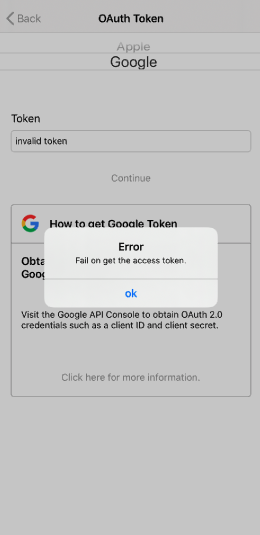 |
| 12 | Register - Unsuccessfully OAuth Token authentication because of required data not informed | Execute test #8 | Click on Continue without informing the authentication token. | It should display an error message around each obligatory field and keep the user on the OAuth Token screen. | |
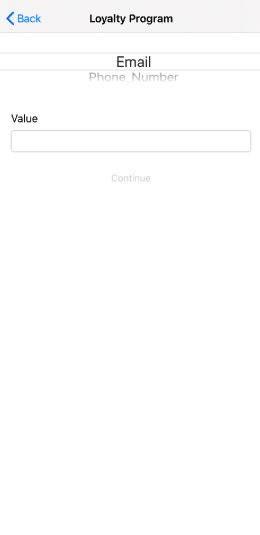
| 13 | Register - Go to Loyalty Program screen | Execute test #1 | Click on the Loyalty Program button. | It should redirect to a Register screen, displaying the fields: - Type - ID - Continue button; - Submit button. |
 |
| 14 | Register - Filling register form with valid data | Execute test #13 | Fill all form fields with valid data and click on Submit. | It should login with success and redirect the user to the Usage Statistics screen, displaying usage statistics data. At the bottom, it should display a navigation bar with Account and Usage Statistics buttons. | |
| 15 | Register - Filling form with invalid data | Execute test #13 | Fill all form fields with invalid data and click on Submit. | It should display an error message around each field informing that the data written is invalid and keep the user on the Register screen. | 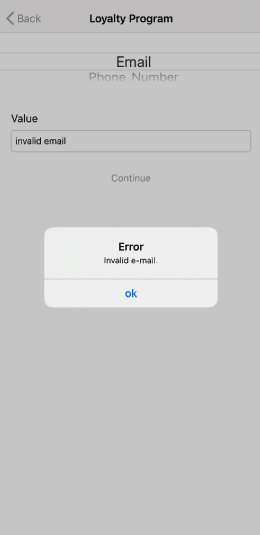 |
| 16 | Register - Try to submit without filling data | Execute test #13 | Click on Submit without filling fields. | It should display an error message around each obligatory field and keep the user on the Register screen. | 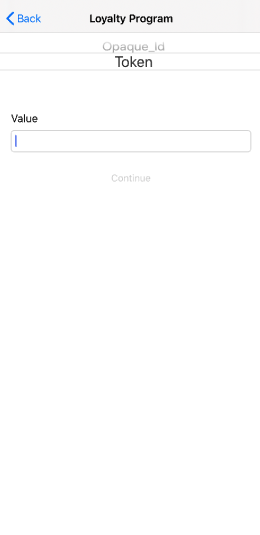 |
| 17 | User - Go to Account screen | Execute tests #3, #6, #9, #10 or #14 | Click on the Account button at the navigation bar. | The user should be redirected to the Account screen displaying: - A Details field, containing user’s information such as E-mail and the Access provider used to authenticate. - An enabled Privacy Settings switch; - An enabled Push Notification switch; - An Update User button; - A Delete Account button. |
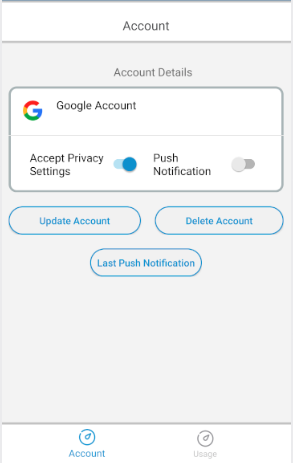 |
| 18 | User - Uncheck Privacy Settings switch | Execute test #17 | Click on the Privacy Settings switch. | The Privacy Settings must be unselected. | 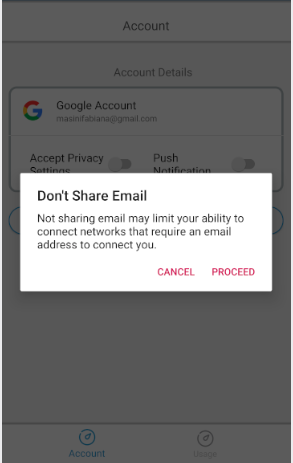 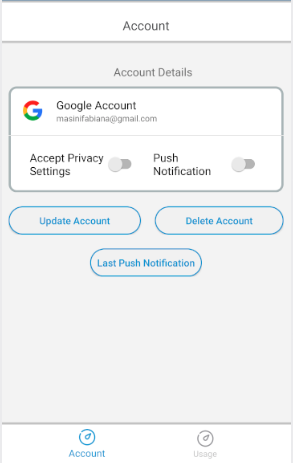 |
| 19 | User - Check Privacy Settings switch | Execute test #18 | Click on the Privacy Settings switch. | Display a gray dialog at the bottom with the message Share email updated. and the Privacy Settings switch component gets selected. | 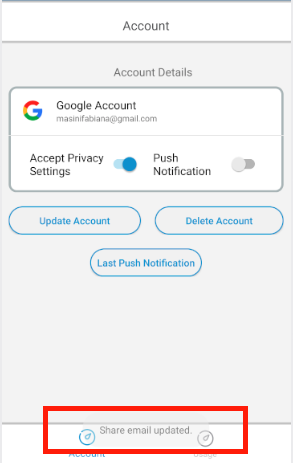 |
| 20 | User - Uncheck Push Notification switch | Execute test #17 | Click on the Push Notification switch. | The Push Notification switch must be unselected. | - |
| 21 | User - Check Push Notification switch | Execute test #20 | Click on the Push Notification switch. | Display a gray dialog at the bottom with the message Push notification updated. and the Push Notification switch component gets selected. | - |
| 22 | User - Go to update user screen | Execute test #17 | Click on the Update User button. | The user should be redirected to the Update User screen displaying the following fields: - E-mail; - Phone; - Opaque Id; - Username; - Age; - Zip code; - Update button. All these fields should already be filled with the previously added data. |
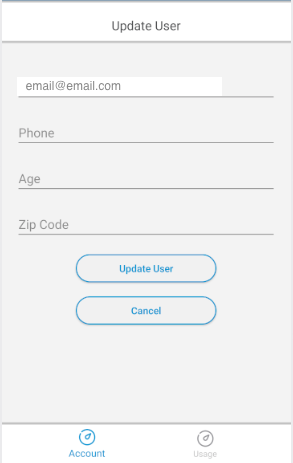 |
| 23 | User - Successfully update user | Execute test #22 | Fill the fields with invalid data and click on Update button. | Display a gray dialog at the bottom with the message Updated user with success and the user should be redirected to the Account screen. | - |
| 24 | User - Unsuccessfully update user because of invalid data | Execute test #22 | Fill the fields with invalid data and click on Update button. | It should display an error message around each field informing that the data written is invalid and keep the user on the Update User screen. | - |
| 25 | User - Unsuccessfully update user because of required data not informed | Execute test #22 | Leave the fields empty and click on the Update button. | It should display an error message around each obligatory field and keep the user on the Update User screen. | - |
| 26 | Account - Delete account | Execute test #17 | Click on the Delete Account button. | A confirmation alert should be displayed with the Cancel and Confirm buttons. | 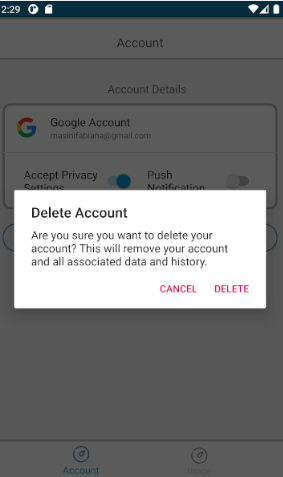 |
| 27 | Account - Delete account with success | Execute test #26 | Click on the Confirm button. | The alert should be closed and the user should be redirected to the Access Providers screen. | 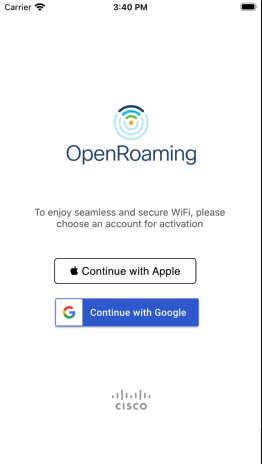 |
| 28 | Usage Statistics - Go to Usage Statistics screen | Execute test #17 | Click on the Usage Statistics button on the navigation bar | The user should be redirected to the Usage Statistics screen. | |
| 29 | Network - Connect to the network | Execute tests #3, #6, #9, #10 or #14 | Wait a minute | The device must automatically connect to a configured Open Roaming network. | - |
| 30 | Network - Disconnect on the network | Execute test #27 | Wait a minute | The device must automatically disconnect from all configured Open Roaming networks. | - |
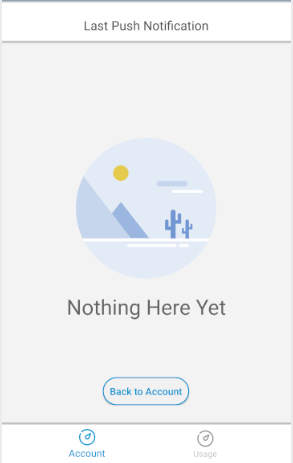
| 31 | Last Notifications - Go to Last Push Notifications Screen | Execute test #17 | Click on Last Push Notification Button | The user must be redirected to a screen listing all the push notifications sent. If there is no data available to show, it should display a Nothing Here Yet message. In both cases, a Back to Account button must be displayed. |
 |
| 32 | Last Notifications - Back to Account screen | Execute test #31 | Click on Back to Account button | The user should be redirected to the Account screen. | |
Test Cycles
| Cycle | Tests | |
| 1 | Cycle - Successful and Unsuccessful Login/Register with Google | #1 Open Application #2 Register - Authentication with Google #3 Register - Successful authentication with Google #4 Register - Unsuccessful authentication with Google |
| 2 | Cycle - Successful and Unsuccessful Login/Register with Apple | #1 Open Application #5 Register - Authentication with Apple #6 Register - Successful authentication with Apple #7 Register - Authentication with Apple failed |
| 3 | Cycle - Successful and Unsuccessful Register with Loyalty Program | #1 Open Application #13 Register - Go to Loyalty Program screen #14 Register - Filling register form with valid data #15 Register - Filling form with invalid data #16 Register - Try to submit without filling data |
| 4 | Cycle - Successful and Unsuccessful Register with OAuth Token | #1 Open Application #8 Register - Go to OAuth Token screen #9 Register - Successfully authenticate with Google authentication token #10 Register - Successfully authenticate with Apple authentication token #11 Register - Unsuccessfully OAuth Token authentication because of invalid information #12 Register - Unsuccessfully OAuth Token authentication because of required data not informed |
| 5 | Cycle - Uncheck and check Privacy Settings | #17 User - Go to Account screen #18 User - Uncheck Privacy Settings switch #19 User - Check Privacy Settings switch |
| 6 | Cycle - Uncheck and check Push Notification | #17 User - Go to Account screen #20 User - Uncheck Push Notification switch #21 User - Check Push Notification switch |
| 7 | Cycle - Successfully and unsuccessfully update user | #17 User - Go to Account screen #22 User - Go to update user screen #23 User - Successfully update user #24 User - Unsuccessfully update user because of invalid data #25 User - Unsuccessfully update user because of required data not informed |
| 8 | Cycle - Delete account with success | #17 User - Go to Account screen #26 Account - Delete account #27 Account - Delete account with success |
| 9 | Cycle - Go to Usage Statistics screen | #17 User - Go to Account screen #28 Usage Statistics - Go to Usage Statistics screen |
| 10 | Cycle - Connect and disconnect from network | #29 Network - Connect to the network #30 Network - Disconnect on the network |
| 11 | Cycle - Last Push Notifications | #31 Last Notifications - Go to Last Push Notifications Screen #32 Last Notifications - Back to Account screen |
Results
Test Type | Environment | Test Case | Status | Evidence |
|---|---|---|---|---|
Authentication | Samsung S10 | #1 Cycle - Successful Login/Register with Google | OK | S10 Google Authentication.mov |
#2 Cycle - Successful and Unsuccessful Login/Register with Apple | OK | No video available | ||
#3 Cycle - Successful and Unsuccessful Register with Loyalty Program | OK | S10 loyalty program usage statistics check uncheck os 2 update account delete profile delete account.movCycle #3 Executed on Samsung S10 - Loyalty Program email | ||
#4 Cycle - Successful and Unsuccessful Register with OAuth Token | OK | S10 oath token update account delete profile delete account .movCycle #4 Executed on Samsung S10 - OAuth Token Authentication | ||
Motorola G6 Plus | #1 Cycle - Successful Login/Register with Google | OK | G6 authentication with google update user delete account.mov G6 authentication with google update user delete account.mov G6 authentication with google update user delete account.mov Cycle #1 Executed on Motorola G6 Plus - Google Authentication | |
#2 Cycle - Successful and Unsuccessful Login/Register with Apple | OK | No video available | ||
#3 Cycle - Successful and Unsuccessful Register with Loyalty Program | OK | G6 loyalty program usage statistics check uncheck os 2 update account delete profile delete account.movCycle #3 Executed on Motorola G6 Plus - Loyalty Program email | ||
#4 Cycle - Successful and Unsuccessful Register with OAuth Token | OK | G6 Oauth token e last push notification.movCycle #4 Executed on Motorola G6 Plus - OAuth Token Authentication | ||
iPhone 7 | #1 Cycle - Successful Login/Register with Google | OK | iOs - Google Authentication.movCycle #1 Executed on iPhone 7 - Authentication with Google | |
#2 Cycle - Successful and Unsuccessful Login/Register with Apple | OK | No video available | ||
#3 Cycle - Successful and Unsuccessful Register with Loyalty Program | OK | iOs Update User Usage Statistics Delete Account.movCycle #3 Executed on iPhone 7 - Loyalty Program email | ||
#4 Cycle - Successful and Unsuccessful Register with OAuth Token | OK | OAuth token iPhone 7.movCycle #4 Executed on iPhone 7 - Authentication with OAuth token | ||
iPhone 11 | #1 Cycle - Successful Login/Register with Google | OK | iOs 11 - Google, Uncheck check, Update User e Delete Account.movCycle #1 Executed on iPhone 11 - Authentication with Google | |
#2 Cycle - Successful and Unsuccessful Login/Register with Apple | OK | No video available | ||
#3 Cycle - Successful and Unsuccessful Register with Loyalty Program | OK | iOs - Loyalty Program Authentication Email, Check uncheck, Update User, Delete Account.movCycle #3 Executed on iPhone 11 - Authentication Loyalty Program Email | ||
#4 Cycle - Successful and Unsuccessful Register with OAuth Token | OK | iOs - OAuth Token Authentication, Check uncheck, Update user.movCycle #4 Executed on iPhone 11 - Authentication with OAuth Token | ||
Google Pixel 3a | #1 Cycle - Successful Login/Register with Google | OK | Cycle #1 - Rotated.movCycle #1 Executed on Google Pixel 3a - Authentication with Google | |
#2 Cycle - Successful and Unsuccessful Login/Register with Apple | OK | Cycle #2.mp4Cycle #2 Executed on Google Pixel 3a - Authentication with Apple | ||
#3 Cycle - Successful and Unsuccessful Register with Loyalty Program | OK | Cycle #3 - No data filled.mp4Cycle #3 Executed on Google Pixel 3a - Loyalty Program with Empty ValuesCycle #3 - Email.mp4Cycle #3 Executed on Google Pixel 3a - Loyalty Program with Invalid and Valid emailCycle #3 - Opaque id.mp4Cycle #3 Executed on Google Pixel 3a - Loyalty Program with Opaque IdCycle #3 - Phone.mp4Cycle #3 Executed on Google Pixel 3a - Loyalty Program with Valid and Invalid Phone | ||
#4 Cycle - Successful and Unsuccessful Register with OAuth Token | OK | Cycle #4.mp4Cycle #4 Executed on Google Pixel 3a - Authentication with Google OAuth token | ||
Privacy Settings | #5 Cycle - Uncheck and check Privacy Settings | Samsung S10 | OK | S10 loyalty program usage statistics check uncheck os 2 update account delete profile delete account.movCycle #5 Executed on Samsung S10 |
#5 Cycle - Uncheck and check Privacy Settings | Motorola G6 Plus | OK | G6 loyalty program usage statistics check uncheck os 2 update account delete profile delete account.movCycle #5 Executed on Motorola G6 Plus | |
#5 Cycle - Uncheck and check Privacy Settings | iPhone 7 | OK | iOs Update User Usage Statistics Delete Account.movCycle #5 Executed on iPhone 7 | |
#5 Cycle - Uncheck and check Privacy Settings | iPhone 11 | OK | iOs 11 - Google, Uncheck check, Update User e Delete Account.movCycle #5 Executed on iPhone 11 - Uncheck and Check Privacy Settings | |
#5 Cycle - Uncheck and check Privacy Settings | Google Pixel 3a | OK | Cycle #5 and #6 - Push Notification and Privacy Settings switches - Rotated.movCycle #5 and #6 Executed on Google Pixel 3a | |
Push Notification | #6 Cycle - Uncheck and check Push Notification | Samsung S10 | OK | S10 loyalty program usage statistics check uncheck os 2 update account delete profile delete account.movCycle #6 Executed on Samsung S10 |
#6 Cycle - Uncheck and check Push Notification | Motorola G6 Plus | OK | G6 loyalty program usage statistics check uncheck os 2 update account delete profile delete account.movCycle #6 Executed on Motorola G6 Plus | |
#6 Cycle - Uncheck and check Push Notification | iPhone 7 | OK | iOs Update User Usage Statistics Delete Account.movCycle #6 Executed on iPhone 7 | |
#6 Cycle - Uncheck and check Push Notification | iPhone 11 | OK | iOs 11 - Google, Uncheck check, Update User e Delete Account.movCycle #6 Executed on iPhone 11 - Uncheck and Check Push Notification | |
#6 Cycle - Uncheck and check Push Notification | Google Pixel 3a | OK | Cycle #5 and #6 - Push Notification and Privacy Settings switches - Rotated.movCycle #5 and #6 Executed on Google Pixel 3a | |
User | #7 Cycle - Successfully and unsuccessfully update user | Samsung S10 | OK | S10 loyalty program usage statistics check uncheck os 2 update account delete profile delete account.movCycle #7 Executed on Samsung S10 |
#7 Cycle - Successfully and unsuccessfully update user | Motorola G6 Plus | OK | G6 loyalty program usage statistics check uncheck os 2 update account delete profile delete account.movCycle #7 Executed on Motorola G6 Plus | |
#7 Cycle - Successfully and unsuccessfully update user | iPhone 7 | OK | iOs Update User Usage Statistics Delete Account.movCycle #7 Executed on iPhone 7 | |
#7 Cycle - Successfully and unsuccessfully update user | iPhone 11 | OK | iOs 11 - Google, Uncheck check, Update User e Delete Account.movCycle #7 Executed on iPhone 11 - Update User | |
#7 Cycle - Successfully and unsuccessfully update user | Google Pixel 3a | OK | Cycle #7 - Update User Details Rotated.movCycle #7 Executed on Google Pixel 3aUpdate User Details - Loyalty Program with PHONE.mp4A demonstration (Google Pixel 3a) of what occurs when updating user with empty email (Authenticating with Loyalty Program Phone) | |
Account |
Samsung S10 | #8 Cycle - Delete account with success | OK | S10 loyalty program usage statistics check uncheck os 2 update account delete profile delete account.movCycle #8 Executed on Samsung S10 - With Loyalty Program AuthenticationS10 oath token update account delete profile delete account .movCycle #8 Executed on Samsung S10 - With OAuth Token Authentication |
Motorola G6 Plus | #8 Cycle - Delete account with success | OK | G6 loyalty program usage statistics check uncheck os 2 update account delete profile delete account.movCycle #8 Executed on Motorola G6 Plus - With Loyalty Program AuthenticationG6 authentication with google update user delete account.movG6 authentication with google update user delete account.mov G6 authentication with google update user delete account.mov G6 authentication with google update user delete account.mov> Cycle #8 Executed on Motorola G6 Plus - With Google Authentication | |
iPhone 7 | #8 Cycle - Delete account with success | OK | iOs Update User Usage Statistics Delete Account.movCycle #8 Executed on iPhone 7 | |
iPhone 11 | #8 Cycle - Delete account with success | OK | iOs 11 - Google, Uncheck check, Update User e Delete Account.movCycle #8 Executed on iPhone 11 - Delete Account | |
Google Pixel 3a | #8 Cycle - Delete account with success | OK | Cycle #8 - Apple Authentication.mp4Delete Profile and Delete Account execution (Apple Authentication) on Google Pixel 3aCycle #8 - Google Authentication.mp4Delete Profile and Delete Account execution (Google Authentication) on Google Pixel 3aCycle #8 - Loyalty Program (Email).mp4Delete Profile and Delete Account execution (Loyalty Program via Email) on Google Pixel 3aCycle #8 - OAuth Authentication.mp4Delete Profile and Delete Account execution (OAuth Token Authentication) on Google Pixel 3a | |
Usage Statistics |
Samsung S10 | #9 Cycle - Go to Usage Statistics screen | OK | S10 loyalty program usage statistics check uncheck os 2 update account delete profile delete account.movCycle #9 Executed on Samsung S10 (with mocked data) |
Motorola G6 Plus | #9 Cycle - Go to Usage Statistics screen | OK | G6 Oauth token e last push notification.movCycle #9 Executed on Motorola G6 Plus (with mocked data) | |
iPhone 7 | #9 Cycle - Go to Usage Statistics screen | OK | iOs Update User Usage Statistics Delete Account.movCycle #9 Executed on iPhone 7 (with mocked data) | |
iPhone 11 | #9 Cycle - Go to Usage Statistics screen | OK | No video available | |
Google Pixel 3a | #9 Cycle - Go to Usage Statistics screen | OK | Cycle #9 - Usage Statistics Rotated.movCycle #9 Executed on Google Pixel 3a | |
Network |
Samsung S10 | #10 Cycle - Connect and disconnect from network | NOT TESTED | --- |
Motorola G6 Plus | #10 Cycle - Connect and disconnect from network | NOT TESTED | G6 Oauth token e last push notification.movCycle #10 Demonstration on Motorola G6 Plus | |
iPhone 7 | #10 Cycle - Connect and disconnect from network | OK | iphone 7 network.movCycle #10 Executed on iPhone 7 | |
iPhone 11 | #10 Cycle - Connect and disconnect from network | OK | iphone 11 network.movCycle #10 Executed on iPhone 11 | |
Google Pixel 3a | #10 Cycle - Connect and disconnect from network | NOT TESTED | Cycle #10 - Network Rotated.movCycle #10 Demonstration on Google Pixel 3a | |
Last Notifications |
Samsung S10 | #11 Cycle - Last Push Notifications | OK | S10 Last Push Notification.movCycle #11 Executed on Samsung S10 - Last Push Notifications screen |
Motorola G6 Plus | #11 Cycle - Last Push Notifications | OK | G6 Oauth token e last push notification.movCycle #11 Executed on Motorola G6 Plus - Last Push Notifications screen | |
iPhone 7 | #11 Cycle - Last Push Notifications | OK | No video available | |
iPhone 11 | #11 Cycle - Last Push Notifications | OK | No video available | |
Google Pixel 3a | #11 Cycle - Last Push Notifications | OK | Cycle #11 - Last Push Notification Rotated.movCycle #11 Executed on Google Pixel 3a |