Cisco Secure Access App for Splunk
The Cisco Secure Access App for Splunk is a web application that integrates with Splunk. The app provides dashboards, alert actions, research capabilities, and management of Cisco Secure Access and Cisco Umbrella resources. The Cisco Secure Access App for Splunk combines the data from the Cisco Secure Access API or Cisco Umbrella API and the events that you configure in the Cisco Secure Access Add-On for Splunk.
Splunk is a robust Security Information and Event Management (SIEM) platform. Splunk provides anomaly detection, incident forensics, and vulnerability management. For more information, see Cisco Splunk.
The Cisco Secure Access App for Splunk's dashboards display the key performance indicators (KPIs), outliers, and trends for the recorded security events. The app provides the option to explore granular data obtained through the integration with the Cisco Secure Access Add-On for Splunk. The app enables both detection and mitigation response of security events. Security operation center (SOC) teams and threat hunters have the ability to manage destinations and gain insights into the destinations that are accessed by the user devices on the organization's networks.
In the app, you can manage incidents with access to applications through Cisco Cloudlock. You can also use the app to research destinations with Cisco Investigate and create and export detailed reports about destinations and related information.
The Cisco Secure Access App for Splunk is available at,
https://splunkbase.splunk.com/app/5558/
What's New
The latest version of the Cisco Secure Access App for Splunk is 1.0.53.
Updates to the Cisco Secure Access App for Splunk
- Updated the display name of the app to
Cisco Secure Access App for Splunk. - Added support for adding multiple Cisco Secure Access or Cisco Umbrella organizations in the Cisco Secure Access App for Splunk. Select an organization in the app and view the organization's configured event data and dashboards.
About the Apps Menu
From the Apps Menu in your instance of Splunk, you can navigate to the Cisco Secure Access App for Splunk.
In your instance of Splunk, locate the Splunk navigation bar, click Apps, and then select Cisco Secure Access App for Splunk.
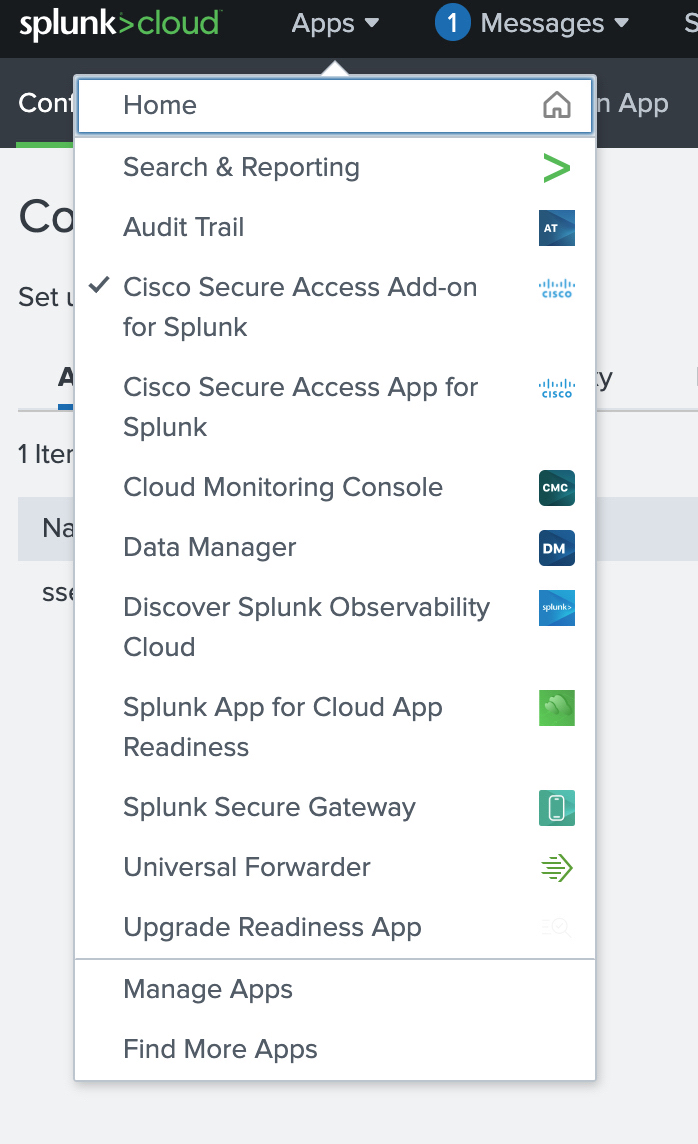
The Cisco Secure Access App for Splunk App includes:
- Search
- Overview
- Monitor
- Applications
- Access
- Application Settings
About the Dashboards
You can set up the dashboards in the Cisco Secure Access App for Splunk to display the organization's cloud security events and log data.
- Overview Dashboards
- Monitor: Cloud Security Dashboards
- Applications Dashboards
- Access Dashboards
- API Usage Dashboard
Overview Dashboards
- Total Requests
- Total Blocks
- Security Blocks
- Application Discovery
- Destination Lists
Monitor: Cloud Security Dashboards
- DNS
- DNS Requests
- Blocked versus Allowed Destinations
- DNS Blocked Categories (Top 10)
- Secure Web Gateway (SWG)
- SWG Requests
- Blocked versus Allowed Destinations
- SWG Blocked Categories (Top 10)
- Cloud-Delivered Firewall (CDFW)
- CDFW Requests
- Blocked versus Allowed Destinations
- Destination Lists
- Destinations Trend
- Removed Destinations
- Data Layer Protection (DLP).
- Configure the DLP log data with the Cisco Cloud Secure Access Add-On for Splunk.
Applications Dashboards
- App Discovery
- Private Resources Overview
- Private Resources Details
Access Dashboards
- Remote Access Virtual Private Network (RAVPN)
- Zero Trust Network Access (ZTNA)
API Usage Dashboard
- Reports on the usage of the Secure Access API in the Cisco Secure Access Add-On for Splunk and Cisco Secure Access App for Splunk.
Get Started – Set Up the Cisco Secure Access App for Splunk
The Cisco Secure Access App for Splunk guide describes how to download, install, configure, display data, and create alert actions in the app.
- Create an API key and secret in Umbrella or Secure Access, and optionally get the organization's Cloudlock API access token. For more information, see Prerequisites.
- Download and install the Cisco Secure Access App for Splunk in your instance of Splunk. For more information, see Download and Install the Cisco Secure Access App for Splunk.
- (Optional) Download and install the Cisco Secure Access Add-On for Splunk in your instance of Splunk. For more information, see Download and Install the Cisco Secure Access Add-On for Splunk.
- Configure the general dashboard settings in the app. For more information, see Add General Dashboard Settings.
- Add an organization in the app and configure the application settings for Cisco Secure Access or Cisco Umbrella. For more information, see Configure an Orgainzation with Application Settings.
- Review the role-based access controls for your user accounts. For more information, see Role-Based Access Controls in the App.
Walkthrough: Cisco Secure Access App for Splunk
Prerequisites
- An instance of Cisco Splunk Enterprise or Cisco Splunk Cloud that supports Splunk platform versions 9.4.x or 9.3.x.
- A subscription for Cisco Secure Access or Cisco Umbrella.
- The ID of your Cisco Secure Access or Umbrella organization.
- A valid Secure Access API key and secret. For more information, see Secure Access API Authentication.
- A valid Umbrella API key and secret. For more information, see Umbrella API Authentication.
- Administrative privileges for your instance of Splunk.
Note: You can not use the Cisco Secure Access App for Splunk with the Splunk Free license.
Create an API Key with the Required OAuth 2.0 Scopes
To get the organization's cloud security data integrated with the app, create an Umbrella or Secure Access API key with the required OAuth 2.0 scopes.
For information about the Umbrella API key scopes, see Umbrella OAuth 2.0 Scopes.
For information about the Secure Access API key scopes, see Secure Access OAuth 2.0 Scopes.
Secure Access or Umbrella API Key Scopes
- For the Reporting API, add the Reports > Aggregations (Read-only) key scope on the API key:
reports.aggregations:read
- For the Destination Lists API, add the Policies > Destination Lists (Read/Write) and Policies > Destinations (Read/Write) key scopes on the API key:
policies.destinationlists:writepolicies.destinations:write
- For the App Discovery API, add the Reports > App Discovery (Read/Write) key scope on the API key:
reports.appDiscovery:write
Secure Access API Key Scopes Only
- For the Application Lists API, add the Policies > Application Lists (Read/Write) and Policies > Applications (Read/Write) key scopes on the API key:
policies.applicationlists:write
- For the Private Resources and Resource Groups API, add the Policies > Private Resources (Read/Write) and Policies > Private Resource Groups (Read/Write) key scopes on the API key:
policies.privateresources:write
Download and Install the Cisco Secure Access App for Splunk
- Navigate to Splunkbase at
https://splunkbase.splunk.com/, and then search for Cisco Secure Access App for Splunk, or navigate tohttps://splunkbase.splunk.com/app/5558/. - Download the latest Cisco Secure Access App for Splunk software package (
cisco-cloud-security-1.0.53.tar.gz). - Install the Cisco Secure Access App for Splunk on your instance of Cisco Splunk Enterprise or Cisco Splunk Cloud.
- Restart your Splunk instance to complete the installation of the app.
Install the App in Distributed Deployments
You can install app for Splunk in a distributed deployment of Splunk Enterprise, or any deployment where you use forwarders to retrieve your data. Depending on your environment and preferences, and the requirements of the app, you can install the app in multiple environments.
We recommend that you install the app using the Splunk search heads and Splunk indexers.
| Splunk Platform Component | Support |
|---|---|
| Search Heads | Install and configure only the Destination Lists and S3 indexes. |
Role-Based Access Controls in the App
The Cisco Secure Access App for Splunk creates roles for use in the dashboard views and the Application Settings view.
Note: To view and manage the Application Settings, your user account must have the sc_admin role in the Splunk Cloud platform and the cs_admin role in the app. For more information, see Add the sc_admin Role.
| Role | Permissions |
|---|---|
| cs_admin |
|
| cs_supervisor |
|
| cs_user |
|
Upgrade the App
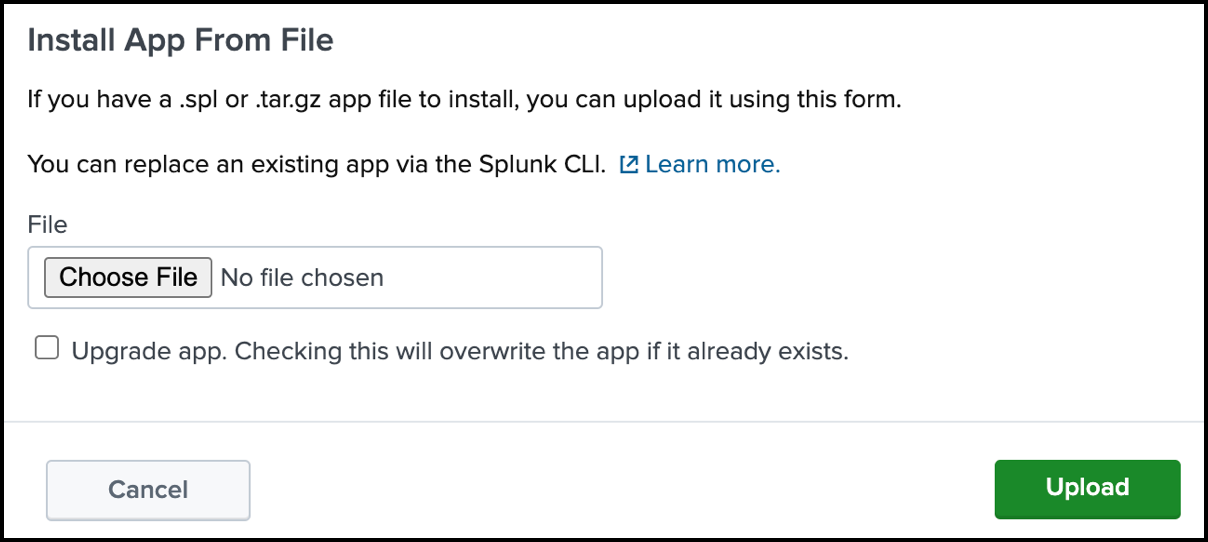
In your instance of Splunk, locate the Splunk navigation bar, click Apps, and then select Manage Apps.
Click Install App From File.
Click Choose File, and then select the software package for the Cisco Secure Access App for Splunk that you downloaded previously.
Check Upgrade app, choose the zipped tar file, then click Upload.
Add General Dashboard Settings
Select the default search interval and the panel refresh rate for the app.
Navigate to Dashboard Settings.
Choose a Default Search Interval and Panel Refresh Rate.

- For Default Search Interval, enter an integer. When first installed, the app sets the Default search interval to
1.- If you upgrade the app, you must configure the Default search interval to ensure that the calendar dates align with your instance of Splunk.
- If you update the Default Search Interval, we recommend that you clear your browser cache.
- For Panel Refresh Rate, choose how often the app refreshes your dashboard view.
- For Default Search Interval, enter an integer. When first installed, the app sets the Default search interval to
Click Save.
Configure an Organization with Application Settings
In your instance of Splunk, locate the Splunk navigation bar, click Apps, and then select Cisco Secure Access for Splunk.
Configure a Secure Access or Umbrella organization in the Cisco Secure Access App for Splunk.
- Add the Secure Access or Umbrella organization with the API credentials and settings, including the Investigate and App Discovery Index settings. For more information, see Add an Organization for Secure Access or Umbrella API Settings.
- Manage Destination Lists. For more information, see Manage Destination Lists.
- Configure the Log Index settings. Choose the inputs on the app to search for event data in the Secure Access or Umbrella logs. For more information, see Add Log Index Settings.

Add an Organization for Secure Access or Umbrella API Settings
Add the Secure Access or Umbrella organization ID, API Key credentials, configure the timezone and storage region, and set up the App Discovery and Investigate index settings.
Note: The app selects the first organization that you add to the app as active for all dashboards.
Navigate to Application Settings > Cisco Secure Access/Umbrella API Settings.
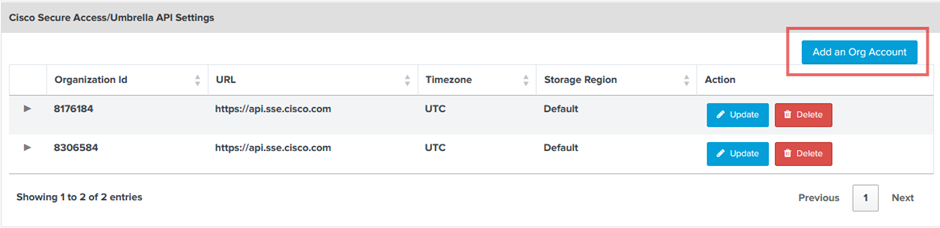
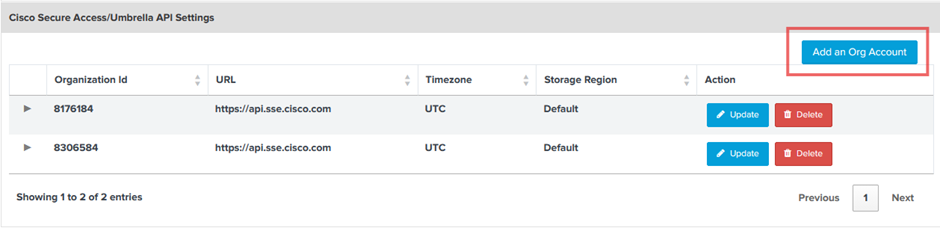
Click Add an Org Account.
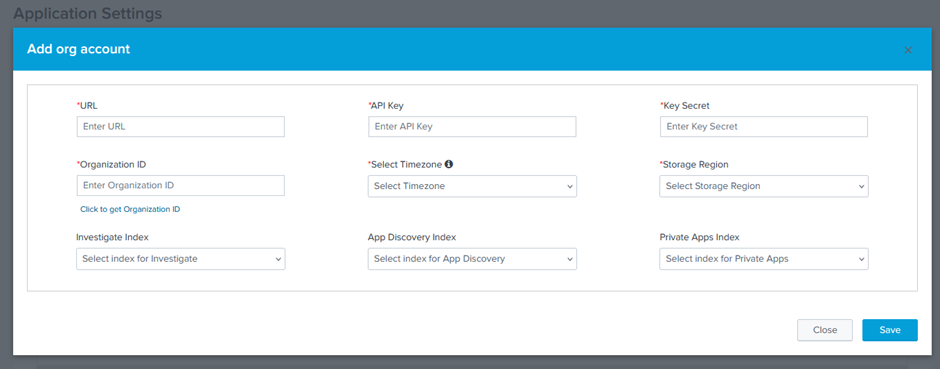
For URL, enter:
https://api.sse.cisco.comfor the Cisco Secure Access API.https://api.umbrella.comfor the Cisco Umbrella API.
For API Key, enter your Secure Access or Umbrella API key ID.
For Key Secret, enter your Secure Access or Umbrella API key secret.
For Organization ID, enter your organization ID or click Click to get Organization ID.
For Select Timezone, choose the timezone where you are running the app.
For Storage Region, choose the location of your storage region.
For App Discovery Index, click Configure Index.
(Optional) Enter the App Discovery log level, and then click Save.
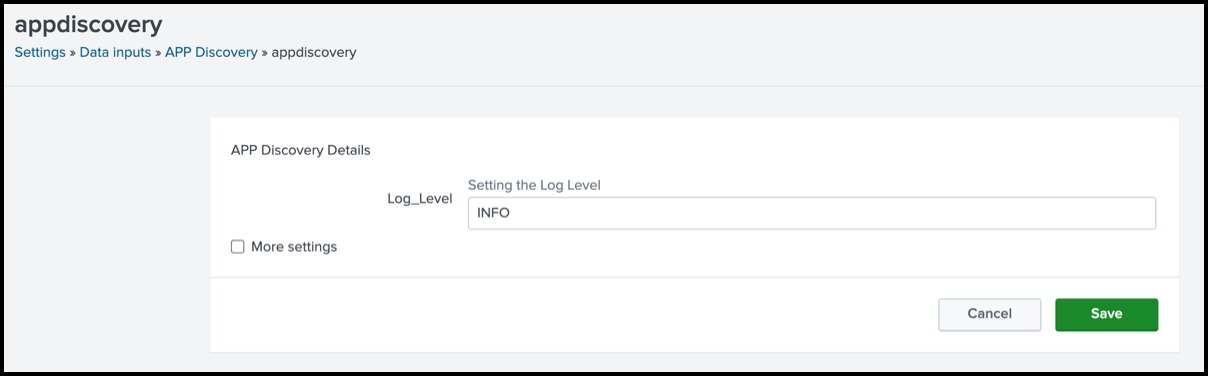
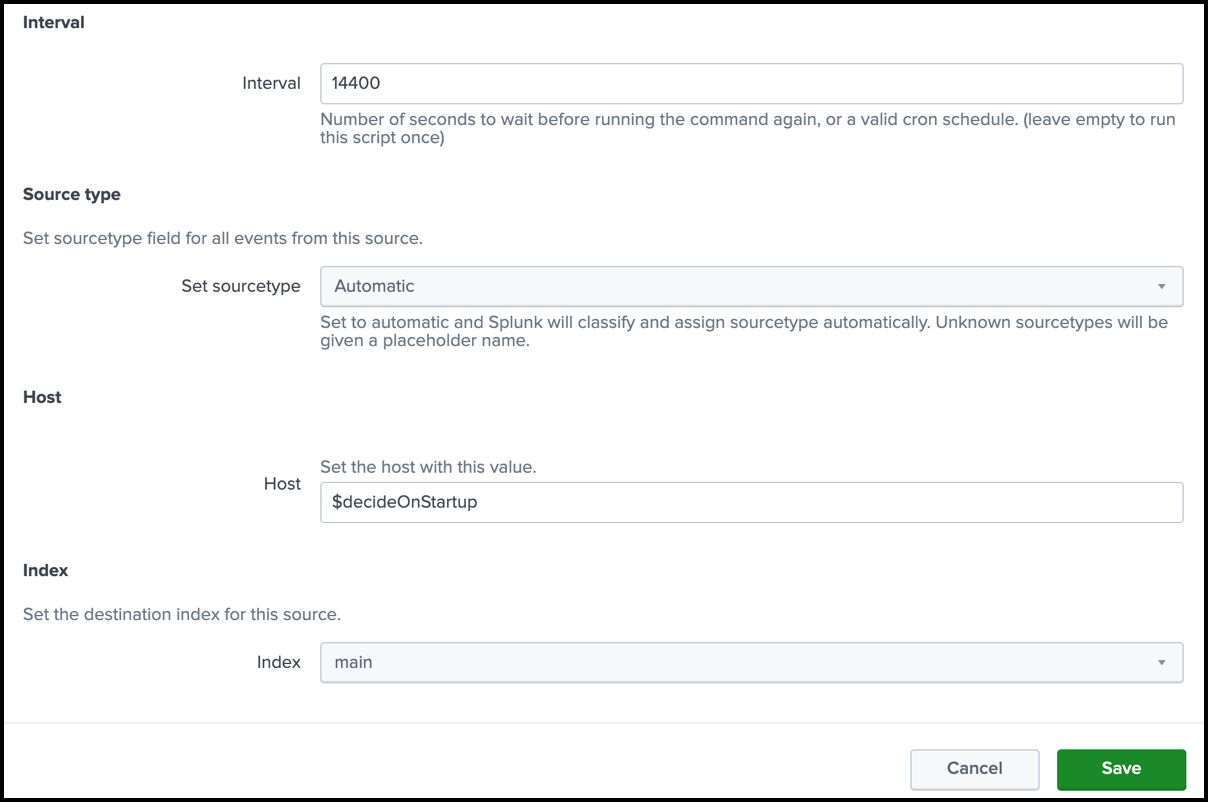
(Optional) Click More settings, add the App Discovery Interval, Source type, Host, and Index, and then click Save.
For Private Apps Index, click Configure Index.
(Optional) Enter the Private Apps log level, and then click Save.
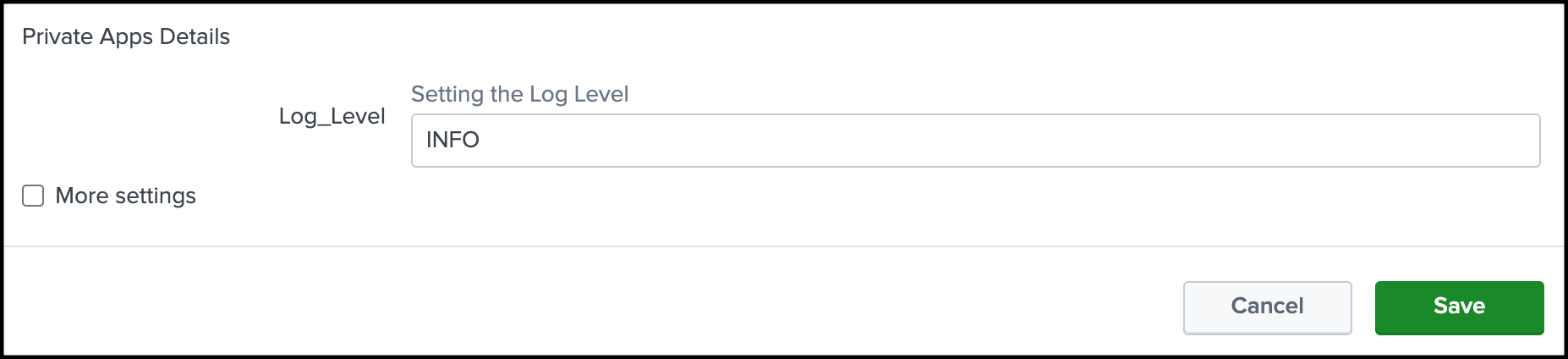
(Optional) Click More settings, add the Private Apps Interval, Source type, Host, and Index, and then click Save.
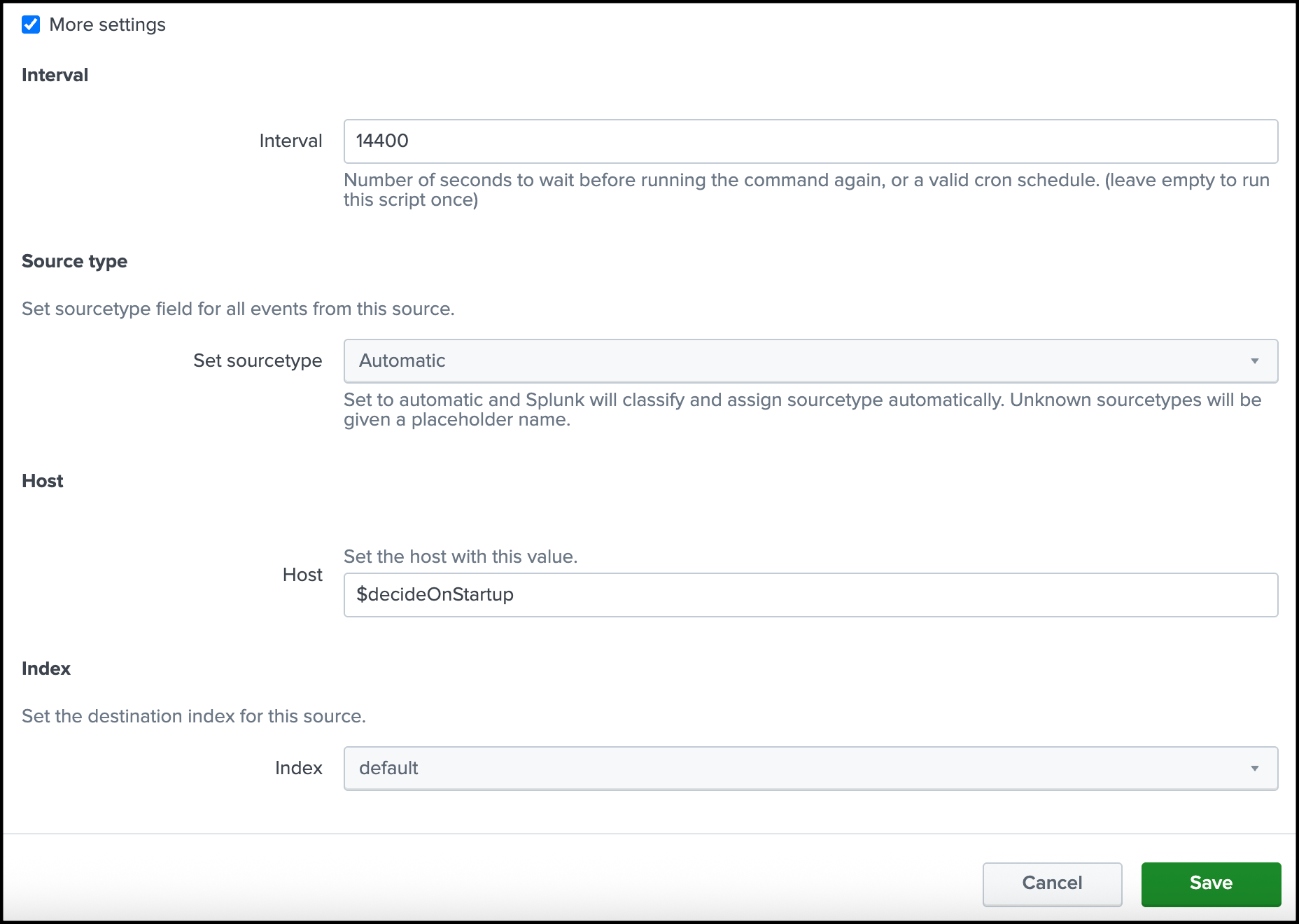
Click Save
View Your Organizations in the App
Navigate to Application Settings > Cisco Secure Access/Umbrella API Settings.
Secure Access displays the attributes of the application settings for the organizations added to the app.
Update an Organization in the App
Navigate to Application Settings > Cisco Secure Access/Umbrella API Settings.
Navigate to an item in the Organizations table.
Click Update.
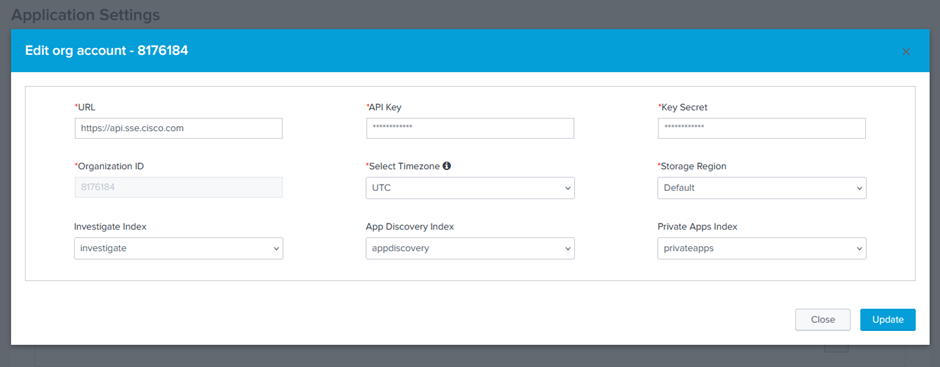
Modify these fields for the organization
- Timezone
- Storage Region
- API credentials and URL—These fields must be updated together.
- Index selections
Note: Once you add an organization to the app, you cannot change the Organization ID in the application settings. You can always add a new organization or remove an organization in the app.
Delete an Organization in the App
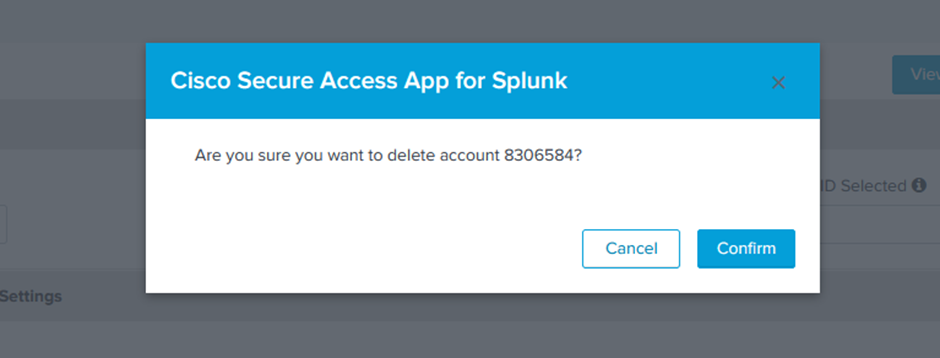
Navigate to Application Settings > Cisco Secure Access/Umbrella API Settings.
Navigate to an item in the Organizations table and then click Delete.
Click Confirm to remove the organization in the app.
Limitations:
- You cannot delete an organization if the organization is configured as active.
- You must have at least one organization configured in the app. If you have one organization in the app only, you cannot remove it from the app.
How to Select an Organization
Navigate to Application Settings > Dashboard Settings.
Click the Find Organization ID Selected drop-down menu.
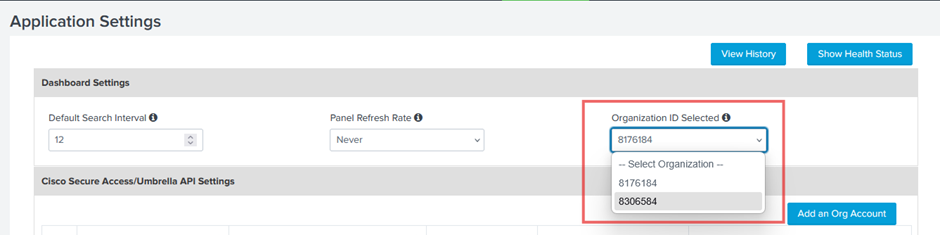
Choose an organization ID.
Click Save.
Note: If you have made changes to your Dashboard Settings, you must save these changes before you can select and save another organization in the app.
Manage Destination List Settings
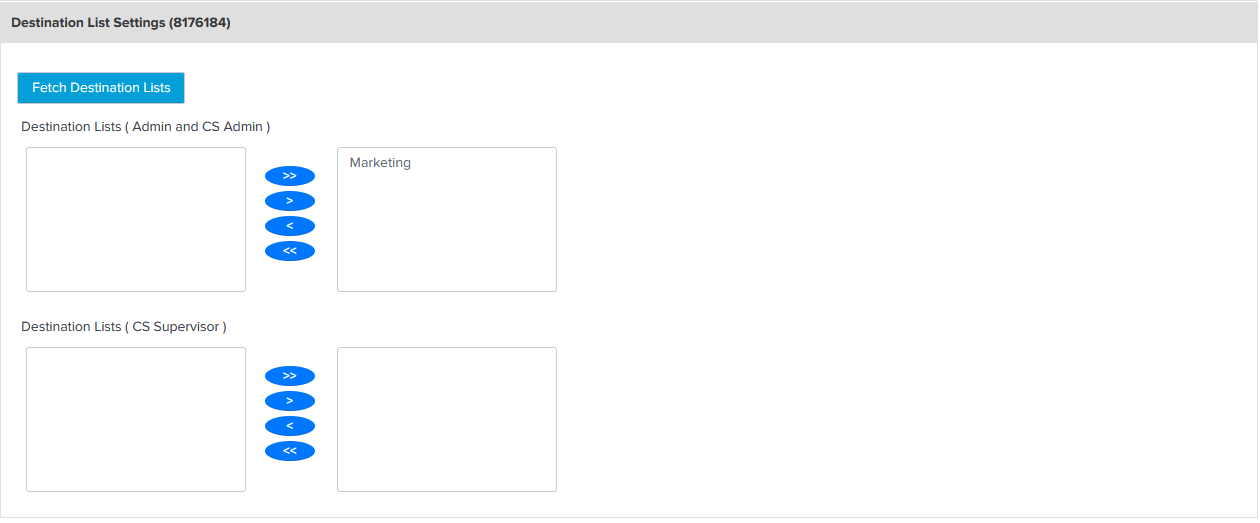
Destination list settings apply to the organization that is active in the app. You can fetch all of the destination lists in the organization for the users of the app or choose specific destination lists from the organization to add in the app.
Note: Before you can fetch the destination lists in the organization, add the Secure Access or Umbrella API key credentials in the app. For more information, see Add Secure Access or Umbrella API Settings.
Navigate to Destination List Settings.
Click Fetch Destination Lists. The app displays all destination lists (Secure Access or Umbrella) in the organization.
For each configured Splunk role, add the destination lists to the app. Use the redirection and filter icons to add or remove destination lists in the app.
Click Save.
Add Log Index Settings
Log Index settings apply to the organization that is active in the app. To configure the Log Index Settings, you must install the Cisco Secure Access Add-On for Splunk in your instance of Splunk.
Navigate to Umbrella Log Index Settings.
Choose the appropriate index for each event type to connect the inputs.

Click Save.
View API Usage Dashboard
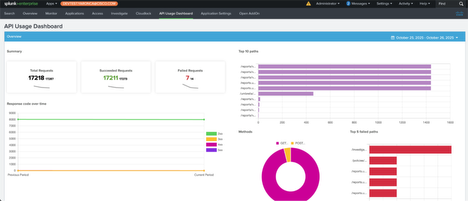
The API Usage dashboard shows the top ten APIs requested and a summary of the API requests in the add-on and app.
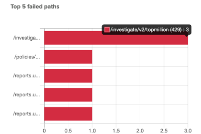
The API Usage dashboard shows the top five APIs requested where the request failed, which may indicate that the number of API requests is above the rate limits for an API or that too many updates to a resource occurred that were unintended.
View Configured Application Settings and API Health Status
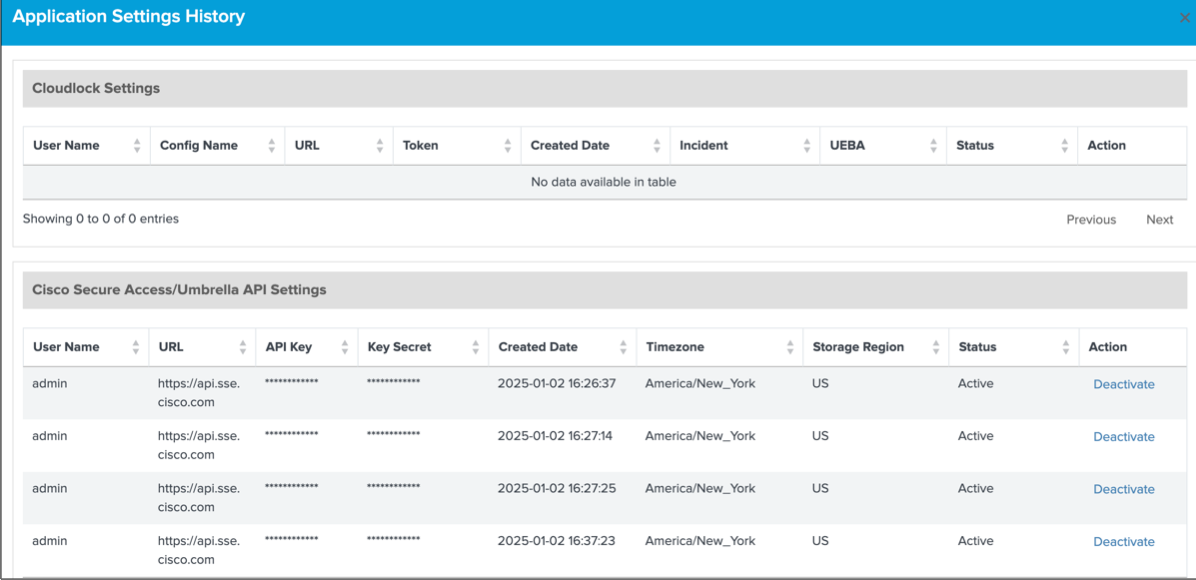
After you configure the Application Settings in the app, you can view the you can view the history of the configured settings and health status of each configured Umbrella or Secure Access API.
Navigate to Application Settings.
Click View History. The app displays the history of the application settings.
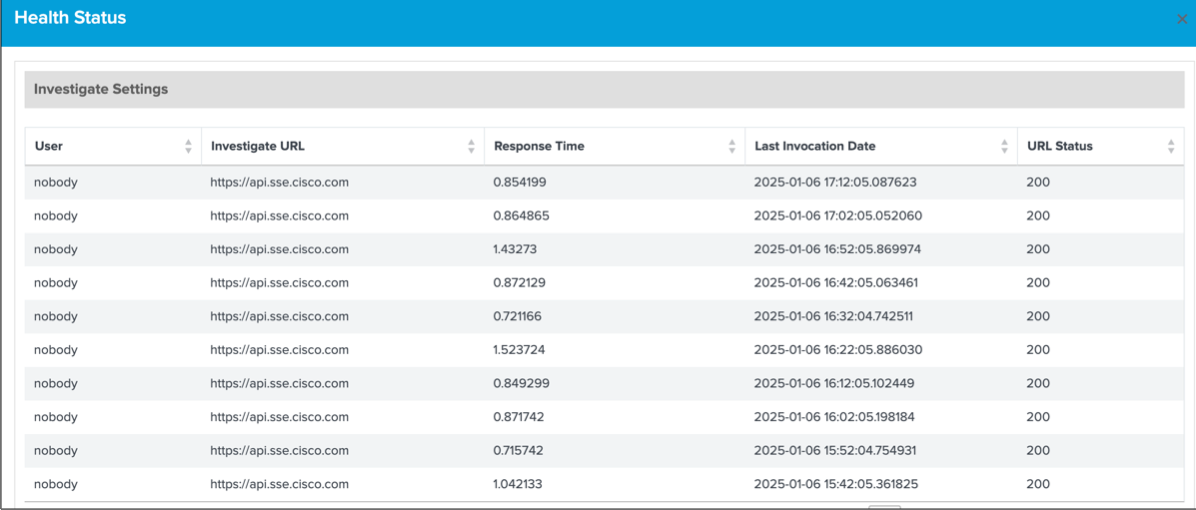
Click Health Status. The app displays the status of the Umbrella API or Secure Access API integrated with the app.
Troubleshoot Application Settings
If you encounter errors in the Cisco Secure Access App for Splunk, we recommend that you verify your configured application settings, which includes the Secure Access or Umbrella API key credentials for the organization.
View Overview Dashboards
- Aggregated Requests and Blocks
- Application Discovery
- Destination Lists (Added and Removed Trends)
Overview of Aggregated Requests and Blocks
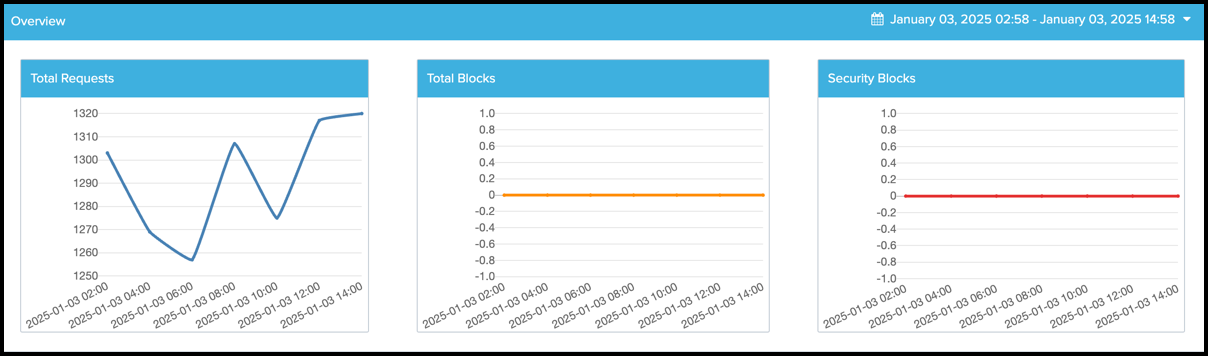
In the app, the Overview page displays a series of dashboards of aggregated Secure Access or Umbrella data:
- Total Requests
- Total Blocks
- Security Blocks
If the Secure Access or Umbrella app modules cannot connect to the Reporting API, the app may not display the aggregated data on the Overview page.
In your instance of Splunk, locate the Splunk navigation bar, click Apps, and then select Cisco Secure Access App for Splunk.
Navigate to Overview > Overview to view the aggregated data dashboards.
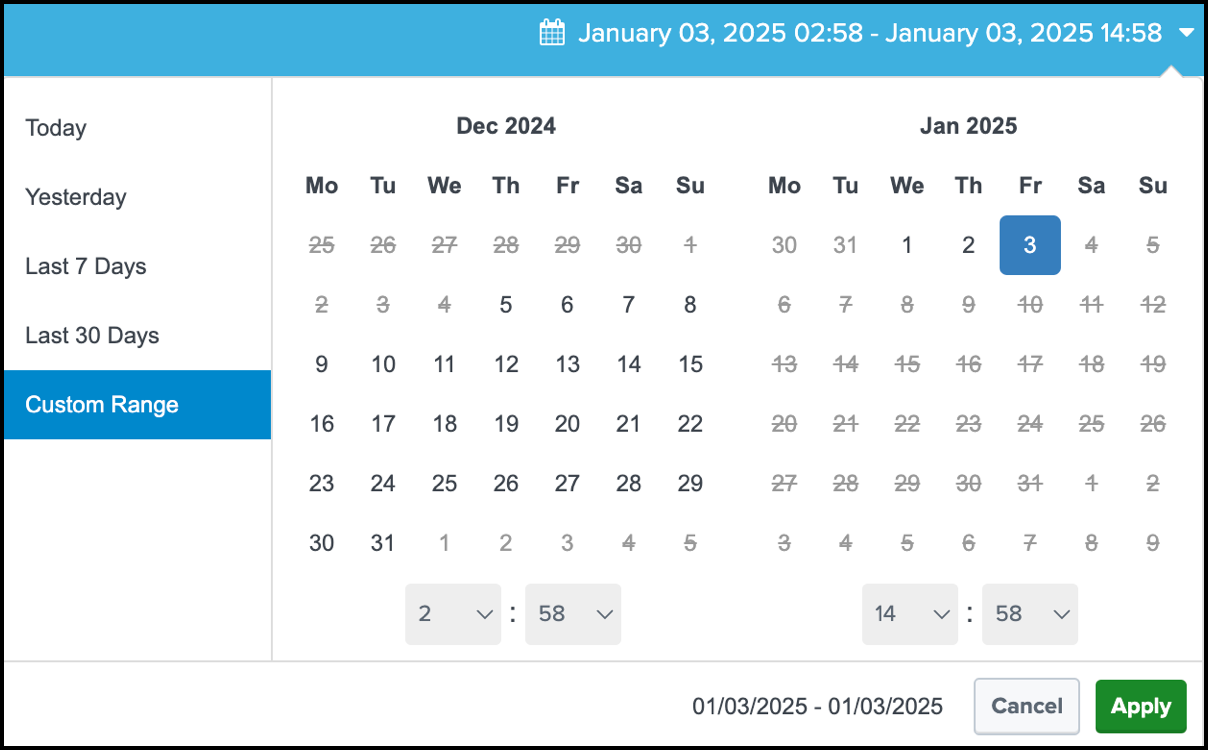
(Optional) Configure the time range for the data. If you do not set a time range, the app displays the data for the Last 1 Hour (last hour).
- (Optional) Choose one of the predefined date ranges, or click Custom to select Custom Date Ranges.
Overview of Application Discovery
In the app, the Overview page displays the aggregated data for the Application Discovery module.
If the Secure Access or Umbrella app modules cannot connect to the Application Discovery API, the app may not display the aggregated data on the Overview page.

- In your instance of Splunk, locate the Splunk navigation bar, click Apps, and then select Cisco Secure Access App for Splunk.
- Navigate to Overview > App Discovery to view the number of application requests for each application discovery type monitored for the organization.
Overview of Destination Lists Added and Removed
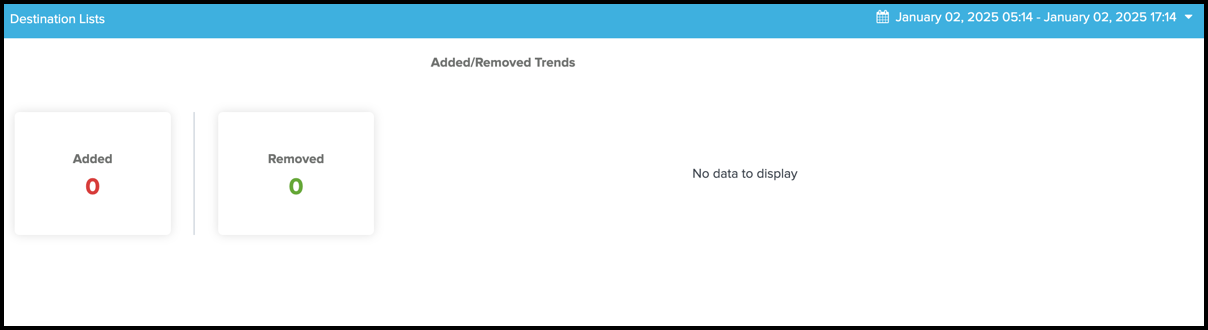
In the app, the Overview page displays the destination lists in the app that were added or removed from the organization.
If the Secure Access or Umbrella app modules cannot connect to the Destination Lists API, the app may not display the aggregated data on the Overview page.
- In your instance of Splunk, locate the Splunk navigation bar, click Apps, and then select Cisco Secure Access App for Splunk.
- Navigate to Overview > Destination Lists to view the number of destination lists that were added and removed in the organization.
View Cloud Security Dashboards
In the app, the Monitor page displays the requests, blocked versus allowed destinations, and blocked categories (Top 10), which depend on the configured Cisco Secure Access or Cisco Umbrella log data.
The Monitor page includes the DNS-layer security, Secure Web Gateway (SWG), Cloud-Delivered Firewall (CDFW), and Destination Lists, and Data Layer Protection (DLP) modules.
The data for the individual security modules is available only when the Cisco Secure Access Add-On for Splunk is installed and configured. In Application Settings, select the indexes under Umbrella. For more information, see Create New Inputs for Umbrella or Secure Access.
- In your instance of Splunk, locate the Splunk navigation bar, click Apps, and then select Cisco Secure Access App for Splunk.
- Navigate to Monitor.
- Configure the time range for the data. If you do not set a time range, the app displays the data for the Last 1 Hour (last hour).
- (Optional) Choose one of the predefined date ranges, or click Custom to select Custom Date Ranges.
- Click Apply.
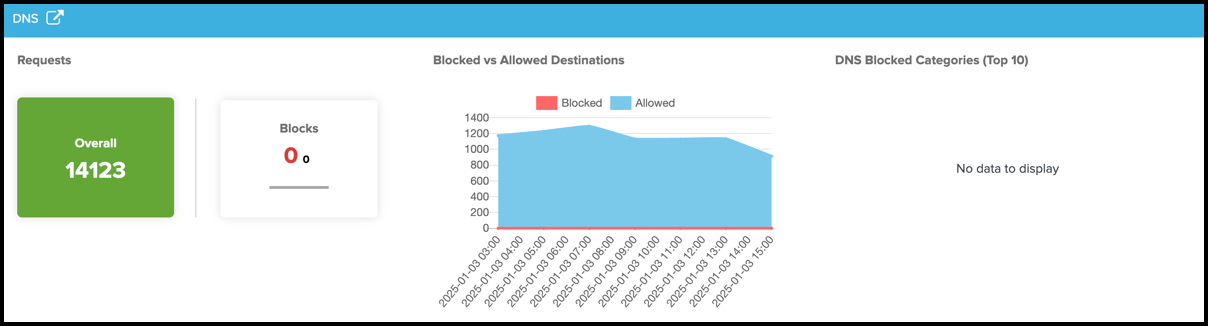
DNS—Displays the total request count and total number of blocks, blocked versus allowed destinations for the specified time, and top blocked DNS categories.
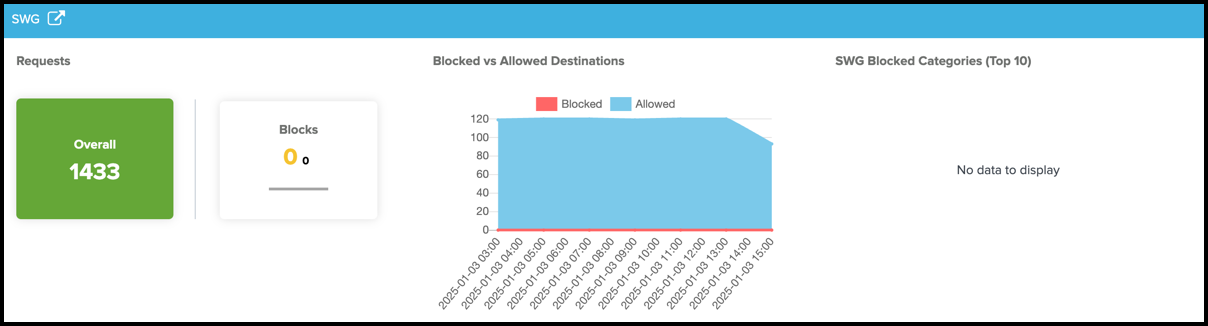
SWG—Displays the total request count and total number of blocks, blocked versus allowed destinations for the specified time, and top blocked proxy categories.
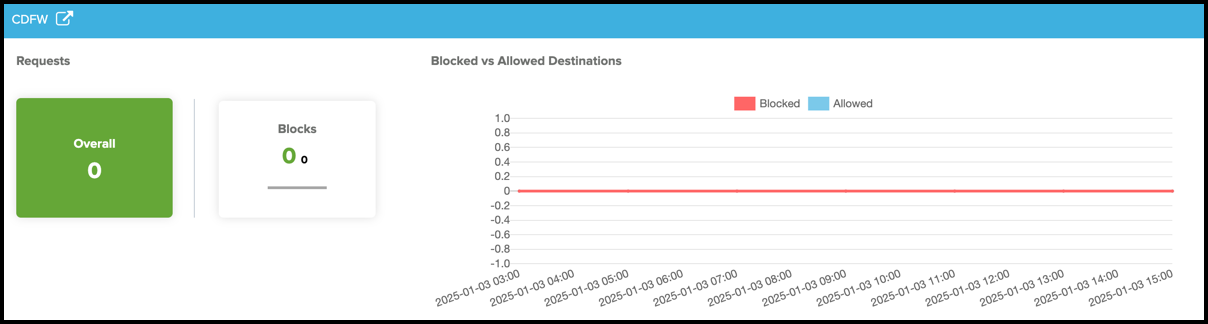
CDFW—Displays the total request count and total number of blocks, and blocked versus allowed destinations for the specified time.
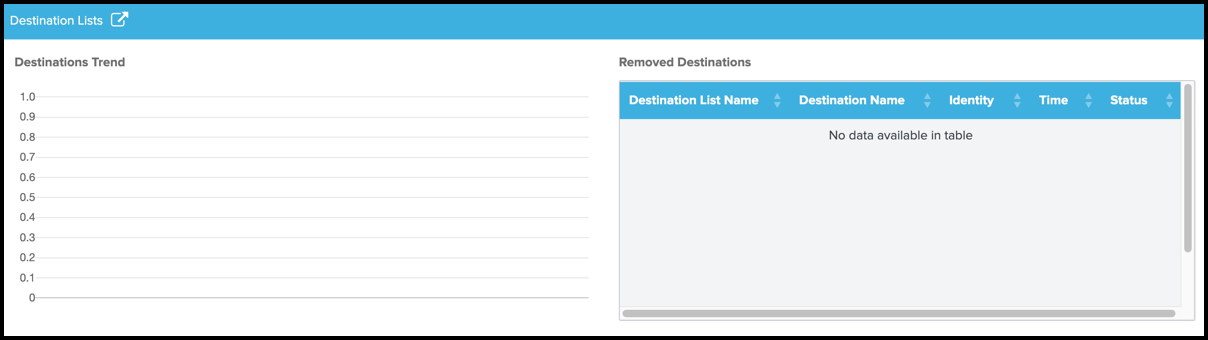
Destination Lists—Displays the number of blocked destinations (Destinations Trend), and destinations that were removed from the destination lists in the organization (Removed Destinations).
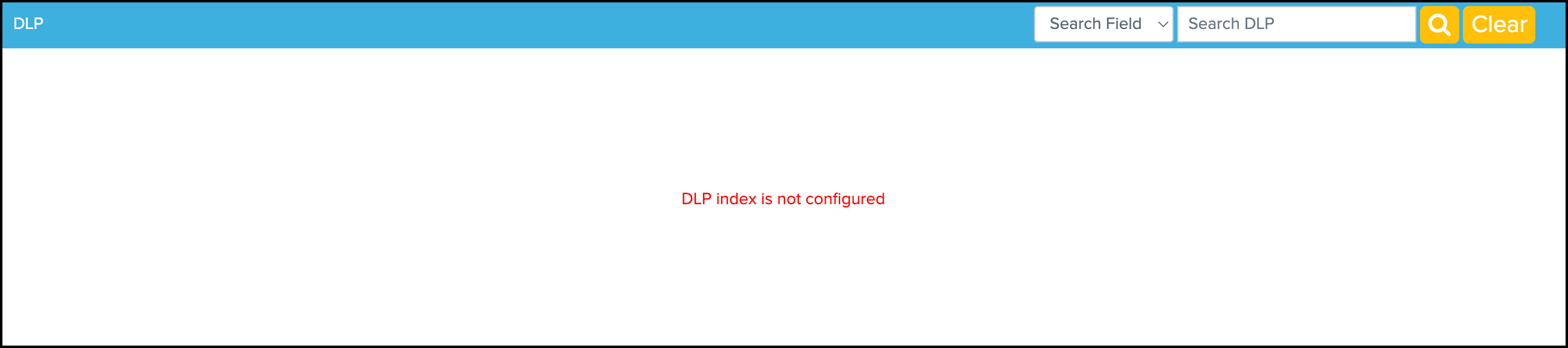
DLP—Displays the incidents about applications.
- In your instance of Splunk, locate the Splunk navigation bar, click Apps, and then select Monitor.
- Navigate to DLP.
- For Search Field, choose one of the fields to use when searching for an application.
- (Optional) For Search DLP, enter the name of an application. The application name is used to query the applications that are monitored by Secure Access or Umbrella DLP security.
DNS Details
Click the DNS redirection icon. The app displays the Cloud Security > DNS dashboards for the DNS-layer security.
- Total Security Blocks
- Top 10 Security Blocks
- Malware/BotNet/Phishing Trends
- Command and Control
- Phishing
- Top DNS Blocks by Identity
- Recent 15 Destinations
Configure the time range for the data. If you do not set a time range, the app displays the data for the Last 1 Hour (last hour).
- (Optional) Choose one of the predefined date ranges, or click Custom to select Custom Date Ranges.
SWG Details
Click the SWG redirection icon. The app displays the Cloud Security > SWG dashboards for the security provided by the Secure Web Gateway.
- Total Security Blocks
- Top 10 Security Blocks
- Malware/BotNet/Phishing Trends
- Breakdonw by AMP Verdict
- Breakdown by Mime Types
- Newly Seen Destinations
- Recent 15 Destinations
CDFW Details
Click the CDFW redirection icon. The app displays the Cloud Security > CDFW dashboards for the security provided by the cloud-delivered firewall.
- Total Blocks
- Top Blocked Destination IP
- Block versus Allow Verdict Trend
- Top Identities
- IP Protocol
- Web Port versus Other Port
- Web Port
- Non-Web Port
Destination Lists Details
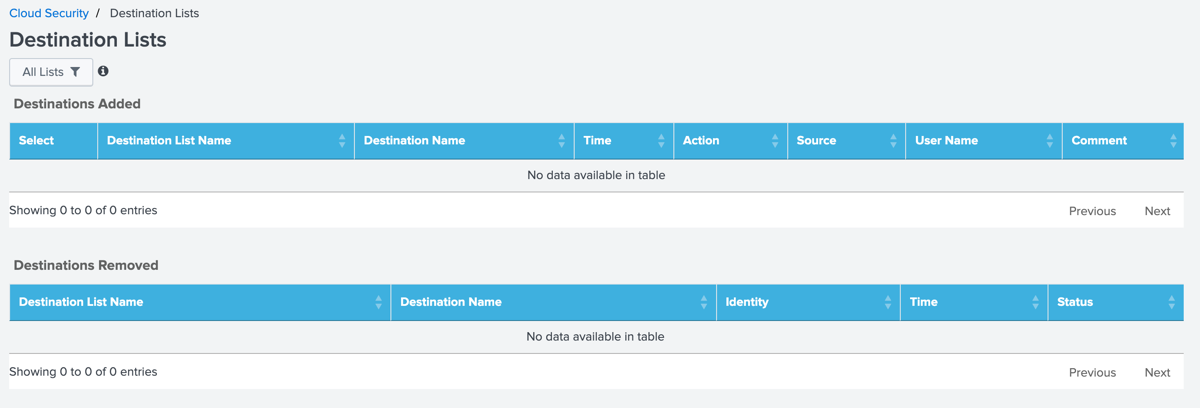
Click the Destination Lists redirection icon. The app displays the Cloud Security > Destination Lists dashboards for the destination lists in the organization.
Data Layer Protection (DLP) Details
- Click the DLP redirection icon. The app displays the Cloud Security > DLP dashboards.
View Applications Dashboards
The app displays the App Discovery, and Private Resources Overview and Private Resources Details dashboards. The CASB dashboards provide the information about the applications managed by the App Discovery API. The Private Resources dashboards provide the details about the Private Resources and private applications using the Private Resources and Resource Groups API.
App Discovery
View the incidents about applications and related events on the app from the App Discovery reports.
In your instance of Splunk, locate the Splunk navigation bar, click Apps, and then select Cisco Secure Access App for Splunk.
Navigate to Applications.
For Search Field, choose either Category, Weighted Risk, or Label.
(Optional) For Search App, enter the name of an application. The application name is used to query the applications that are monitored by Secure Access or Umbrella.

(Optional) Select the label for the application, and then click Update.
Private Resources Overview
View the incidents for the private applications and related events in the app.
In your instance of Splunk, locate the Splunk navigation bar, click Apps, and then select Cisco Secure Access App for Splunk.
Navigate to Applications > Private Resources Overview.
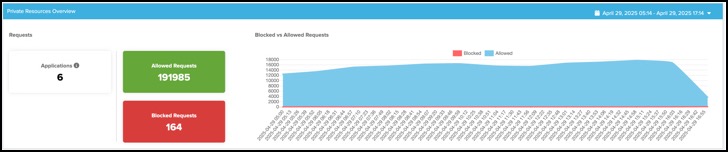
View the number of private applications, count of the allowed requests, count of the blocked requests, timeline of the allowed and blocked requests to the private applications in the organization.
Private Resources Details
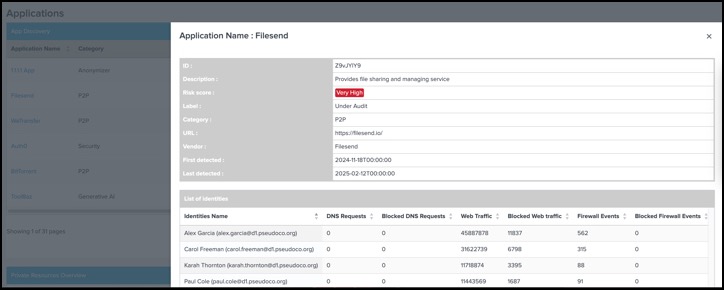
View the details about a private application and related events.
In your instance of Splunk, locate the Splunk navigation bar, click Apps, and then select Cisco Secure Access App for Splunk.
Navigate to Applications > Private Resources Details.
For Search Field, choose one of the fields to use when searching for an application.
(Optional) For Search Private Resources, enter the name of an application. The application name is used to query the applications that are monitored by Secure Access.
View Access Dashboards
The app displays the RAVPN and ZTNA dashboards and the Access page only if you configure the input for the RAVPN or ZTNA event logs in the add-on.
RAVPN Dashboard
- In your instance of Splunk, locate the Splunk navigation bar, click Apps, and then select Cisco Secure Access App for Splunk.
- Navigate to Access > RAVPN.
- For Search Field, choose one of the fields to use when searching for the RAVPN events.
ZTNA Dashboard
- In your instance of Splunk, locate the Splunk navigation bar, click Apps, and then select Cisco Secure Access App for Splunk.
- Navigate to Access > ZTNA.
- For Search Field, choose one of the fields to use when searching for the ZTNA events.
Splunk Indexes
Query Splunk to validate whether the app has received your events from Secure Access or Umbrella and if the events are indexed.
Check Splunk Indexes
Check that Splunk receives events from Umbrella or Secure Access and applies the configured indexes. Query for the type of cloud security data to view the indexed events.
For example:
- Navigate to the Search tab.
- Enter
sourcetype = cisco:umbrella:dnsin Cisco Umbrella DNS Logs—View Umbrella DNS events. - Enter
sourcetype = cisco:umbrella:proxyin Cisco Umbrella Proxy Logs—View Umbrella Secure Web Gateway (proxy) events. - Enter
sourcetype = cisco:umbrella:firewallin Cisco Umbrella Firewall Logs—View Umbrella Firewall events. - Enter
sourcetype = cisco:umbrella:auditin Cisco Umbrella Audit Logs—View Umbrella Audit events. - Enter
sourcetype = cisco:umbrella:dlpin Cisco Umbrella DLP Logs—View Umbrella DLP events.
Check the Latency of Ingesting DNS Events and Indexing DNS Events
Check for the delay in seconds between when the app ingested the DNS events and Splunk indexed these events.
For example:
Navigate to the Search tab.
Enter the query information.
index=sse sourcetype=cisco:cloud_security:dns
| eval delay_seconds = _indextime - _time
| table _time, _indextime, delay_seconds, _raw
| sort -delay_seconds
Contact Support
- If you have questions about configuring Umbrella in the Cisco Secure Access App for Splunk, contact Cisco Umbrella Support.
- If you have questions about configuring Secure Access in the Cisco Secure Access App for Splunk, contact Cisco Support.