Write Document Step
Use the Write Document step to write the document to disk on the Cisco Unified CCX server.
Note | You can write to the Unified CCX customer folder only, which can be retrieved using the following syntax:
|
Warning | Note that this customer folder is not backed up by Unified CCX. Also, the purging capability is not supported for this folder. |
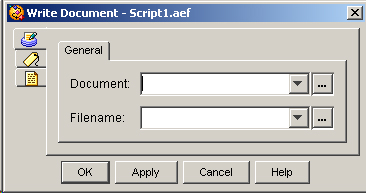
For example, you can save a recorded announcement to disk that replaces a “Message of Day” announcement.
The following table describes the properties of the Write Document customizer window:
|
Property |
|
|---|---|
|
Document |
Variable that stores the resulting document |
|
Filename |
Name of the file that contains the information to be saved |
To use the Write Document customizer window to specify the filename and Document variable, do the following procedure:
Procedure
| Command or Action | Purpose | |
|---|---|---|
| Step 1 | From the Document drop-down menu, choose the variable that stores the resulting document. | |
| Step 2 | In the Filename field, enter a value directly or take one of the following actions: |
|
| Step 3 | Click OK. | The Write Document customizer window closes, and the name of the Filename variable appears next to the Write Document step icon in the Design pane of the Cisco Unified CCX Editor. |