Phase 2 – Managing IC3000 Industrial Compute Gateway via Local Manager
About Local Manager
Cisco IOx Local Manager provides a web-based user interface that you can use to manage, administer, monitor, troubleshoot applications on a device, and perform a variety of related activities.
Accessing the IC3000 via Local Manager
Determine the IC3000 interface
svcbr_0IP address as described on the previous step and open a web browser to that address port 8443, such as https://192.168.2.201:8443.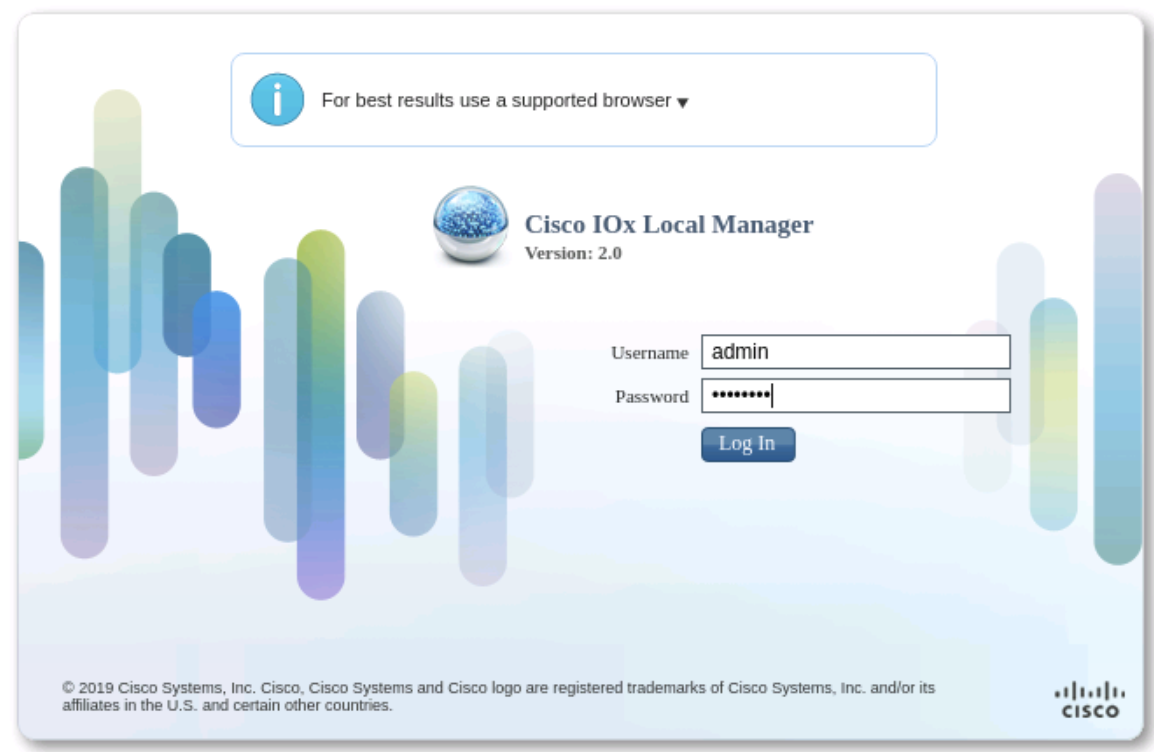
Login by using the default credentials username
adminand passwordcisco123. You'll be prompted to change the password upon the first login.WARNING: Your password is evaluated against Linux Cracklib, if not strong enough it will fail with the following error message:

If this happens, click
okand try another password.If the password change was successful you'll be logged out, so that you can log back in with your new password. Make sure to keep this password in a safe place.
The Local Manager Applications Tab appears:
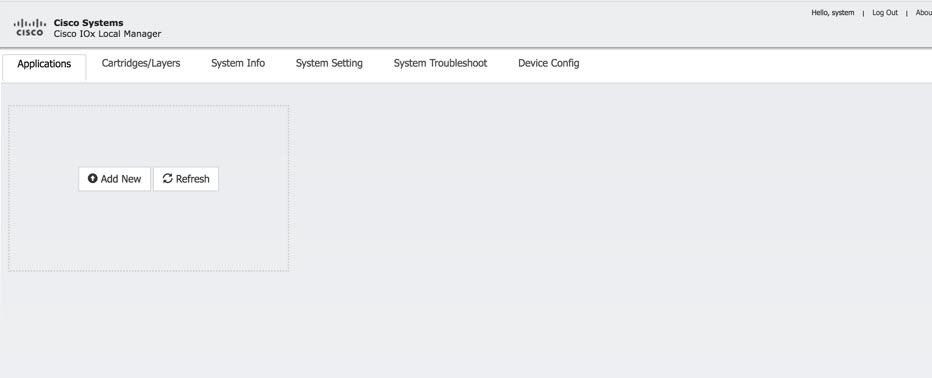
Your IC3000 is now ready for Cisco IOx application development.
Installing a Pre-built Application via Local Manager
This section shows you how to use Cisco IOx Local Manager to load an application and how to run the application.
Download the LXC or Docker application to your desktop. Go to the following link if you would like to download a prebuilt test application: Sample Docker Application
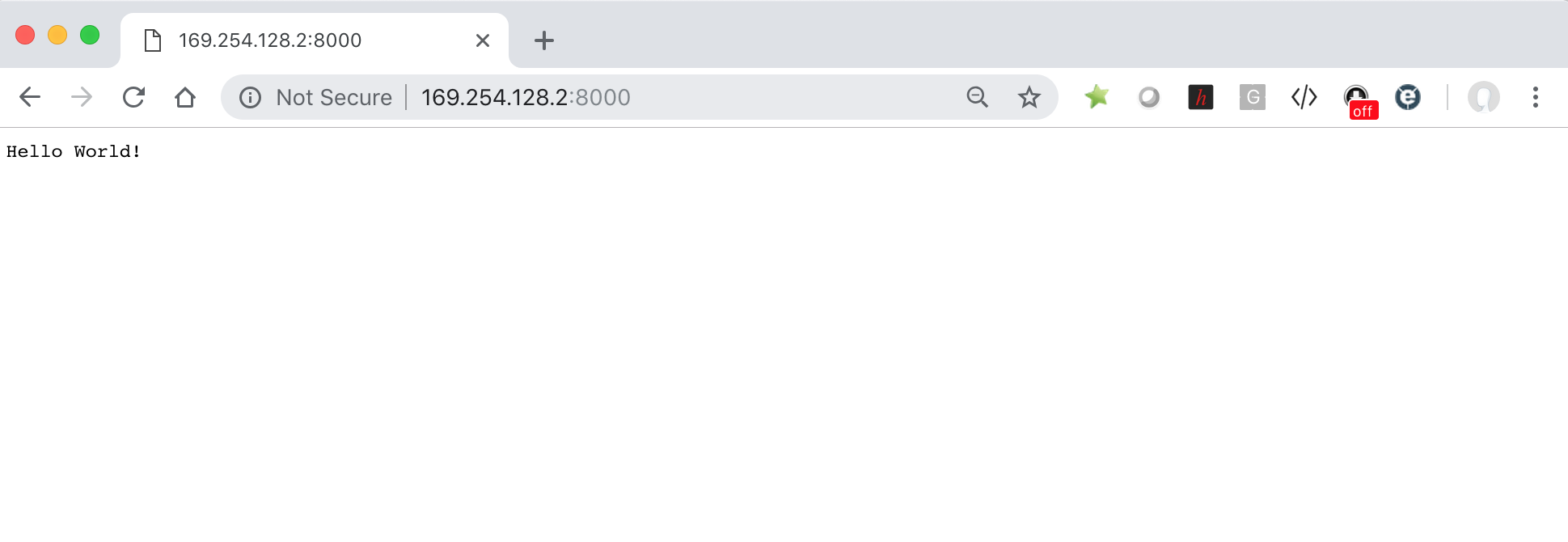
This is a node.js application that will print “Hello World!” in your browser when you browse to http://[IC3000_IP_ADDRESS]:8000
In the Cisco IOx Local Manager Applications Tab, click Add New. The Deploy application dialog box appears.
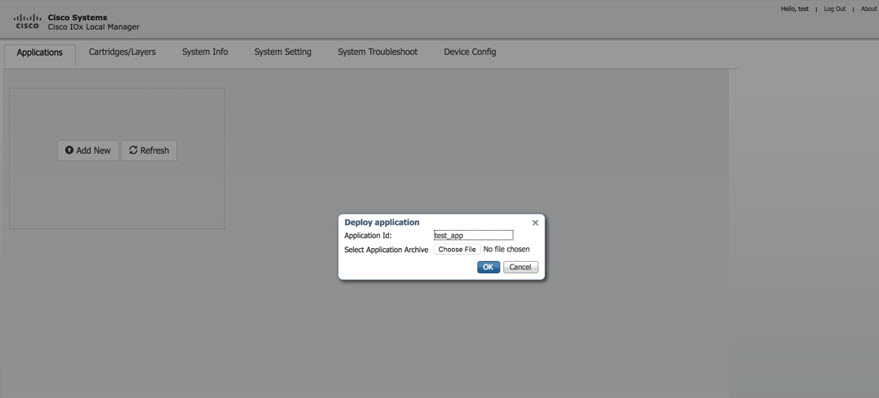
In the Deploy Application dialog box, take these actions:
a. In the Application ID field, enter a name.
b. In the Select Application Archive field, click Choose File and navigate to, then select the sample application file that you downloaded in Step 1.
c. Click OK.
The application file uploads to Cisco IOx.
Note: Do NOT refresh the browser during the upload.
Upload Operation Window
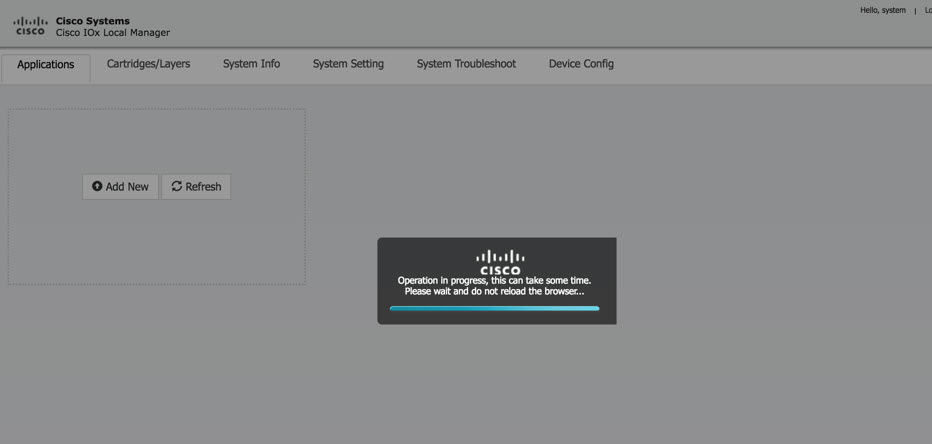
You should see the pop-up message "Successfully Deployed”.
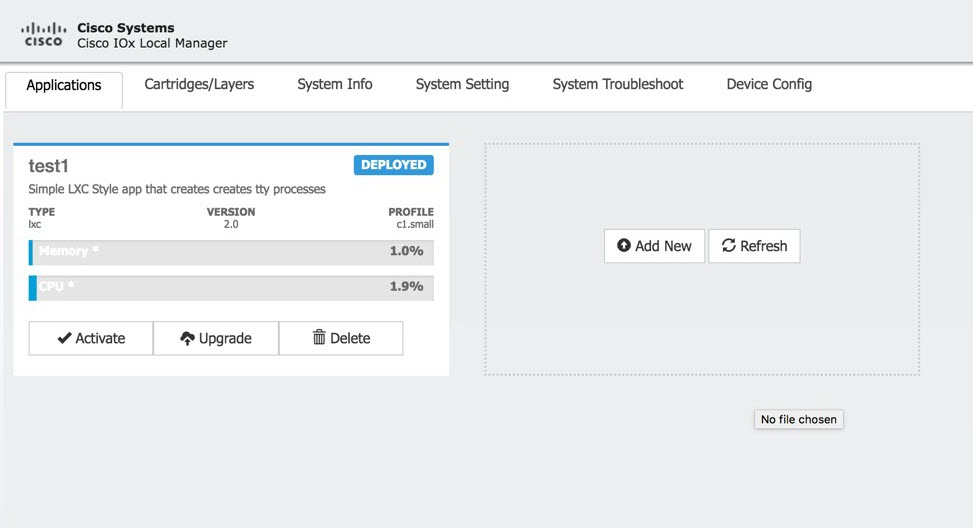
The Cisco IOx Local Manager Applications tab updates to show the application area.
In the test1/APP area, click Activate. The Applications > Resources tab displays.
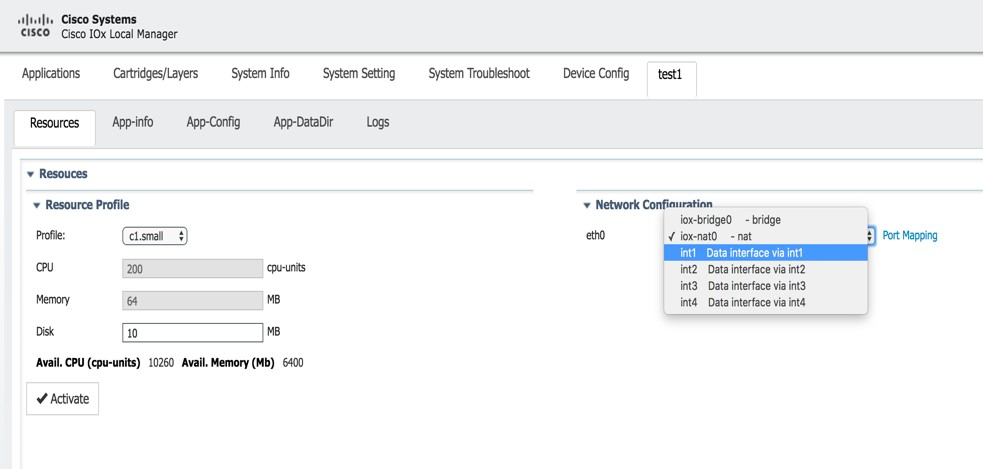
In the Network Configuration area of the Applications > Resources tab, choose iox-nat0 – nat from the eth0 drop-down list.
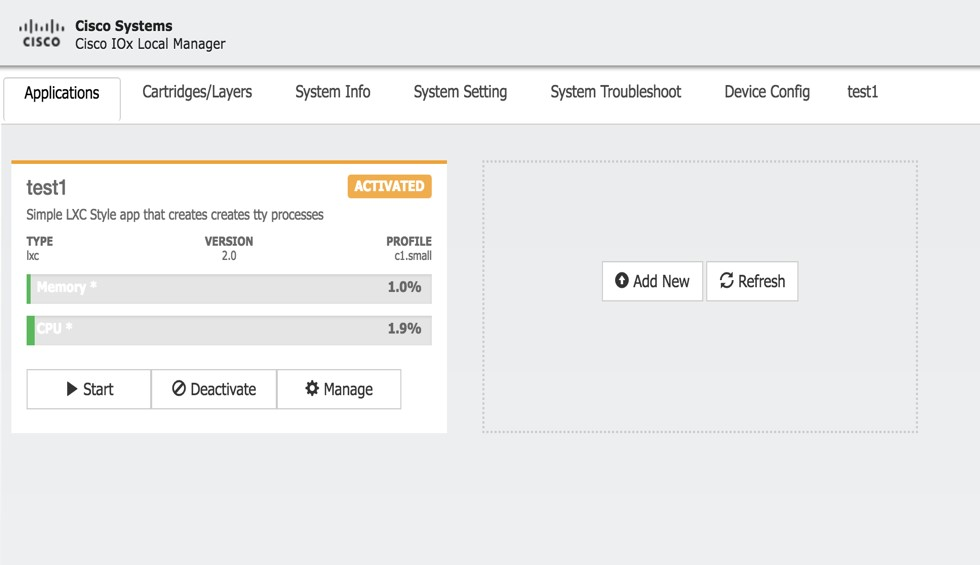
While still in the Applications > Resources tab, click Activate to activate the application.
Click the Applications tab.
In the “test1” area, click Start.
Note: Ensure that you activated the application before clicking Start.
Applications > Start
Here is what a successful test should show:
Additional Examples
There are a number of applications that can be built and loaded onto the IC3000 that are covered in the section, "IOx App Tutorials -> Docker Applications".
These apps were originally built with the IR800 series as the intended target but will also run on the IC3000, if there are no platform hardware dependencies for the IR800 series.
Developers can package any application as long as it is in a container or VM.
IC3000 References on Cisco.com
- Hardware Installation Guide https://www.cisco.com/c/en/us/td/docs/routers/ic3000/hardware/install/IC3000hwinst.html
- Release Notes https://www.cisco.com/c/en/us/td/docs/routers/ic3000/release-notes/IC3000-Release-Note.html
- Developer Quick start https://www.cisco.com/c/dam/en/us/td/docs/routers/ic3000/IC3000_Developer_QS.pdf
- Deployment Guide https://www.cisco.com/c/en/us/td/docs/routers/ic3000/deployment/guide/DeploymentGuide.html
- Cisco Field Network Director: https://www.cisco.com/c/en/us/products/cloud-systems-management/iot-field-network-director/index.html
- Installing the Field Network Director OVA for Version 4.3 https://www.cisco.com/c/en/us/td/docs/routers/connectedgrid/iot_fnd/install/ova/installation_ova.html