Creating Links
Links function like a physical wire that connects two interfaces. Link the nodes in your lab to create the desired network topology.
The distinction between which interface is a source interface and which is a target interface is largely cosmetic and affects neither traffic nor any other features in any way. One feature detail is that traffic captures and link conditioning get applied at the source interface in both directions.
Procedure
In the Workbench, right-click the desired source node for the new connection.
The node’s context menu is shown in the Workbench.
Click the Add Link menu item.
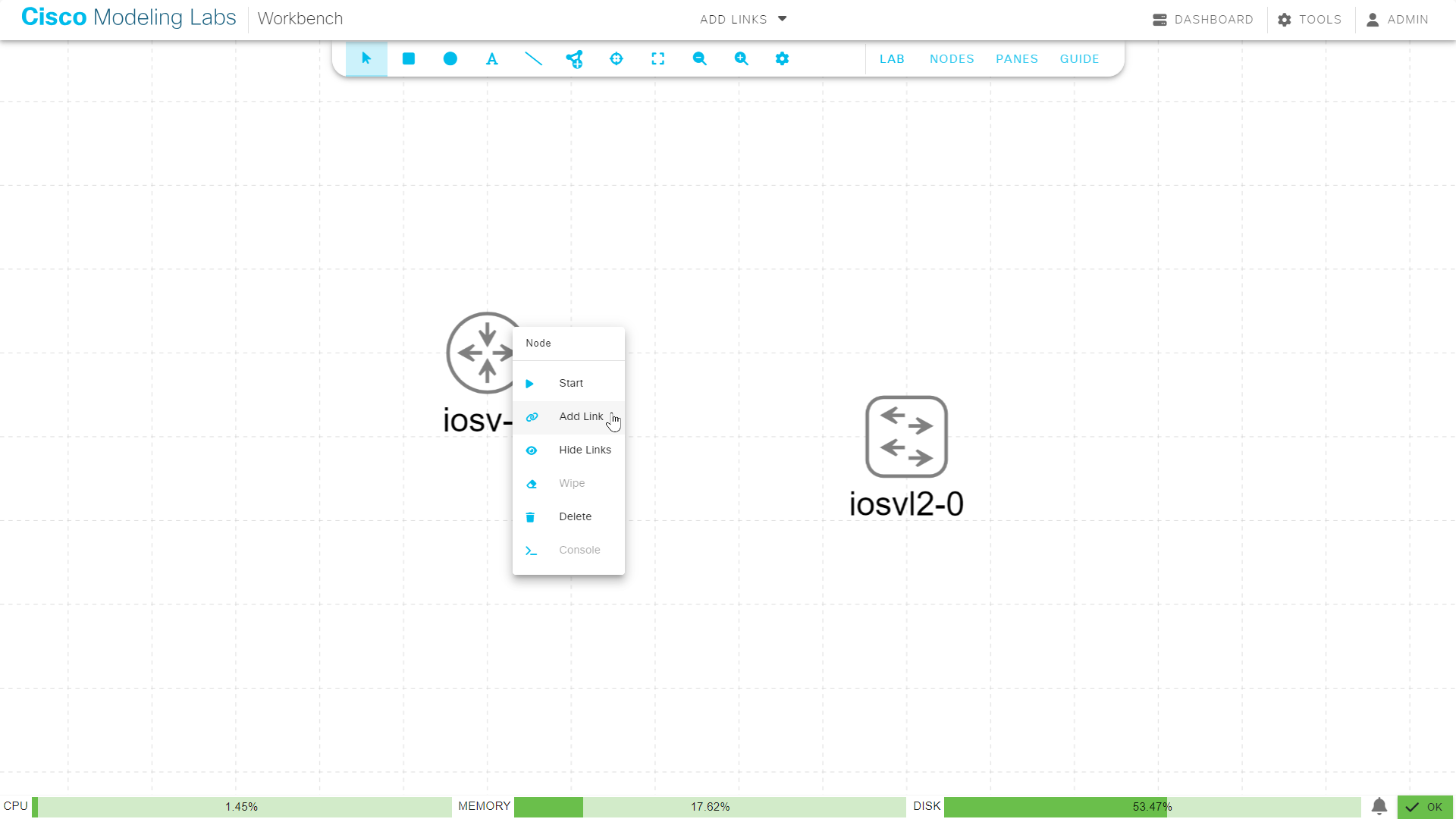
Starting a new link from a node in the Workbench
Note: if the Add Link menu item is disabled in the node’s context menu, it means that the source node has no more available interfaces. You will not be able to create any additional connections to or from this node until an existing interface is freed. See the explanation in Node Interfaces.
Move the mouse away from the source node to start creating a connection.
As you move the mouse, a link from the original node to the cursor is shown.
Click the desired target node for the connection.
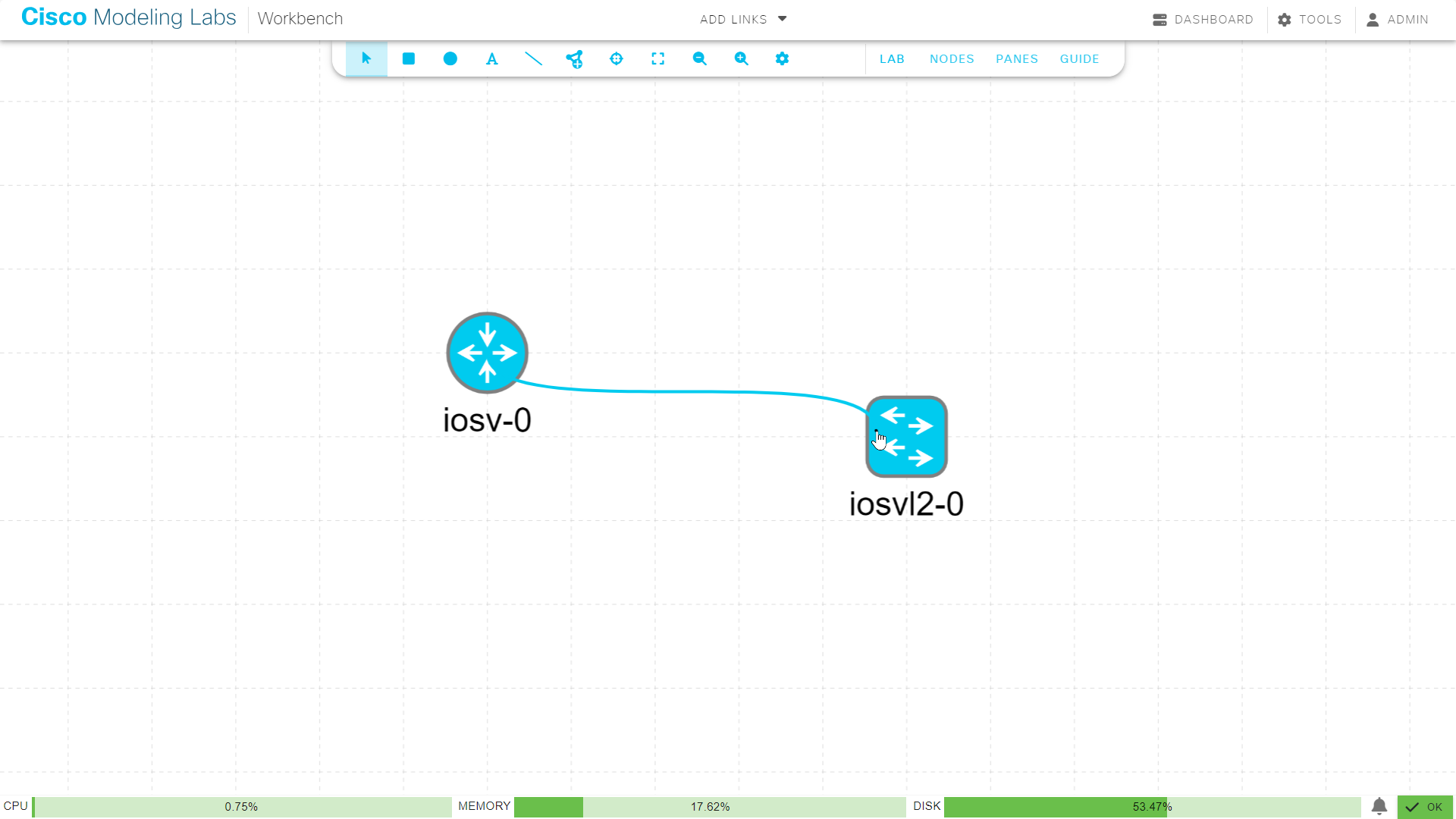
Selecting the target node for a link in the Workbench
The Workbench pops up an interface selection dialog.
Note: the target node should be highlighted. If the desired target node is not highlighted, and the mouse cursor changes to a cancel icon when you hover the mouse over it, the Workbench is indicating that the target node has no more available interfaces. You will not be able to create any additional connections to or from this node until an existing interface is freed.
Select the desired interface on the Source and Target nodes in the dialog. By default, the dialog is populated with the first unused interface on each node.
You may not select any interface which already has a link attached to it. If the node was not started yet, or after it was wiped, you will see all possible interfaces for that node as options. If you select an interface which does not yet exist in the node, it will be created for you. Otherwise, only the interfaces present on the node at time of its start are the available options.
Some node types may have special-purpose interfaces which cannot be used for lab traffic. Unless you are using the interface for that special purpose, you should skip such interfaces. Typically, they will be appropriately named donotuse.
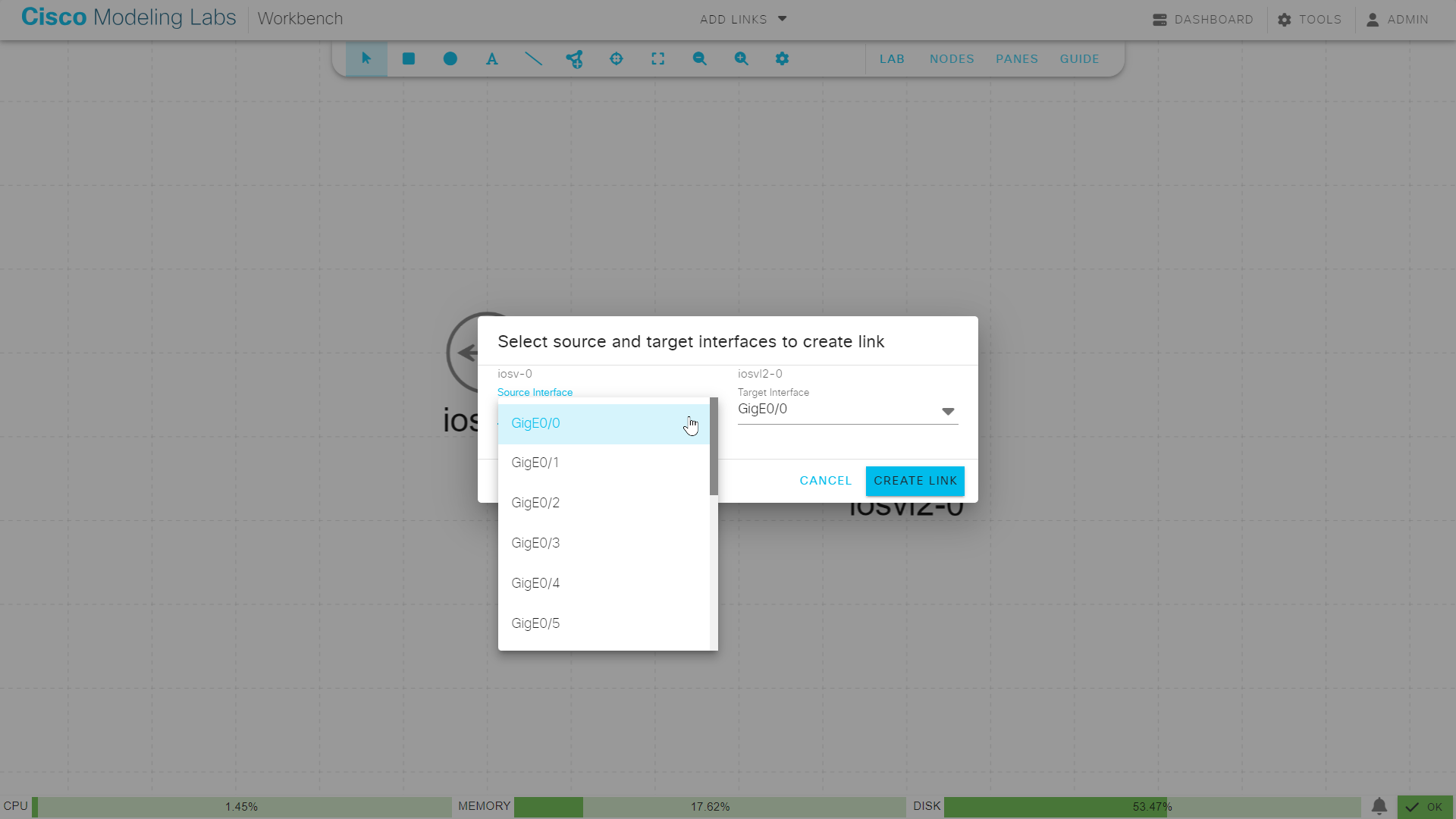
Selecting the interfaces on each end of the new link
Click Create Link to create the new link.
The dialog closes, and the new link is added to the lab. If both nodes connected by
the link are currently running, then the new link is immediately started.
You can remove any link when you select it on the canvas and press the Delete keyboard button.
Another way is that you select one of the nodes connected by the link, and then remove the link
from the node’s Interfaces tab. In the Connected To column for the
respective interface pairing, click the trash button.
Related Topics