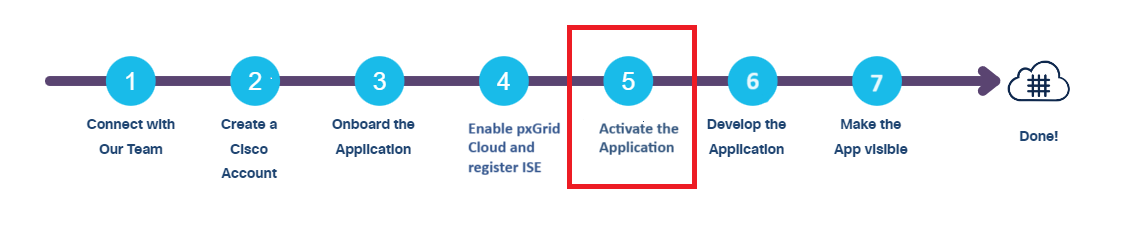
Activate the Application
You can integrate a single-instance pxGrid Cloud app or a multiple-instance pxGrid Cloud app using the Integration Catalog.
In the Cisco ISE GUI, choose Administration > Integration Catalog.
a) When using a single-instance app, instance is auomatically selected in the App Configuration section.
b) When using a multi-instance app, you can choose an existing instance or create a new instance. For information on how to create a new instance, see Create and activate a new instance of a multi-instance app using Integration Catalog in the Cisco pxGrid Cloud Solution Guide.When using an existing multi-instance app, in the Instance section, click the Existing instances radio button.
From the Existing instances drop-down list, choose the required instance.
In the Data Scope section, choose the scopes for your app configuration. You must choose at least one data scope to proceed.
The scopes available for configuration will depend on your app. Some of the following scopes may be available.
Scope Description Profiler configuration ISE Profiler configuration RADIUS authentication failures Information about RADIUS protocol Session directory ISE session directory access TrustSec related topics (Configuration, SXP, etc.) ISE TrustSec related topics and provides status information about SGACL downloads User Defined Networks (UDN) related topics Allows a user to define their network Adaptive Network Control (ANC) configuration Adaptive Network Control configuration service Mobile Device Management (MDM) related topics Mobile Device Management related topics Echo service topics used for testing connectivity Echo service topics used for testing
The app activation status is displayed as Activated in the App Configuration window. Click Deactivate to deactivate the app.
Note
- The data scopes selected during an app activation are also activated in the configured policy. For more information on configuring a policy, see Configure a pxGrid Cloud Policy, in the Cisco pxGrid Cloud Solution Guide.
- To view and enable new scopes available for an app, disconnect the app after deactivation. When you reactivate the app, all the new scopes will be displayed.
- You cannot edit the chosen data scopes after app activation. If you want to edit or delete chosen data scopes, you will have to deactivate the app, make the necessary changes, and reactivate the app again.
The onboarded app can now communicate with the ISE APIs and consume the messages from ISE. At this point of time you can go ahead and test your application as well.