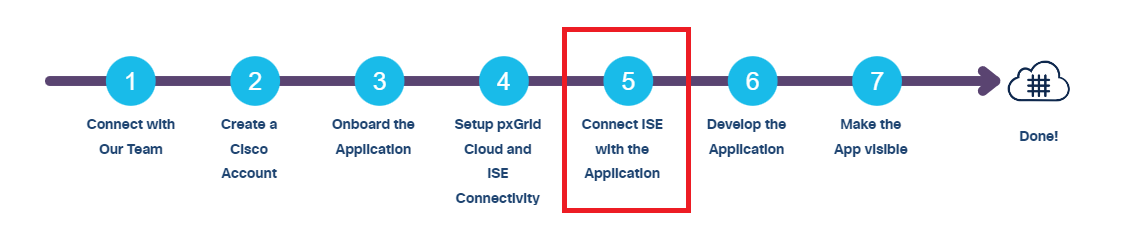
Connect ISE with the Application
Navigate to Menu > Applications and Products > Product.
Click on the required Application and click Add. If you are using a multi-intsnce application, select an instance.
In the Choose Your Product window of Cisco Catalyst Cloud portal, click ISE to select your enrolled ISE device.
In the Scope Selection window, check the appropriate checkboxes to choose the scopes needed for your ISE and click Next.
The scopes available for configuration will depend on your app. Some of the following scopes may be available.
Scope Description Profiler ISE Profiler configuration RADIUS RADIUS authentication failures Session ISE session directory TrustSec TrustSec related topics (configuration, SXP, and so on) UDN User Defined Networks (UDN) related topics ANC Adaptive Network Control (ANC) configuration MDM Mobile Device Management (MDM) related topics Echo Echo service topics used for testing A Summary window is displayed with information about the application, product, and the scopes chosen for your ISE. (Optional) Use the Edit option to edit the application, product, and scopes.
Click Activate to connect your ISE to the pxGrid Cloud. The product activation status is displayed.
The onboarded app can now communicate with the ISE APIs and consume the messages from ISE. At this point of time you can go ahead and test your application as well.