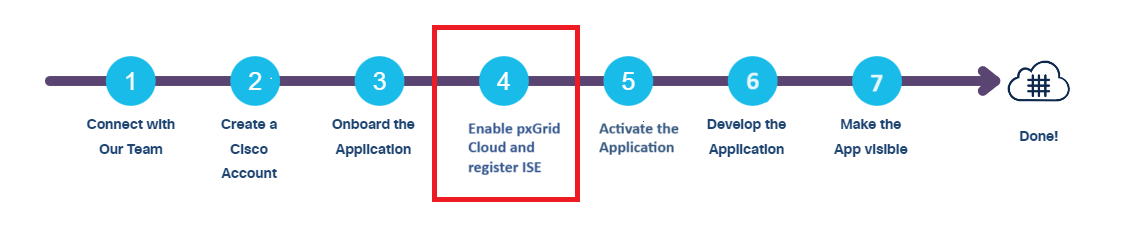
Enable pxGrid Cloud service in Cisco ISE and register your device
- In the Cisco ISE GUI, choose Administration > System > Deployment.
- Click the node on which you want to enable the pxGrid Cloud service.
- In the General Settings tab, enable the pxGrid service.
- Check the pxGrid Cloud check box. The pxGrid Cloud service can be enabled on two nodes to enable high availability. Note: You can enable the pxGrid Cloud option only when the pxGrid service is enabled on that node.
- In the ISE deployment name field, enter a name for your Cisco ISE deployment. (Optional) In the Description (optional) field, enter a description for your Cisco ISE deployment.
- In the Region drop-down list, choose a region to register your Cisco ISE device. You choose between the U.S., Europe, Asia Pacific and Japan. Note that the application that you want to use with pxGrid Cloud must also be available in the same region. Note: pxGrid Cloud is supported in the U.S., Europe, Asia Pacific and Japan.
- In the Activate your device pop-up page, the Activation Code for your device is automatically filled. Click Next.
- Log in to your Cisco Catalyst Cloud portal account using your login credentials. You must log in to your Cisco Catalyst Cloud portal account or create a new account to complete your device registration.
Your Cisco ISE device is activated and registered.
For information on how to integrate ISE with pxGrid Cloud, see Cisco pxGrid Cloud and Cisco ISE Integration in the Cisco pxGrid Cloud Solution Guide.