Cisco Catalyst SD-WAN Manager API Examples Study Lab
Lab Overview
Platforms and Software Used
| Component | Software Version |
|---|---|
| Cisco Catalyst SD-WAN Manager, Cisco Catalyst SD-WAN Controller and Cisco Catalyst SD-WAN Validator | 20.9.1 |
| cEdge (C8000v) | 17.9.1 |
| vEdge (vedge-cloud) | 20.9.1 |
Accessing the Lab
Note: This lab utilizes the dCloud Cisco Catalyst SD-WAN v20.9.1/17.9.1 - Single DC v1 Sandbox.
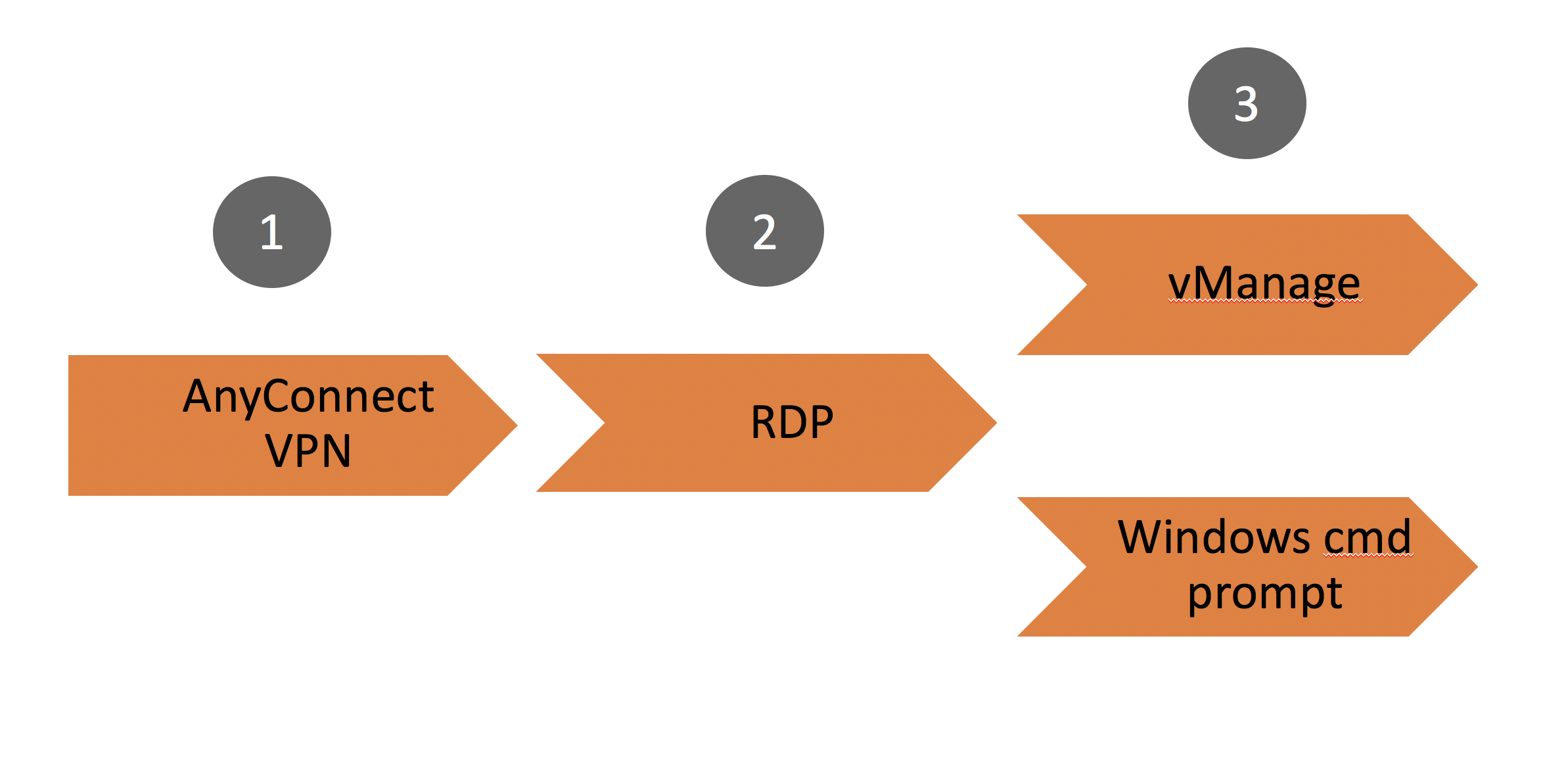
Step-1
Connect to your dCloud session by opening your Cisco AnyConnect client and entering the following information to connect to the lab session.
| Parameter | Input |
|---|---|
| AnyConnect Host | Instructor Provided |
| Username | Instructor Provided |
| Password | Instructor Provided |
Step-2
RDP

Mac users download link: https://itunes.apple.com/us/app/microsoft-remote-desktop-10/id1295203466
- Open your local Remote Desktop Client application and connect to the lab Jumphost.
- This Jumphost Windows VM has access to all network devices and will also run your Python scripts.
| Parameter | Input |
|---|---|
| Host | Instructor Provided |
| Username | Instructor Provided |
| Password | Instructor Provided |
Click ignore/continue if you receive an invalid certificate warning.
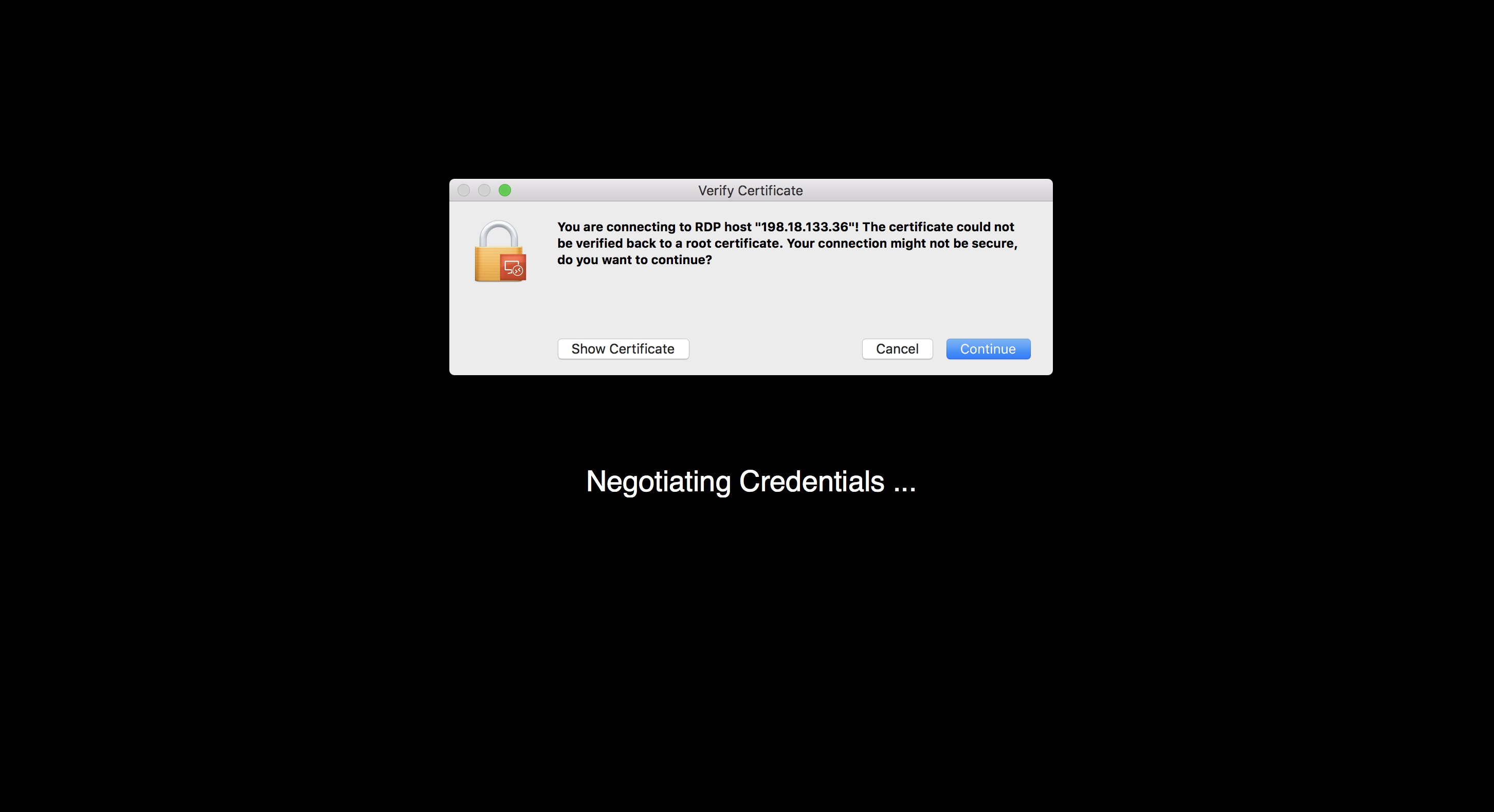
This places you in “WKST1” which is the launching point for all lab tasks.
Step-3
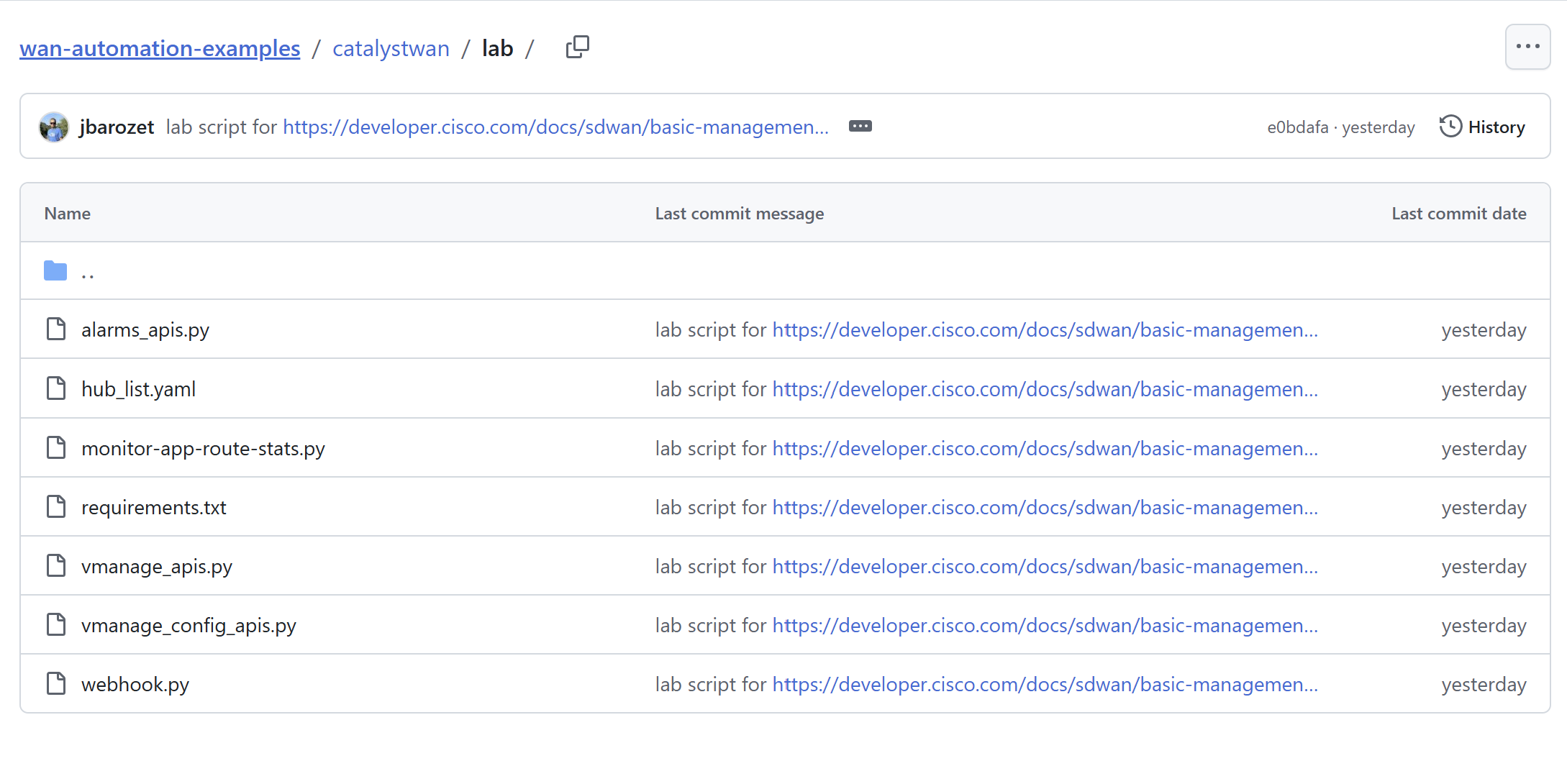
- Go to the repository: https://github.com/CiscoDevNet/wan-automation-examples/tree/main/catalystwan/lab for the scripts used in the Lab guide.
- You can either clone the repo or download the scripts from the repo using your web browser.
Setup Instructions
Launch a Command Prompt from the Windows VM Desktop using the following shortcut.
Step-1
Set the PATH env variable in the command prompt so that you can run pip3 to install all the packages needed for the Python scripts.
Command to set the PATH env for the current session:
set PATH=%PATH%;C:\Python3\Scripts\
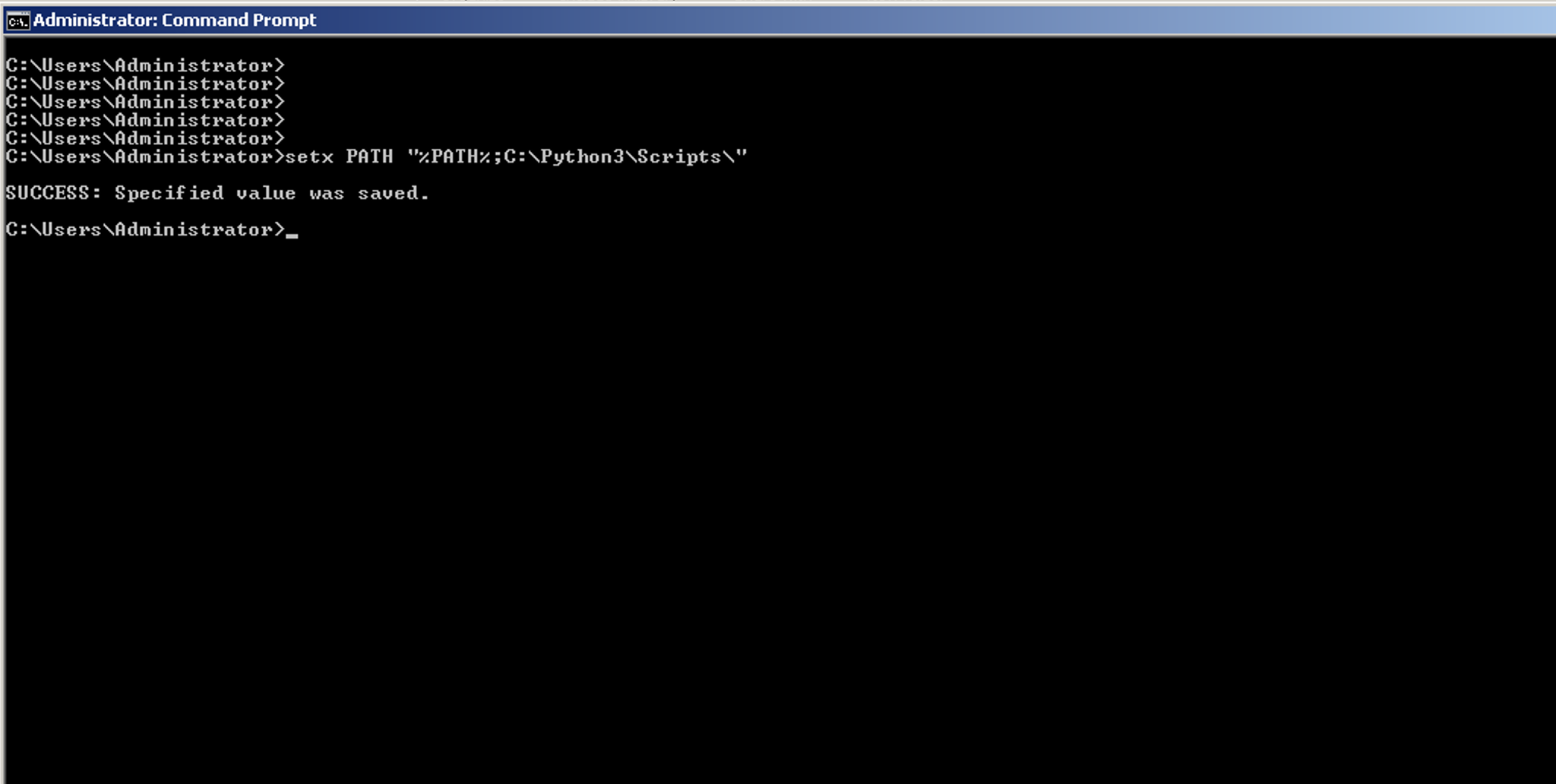
Command to set the PATH env permanently:
setx PATH "%PATH%;C:\Python3\Scripts\"
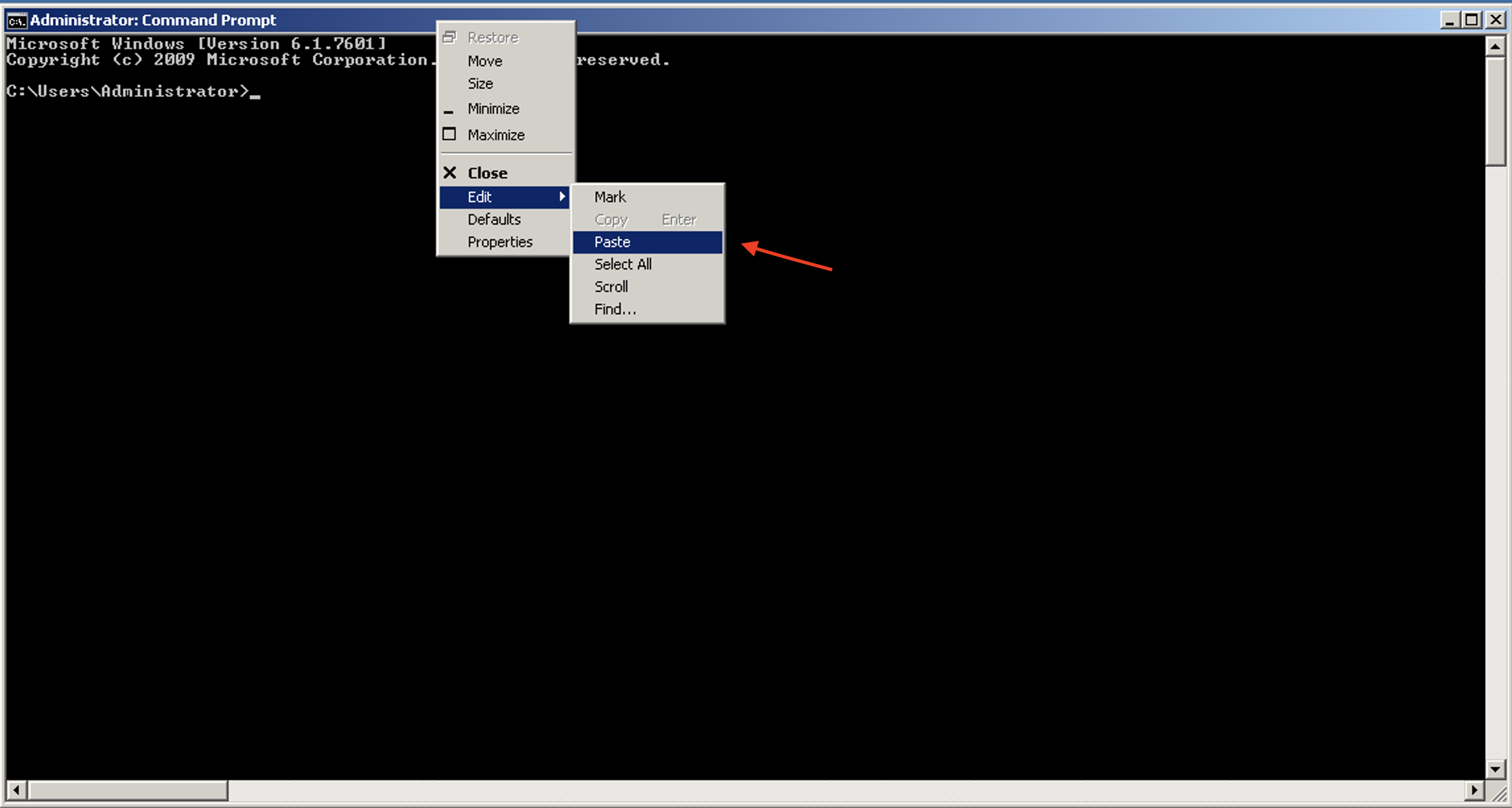
Highlight and copy one of the preceding commands and then paste it into the command prompt.
Step-2
Update the PATH environment variable, then run the following command: cd C:\Users\Administrator\Desktop\sdwan_prog_lab on command prompt.
Step-3
Now install the Python package requirements by using the command pip3 install -r requirements.txt
Step-4
Run the following commands using the Cisco Catalyst SD-WAN Manager ip address, port, and login credentials from the dCloud session details. Run these commands in the command prompt to set the environment variables that store Cisco Catalyst SD-WAN Manager login details.
set vManage_host=Instructor Provided
set vManage_port=Instructor Provided
set vManage_username=Instructor Provided
set vManage_password=Instructor Provided
Lab Flow/Use Cases
The lab begins with all devices being up and running. We use the Python scripts to execute below REST API calls.
Device and Monitoring APIs
- Use a CLI-based Python application script that leverages the REST APIs to retrieve inventory data from Cisco Catalyst SD-WAN Manager and control connections, Overlay Management Protocol (OMP) peers, Bidirectional Forwarding Detection (BFD) sessions, and system status of a wan vEdge router.
Configuration APIs
- Use Cisco Catalyst SD-WAN Manager APIs to retrieve a list of templates and policies, activate/deactivate a policy, and edit the preferred color in a specific Application Aware Routing Policy sequence.
Application Route Statistics APIs
- Use Aggregation Query APIs to retrieve Application Aware Routing statistics (BFD statistics) for Overlay Tunnels and create reports of average latency/loss/jitter and Video Quality of Experience (vQoE) score.
Alarms APIs
- Use Simple Query APIs to retrieve alarms of specific categories and more details about consumed events which created specific alarms.
Now let's start with usecase-1 and learn how to use Device and Monitoring APIs.
Example 1: Device and Monitoring APIs
Objective
How to retrieve devices list, control connection status, interface status, and system status using Cisco Catalyst SD-WAN Manager REST APIs.
Code Components
This section which includes code snippets and structure of the CLI-based Python application script vManage_apis.py.
Click to expand!
- Python function that does log in and authenticate with Cisco Catalyst SD-WAN Manager instance.
The vManage_apis.py file contains an Authentication class that includes get_jsessionid() and get_token() methods.
Authentication
Let's start by going through the get_jsessionid() function that retrieves an authenticated session cookie, which Cisco Catalyst SD-WAN Manager uses to validate subsequent API calls.
Input parameters for get_jsessionid() are
- vManage_host
- vManage_port
- Username
- Password
On successful POST operations the get_jsessionid(), returns the JSESSIONID cookie that the client uses in future API calls. By design, REST API is stateless so you use JSESSIONID for doing session tracking.
After you receive the session cookie, starting from Cisco Catalyst SD-WAN Manager 19.2 you must run a GET request to the API endpoint /dataservice/client/token to retrieve the session token.
Input parameters for get_token() are
- vManage_host
- vManage_port
- jesssion_id
Code snip
class Authentication:

    @staticmethod
    def get_jsessionid(vManage_host, vManage_port, username, password):
        api = "/j_security_check"
        base_url = "https://%s:%s"%(vManage_host, vManage_port)
        url = base_url + api
        payload = {'j_username' : username, 'j_password' : password}

        response = requests.post(url=url, data=payload, verify=False)
        try:
            cookies = response.headers["Set-Cookie"]
            jsessionid = cookies.split(";")
            return(jsessionid[0])
        except:
            print("No valid JSESSION ID returned\n")
            exit()

    @staticmethod
    def get_token(vManage_host, vManage_port, jsessionid):
        headers = {'Cookie': jsessionid}
        base_url = "https://%s:%s"%(vManage_host, vManage_port)
        api = "/dataservice/client/token"
        url = base_url + api
        response = requests.get(url=url, headers=headers, verify=False)
        if response.status_code == 200:
            return(response.text)
        else:
            return None

Auth = Authentication()
jsessionid = Auth.get_jsessionid(vManage_host,vManage_port,vManage_username,vManage_password)
token = Auth.get_token(vManage_host,vManage_port,jsessionid)

if token is not None:
    header = {'Content-Type': "application/json",'Cookie': jsessionid, 'X-XSRF-TOKEN': token}
else:
    header = {'Content-Type': "application/json",'Cookie': jsessionid}
Note: API request headers for GET/POST/PUT/DELETE are
- For Cisco Catalyst SD-WAN Manager pre-19.2 - session cookie (jsessionid)
- For Cisco Catalyst SD-WAN Manager post-19.2 - session cooke (jsessionid) and Token
Now let's have a look at the resource Uniform Resource Locator (URL) structure components used in GET/POST/PUT/DELETE requests.
Resource URL Structure Components
The resource URL to retrieve the inventory from Cisco Catalyst SD-WAN Manager is https://<vManage-ip:port>/dataservice/device.
| Component | Description |
|---|---|
| https:// | Protocol over which the client sends data to the server and the server returns data to the client. |
| Server or Host | Resolves to the IP and port to which to connect, for example: "vManage-ip:port". |
| Resource | The location of the data or object of interest, for example: "/device". |
| Parameters | Details to scope, filter, or clarify a request. Optional. |
Parameters Example
- URL:
https://<vManage-ip:port>/dataservice/device/bfd/state/device?deviceId=1.1.1.7 - "?deviceId=1.1.1.7" filters BFD state for the device with system-ip/deviceId = 1.1.1.7
Note: All REST API calls to Cisco Catalyst SD-WAN Manager contain the "/dataservice" root.
Step-1:
Open a Windows command prompt and execute the command **py -3.7 vManage_apis.py** to see the list of available options in this CLI-based Python application script.
Sample Response
C:\Users\Administrator\Desktop\sdwan_prog_lab>py -3.7 vManage_apis.py
Usage: vManage_apis.py [OPTIONS] COMMAND [ARGS]...

  Command line tool for monitoring Cisco SD-WAN solution components.

Options:
  --help  Show this message and exit.

Commands:
  attached-devices  Retrieve and return devices associated to a template.
  control-status    Retrieve and return information about control status.
  detach            Detach a device template.
  device-counters   Retrieve information about network device counters
  device-list       Retrieve and return network devices list.
  interface-status  Retrieve and return information about interface status.
  system-status     Retrieve and return information about system status.
List Devices
Now let’s make an API call to retrieve the list of devices in the SD-WAN fabric.
After you authenticate with Cisco Catalyst SD-WAN Manager by using the get_jessiond() and get_token() functions,
you run the GET request to retrieve a list of all devices in the fabric and store the JSON data that the API returns in the response variable. The resource Uniform Resource Identifier (URI) for this is "/device", so the URL to fetch devices is https://vManage-ip:port/dataservice/device.
Now you extract the data portion of the JSON using response.json()['data'], and create a table with required fields in response.
Step-2:
At a Windows command prompt, run the command py -3.7 vManage_apis.py device-list to retrieve the list of devices
and print information such as Host-name, Site-ID, system-ip etc.. in table format.
Sample Response
C:\Users\Administrator\Desktop\sdwan_prog_lab>py -3.7 vManage_apis.py device-list

Retrieving the devices
╒═════════════╤═══════════════╤══════════════════════════════════════════╤═════════════╤═══════════╤════════════════╤═════════════════╕
│ Host-Name   │ Device Type   │ Device ID                                │ System IP   │   Site ID │ Version        │ Device Model    │
╞═════════════╪═══════════════╪══════════════════════════════════════════╪═════════════╪═══════════╪════════════════╪═════════════════╡
│ vManage     │ vManage       │ 5271ea7c-edb1-420b-be9a-4d25756785bd     │ 10.10.10.10 │        10 │ 20.1.1         │ vManage         │
├─────────────┼───────────────┼──────────────────────────────────────────┼─────────────┼───────────┼────────────────┼─────────────────┤
│ vSmart-1    │ vsmart        │ 10a98779-95f0-4383-871c-195d25bd9c74     │ 12.12.12.12 │        10 │ 20.1.1         │ vsmart          │
├─────────────┼───────────────┼──────────────────────────────────────────┼─────────────┼───────────┼────────────────┼─────────────────┤
│ vSmart-2    │ vsmart        │ 704bbc2f-aa9a-4068-84a2-fc31602ed553     │ 22.22.22.22 │        20 │ 20.1.1         │ vsmart          │
├─────────────┼───────────────┼──────────────────────────────────────────┼─────────────┼───────────┼────────────────┼─────────────────┤
│ vBond-1     │ vbond         │ abd5e9d7-9dee-4d00-98b5-fdc71de6ea63     │ 11.11.11.11 │           │ 20.1.1         │ vedge-cloud     │
├─────────────┼───────────────┼──────────────────────────────────────────┼─────────────┼───────────┼────────────────┼─────────────────┤
│ vBond-2     │ vbond         │ b6eec354-1d60-4c77-bb1a-7a704c28438b     │ 21.21.21.21 │           │ 20.1.1         │ vedge-cloud     │
├─────────────┼───────────────┼──────────────────────────────────────────┼─────────────┼───────────┼────────────────┼─────────────────┤
│ BR1-CEDGE1  │ vedge         │ CSR-940ad679-a16a-48ea-9920-16278597d98e │ 10.3.0.1    │       300 │ 17.02.01r.0.32 │ vedge-CSR-1000v │
├─────────────┼───────────────┼──────────────────────────────────────────┼─────────────┼───────────┼────────────────┼─────────────────┤
│ BR1-CEDGE2  │ vedge         │ CSR-04ed104b-86bb-4cb3-bd2b-a0d0991f6872 │ 10.3.0.2    │       300 │ 17.02.01r.0.32 │ vedge-CSR-1000v │
├─────────────┼───────────────┼──────────────────────────────────────────┼─────────────┼───────────┼────────────────┼─────────────────┤
│ DC1-VEDGE1  │ vedge         │ ebdc8bd9-17e5-4eb3-a5e0-f438403a83de     │ 10.1.0.1    │       100 │ 20.1.1         │ vedge-cloud     │
├─────────────┼───────────────┼──────────────────────────────────────────┼─────────────┼───────────┼────────────────┼─────────────────┤
│ DC1-VEDGE2  │ vedge         │ f21dbb35-30b3-47f4-93bb-d2b2fe092d35     │ 10.1.0.2    │       100 │ 20.1.1         │ vedge-cloud     │
╘═════════════╧═══════════════╧══════════════════════════════════════════╧═════════════╧═══════════╧════════════════╧═════════════════╛

C:\Users\Administrator\Desktop\sdwan_prog_lab>
Control Status
Note:
- To learn how to use a particular option, run the help command
py -3.7 vManage_apis.py control-status --help - Use system-ip 10.3.0.1 to fetch monitoring information for host BR1-CEDGE1 router and use system-ip 10.1.0.1 for DC1-VEDGE1 router
Sample Response
C:\Users\Administrator\Desktop\sdwan_prog_lab>py -3.7 vManage_apis.py control-status --help
Usage: vManage_apis.py control-status [OPTIONS]

  Retrieve and return information about the control status of network devices in the SD-WAN fabric

  Example command:     ./vManage_apis.py control-status --system_ip 10.3.0.1

Options:
  --system_ip TEXT  System IP address of the device.
  --help            Show this message and exit.
Step-3:
At a Windows command prompt, run the command py -3.7 vManage_apis.py control-status --system_ip 10.3.0.1 to get
the control connections status for WAN edge router with system ip address 10.3.0.1
With the control-status option, you use resource URI /device/control/synced/connections?deviceId=
Sample Response
C:\Users\Administrator\Desktop\sdwan_prog_lab>py -3.7 vManage_apis.py control-status --system_ip 10.3.0.1
Retrieving the Control Status

Control Connection status for Device = 10.3.0.1
╒═════════════╤══════════════════╤═════════╤══════════════════════╕
│ Peer Type   │ Peer System IP   │ state   │ Last Updated (UTC)   │
╞═════════════╪══════════════════╪═════════╪══════════════════════╡
│ vManage     │ 10.10.10.10      │ up      │ 06/27/2020 05:13:30  │
├─────────────┼──────────────────┼─────────┼──────────────────────┤
│ vsmart      │ 12.12.12.12      │ up      │ 06/27/2020 05:13:30  │
├─────────────┼──────────────────┼─────────┼──────────────────────┤
│ vsmart      │ 22.22.22.22      │ up      │ 06/27/2020 05:13:30  │
├─────────────┼──────────────────┼─────────┼──────────────────────┤
│ vsmart      │ 12.12.12.12      │ up      │ 06/27/2020 05:13:30  │
├─────────────┼──────────────────┼─────────┼──────────────────────┤
│ vsmart      │ 22.22.22.22      │ up      │ 06/27/2020 05:13:30  │
╘═════════════╧══════════════════╧═════════╧══════════════════════╛

C:\Users\Administrator\Desktop\sdwan_prog_lab
Interface Status
Step-4:
At a Windows command prompt, run the command py -3.7 vManage_apis.py interface-status --system_ip 10.1.0.1 to get
the interfaces status for a WAN edge router with system ip address 10.1.0.1
In interface-status option, you use resource URI device/interface/synced?deviceId=<system-ip> to fetch the interface status of a network device in the fabric.
Sample Response
C:\Users\Administrator\Desktop\sdwan_prog_lab>py -3.7 vManage_apis.py interface-status --system_ip 10.1.0.1

Retrieving the Interface Status

Interfaces status for Device =  10.1.0.1
╒══════════════════╤═════════════════╤══════════╤══════════════════════╕
│ Interface Name   │ IP address      │   VPN ID │ Operational status   │
╞══════════════════╪═════════════════╪══════════╪══════════════════════╡
│ ge0/1            │ 100.64.0.2/30   │        0 │ Up                   │
├──────────────────┼─────────────────┼──────────┼──────────────────────┤
│ ge0/2            │ 100.64.2.26/30  │        0 │ Up                   │
├──────────────────┼─────────────────┼──────────┼──────────────────────┤
│ system           │ 10.1.0.1/32     │        0 │ Up                   │
├──────────────────┼─────────────────┼──────────┼──────────────────────┤
│ ge0/0            │ 10.1.10.150/24  │       10 │ Up                   │
├──────────────────┼─────────────────┼──────────┼──────────────────────┤
│ ge0/3            │ 10.1.20.150/24  │       20 │ Up                   │
├──────────────────┼─────────────────┼──────────┼──────────────────────┤
│ eth0             │ 198.18.3.100/24 │      512 │ Up                   │
╘══════════════════╧═════════════════╧══════════╧══════════════════════╛
C:\Users\Administrator\Desktop\sdwan_prog_lab>py -3.7 vManage_apis.py interface-status --system_ip 10.3.0.1

Retrieving the Interface Status

Interfaces status for Device =  10.3.0.1
╒═══════════════════╤══════════════╤══════════╤══════════════════════╕
│ Interface Name    │ IP address   │   VPN ID │ Operational status   │
╞═══════════════════╪══════════════╪══════════╪══════════════════════╡
│ GigabitEthernet2  │ 100.64.0.18  │        0 │ if-oper-state-ready  │
├───────────────────┼──────────────┼──────────┼──────────────────────┤
│ Tunnel2           │ 0.0.0.0      │        0 │ if-oper-state-ready  │
├───────────────────┼──────────────┼──────────┼──────────────────────┤
│ GigabitEthernet1  │ 198.18.3.104 │      512 │ if-oper-state-ready  │
├───────────────────┼──────────────┼──────────┼──────────────────────┤
│ GigabitEthernet3  │ 100.64.0.29  │        0 │ if-oper-state-ready  │
├───────────────────┼──────────────┼──────────┼──────────────────────┤
│ GigabitEthernet4  │ 100.64.2.38  │        0 │ if-oper-state-ready  │
├───────────────────┼──────────────┼──────────┼──────────────────────┤
│ GigabitEthernet5  │ 10.3.10.2    │       10 │ if-oper-state-ready  │
├───────────────────┼──────────────┼──────────┼──────────────────────┤
│ GigabitEthernet6  │ 10.3.20.2    │       20 │ if-oper-state-ready  │
├───────────────────┼──────────────┼──────────┼──────────────────────┤
│ GigabitEthernet7  │ 10.3.40.2    │       40 │ if-oper-state-ready  │
├───────────────────┼──────────────┼──────────┼──────────────────────┤
│ Tunnel4           │ 0.0.0.0      │        0 │ if-oper-state-ready  │
├───────────────────┼──────────────┼──────────┼──────────────────────┤
│ Tunnel2000000001  │ 0.0.0.0      │        0 │ if-oper-state-ready  │
├───────────────────┼──────────────┼──────────┼──────────────────────┤
│ Loopback65528     │ 192.168.1.1  │    65528 │ if-oper-state-ready  │
├───────────────────┼──────────────┼──────────┼──────────────────────┤
│ VirtualPortGroup0 │ 192.168.1.1  │    65529 │ if-oper-state-ready  │
├───────────────────┼──────────────┼──────────┼──────────────────────┤
│ VirtualPortGroup1 │ 192.0.2.1    │        0 │ if-oper-state-ready  │
├───────────────────┼──────────────┼──────────┼──────────────────────┤
│ sdwan_system_ip   │              │        0 │ if-oper-state-ready  │
╘═══════════════════╧══════════════╧══════════╧══════════════════════╛
Device Counters
Step-5:
At a Windows command prompt, run the command py -3.7 vManage_apis.py device-counters --system_ip 10.3.0.1 to get
the number of OMP Peers, Cisco SD-WAN Controller connections, BFD sessions for a WAN edge router with system ip address 10.3.0.1
In device-counters option, we use resource URI /device/counters?deviceId=<system-ip> to get the number of OMP Peers, Cisco SD-WAN Controller connections, and BFD sessions.
Sample Response
C:\Users\Administrator\Desktop\sdwan_prog_lab>py -3.7 vManage_apis.py device-counters --system_ip 10.3.0.1
Retrieving the Device Counters

Device Counters for device =  10.3.0.1
╒════════════════╤══════════════════╤══════════════════════╤═══════════════════╤═════════════════════╕
│   OMP Peers Up │   OMP Peers Down │   vSmart connections │   BFD Sessions Up │   BFD Sessions Down │
╞════════════════╪══════════════════╪══════════════════════╪═══════════════════╪═════════════════════╡
│              2 │                0 │                    4 │                 4 │                   0 │
╘════════════════╧══════════════════╧══════════════════════╧═══════════════════╧═════════════════════╛
C:\Users\Administrator\Desktop\sdwan_prog_lab>py -3.7 vManage_apis.py device-counters --system_ip 10.1.0.1
Retrieving the Device Counters

Device Counters for device =  10.1.0.1
╒════════════════╤══════════════════╤══════════════════════╤═══════════════════╤═════════════════════╕
│   OMP Peers Up │   OMP Peers Down │   vSmart connections │   BFD Sessions Up │   BFD Sessions Down │
╞════════════════╪══════════════════╪══════════════════════╪═══════════════════╪═════════════════════╡
│              2 │                0 │                    4 │                 4 │                   0 │
╘════════════════╧══════════════════╧══════════════════════╧═══════════════════╧═════════════════════╛
System Status
Step-6:
At a Windows command prompt, run the command py -3.7 vManage_apis.py system-status --system_ip 10.1.0.1 to get
the uptime, version, memory and CPU usage information for a WAN edge router with system ip address 10.1.0.1
In system-status option, we use resource URI /device/system/status?deviceId=<system-ip> to fetch the system status of a such network device in the fabric.
C:\Users\Administrator\Desktop\sdwan_prog_lab>py -3.7 vManage_apis.py system-status --system_ip 10.1.0.1

Retrieving the System Status

System status for Device: 10.1.0.1
╒═════════════╤═════════════════════════════╤═══════════╤═══════════════╤══════════════╕
│ Host name   │ Up time                     │ Version   │   Memory Used │   CPU system │
╞═════════════╪═════════════════════════════╪═══════════╪═══════════════╪══════════════╡
│ DC1-VEDGE1  │ 0 days 17 hrs 00 min 08 sec │ 20.1.1    │       2137264 │        47.25 │
╘═════════════╧═════════════════════════════╧═══════════╧═══════════════╧══════════════╛
C:\Users\Administrator\Desktop\sdwan_prog_lab>py -3.7 vManage_apis.py system-status --system_ip 10.3.0.1

Retrieving the System Status

System status for Device: 10.3.0.1
╒═════════════╤═════════════════════════════╤════════════════╤═══════════════╤══════════════╕
│ Host name   │ Up time                     │ Version        │   Memory Used │   CPU system │
╞═════════════╪═════════════════════════════╪════════════════╪═══════════════╪══════════════╡
│ BR1-CEDGE1  │ 0 days 16 hrs 58 min 53 sec │ 17.02.01r.0.32 │       3810300 │         6.05 │
╘═════════════╧═════════════════════════════╧════════════════╧═══════════════╧══════════════╛

C:\Users\Administrator\Desktop\sdwan_prog_lab>
Conclusion
In this section you learned how to collect a list of devices and monitor the following information:
- Control connections status
- Interface status
- OMP Peers and BFD sessions
- System Status
Example 2: Configuration APIs
Objective
How to retrieve list of templates and policies, activate/deactivate a central policy, and edit the preferred color in a specific Application Aware Routing Policy sequence.
Configuration APIs
In this section you use the CLI-based Python application script vManage_config_apis.py. Run the command py -3.7 vManage_config_apis.py to see all the options supported by the Python application script.
Sample Response
C:\Users\Administrator\Desktop\sdwan_prog_lab>py -3.7 vManage_config_apis.py
Usage: vManage_config_apis.py [OPTIONS] COMMAND [ARGS]...

  Command line tool for SD-WAN Manager Templates and Policy Configuration APIs.

Options:
  --help  Show this message and exit.

Commands:
  activate-policy        Activate centralized policy.
  approute-modify-color  Modify the Preferred Color in existing App Aware.
  deactivate-policy      Deactivate centralized policy.
  policy-list            Retrieve and return centralized policies list.
  template-list          Retrieve and return templates list.
Templates list
Step-1:
At a Windows command prompt, run the command py -3.7 vManage_config_apis.py template-list to retrieve the list
of defined device templates.
With the template-list option, you use the resource URI /template/device to fetch the list of templates.
Sample Response
C:\Users\Administrator\Desktop\sdwan_prog_lab>py -3.7 vManage_config_apis.py template-list
Retrieving the available templates
╒═══════════════════════════════════╤═════════════════════╤══════════════════════════════════════╤════════════════════╕
│ Template Name                     │ Device Type         │ Template ID                          │   Attached devices │
╞═══════════════════════════════════╪═════════════════════╪══════════════════════════════════════╪════════════════════╡
│ vSmartConfigurationTemplate       │ vsmart              │ e1f3de23-1ded-49d8-85b1-1e6ab668775f │                  0 │
├───────────────────────────────────┼─────────────────────┼──────────────────────────────────────┼────────────────────┤
│ Factory_Default_ISR_4331_V01      │ vedge-ISR-4331      │ f52767b8-db2c-42f1-8f5f-2f5d295dee25 │                  0 │
├───────────────────────────────────┼─────────────────────┼──────────────────────────────────────┼────────────────────┤
│ Factory_Default_CSR_1000V_V01     │ vedge-CSR-1000v     │ 4b523c91-82ee-46a2-91b1-87e0c7e9bef5 │                  0 │
├───────────────────────────────────┼─────────────────────┼──────────────────────────────────────┼────────────────────┤
│ BranchType2Template-vEdge         │ vedge-cloud         │ 2463357c-4261-48fe-a13e-bab7aec5c002 │                  0 │
├───────────────────────────────────┼─────────────────────┼──────────────────────────────────────┼────────────────────┤
│ VSMART-device-template            │ vsmart              │ 55eb96ec-237d-4170-8841-3321a04e01a7 │                  2 │
├───────────────────────────────────┼─────────────────────┼──────────────────────────────────────┼────────────────────┤
│ 20_1_BranchType1Template-CSR      │ vedge-CSR-1000v     │ 9b921d74-37e8-460b-9966-5a6ddef871b9 │                  2 │
├───────────────────────────────────┼─────────────────────┼──────────────────────────────────────┼────────────────────┤
│ DC-vEdges                         │ vedge-cloud         │ 6c7d22bc-73d5-4877-9402-26c75a22bd08 │                  2 │
├───────────────────────────────────┼─────────────────────┼──────────────────────────────────────┼────────────────────┤
│ BranchType1Template-CSR           │ vedge-CSR-1000v     │ c62e6fba-fb53-4562-b436-3878de0fbbc2 │                  0 │
├───────────────────────────────────┼─────────────────────┼──────────────────────────────────────┼────────────────────┤
│ Factory_Default_C1111_8PLTELA_V01 │ vedge-C1111-8PLTELA │ b6aacdc9-ae1f-4471-a359-13657ce98204 │                  0 │
╘═══════════════════════════════════╧═════════════════════╧══════════════════════════════════════╧════════════════════╛

C:\Users\Administrator\Desktop\sdwan_prog_lab>
Centralized Policies List
Step-1:
At a Windows command prompt, run the command py -3.7 vManage_config_apis.py policy-list to retrieve the list
of centralized policies defined.
With the policy-list option, we use resource URI /template/policy/vsmart to fetch the list of centralized policies.
Sample Response
C:\Users\Administrator\Desktop\sdwan_prog_lab>py -3.7 vManage_config_apis.py policy-list
Retrieving the available Centralized Policies
╒══════════════════════════════╤═══════════════╤══════════════════════════════════════╤═══════════════════╕
│ Policy Name                  │ Policy Type   │ Policy ID                            │ Active/Inactive   │
╞══════════════════════════════╪═══════════════╪══════════════════════════════════════╪═══════════════════╡
│ StrictHub-n-Spoke            │ feature       │ a8205140-92d9-4688-a127-c70d5f1b93a5 │ False             │
├──────────────────────────────┼───────────────┼──────────────────────────────────────┼───────────────────┤
│ MultiTopologyPolicy          │ feature       │ 45f0b251-bce6-4b6b-bb8c-de7dbf13ea0f │ False             │
├──────────────────────────────┼───────────────┼──────────────────────────────────────┼───────────────────┤
│ MultiTopologyPlusFWInsertion │ feature       │ b33477d1-1ebc-4080-ba44-b89dbf14fef7 │ False             │
├──────────────────────────────┼───────────────┼──────────────────────────────────────┼───────────────────┤
│ MultiTopologyPlusACL         │ feature       │ 7f156d32-537d-493f-9a7d-53d9e1f05a19 │ False             │
├──────────────────────────────┼───────────────┼──────────────────────────────────────┼───────────────────┤
│ MultiTopologyPlusAppRoute    │ feature       │ 12df3ed9-6b1f-4b0a-91a2-377cefb8039f │ False             │
├──────────────────────────────┼───────────────┼──────────────────────────────────────┼───────────────────┤
│ cflowd_policy                │ cli           │ 1c865c35-05ac-43a7-a6ee-6328138cd1c4 │ False             │
├──────────────────────────────┼───────────────┼──────────────────────────────────────┼───────────────────┤
│ Hub-Spoke-Policy-PCI         │ feature       │ 67b2d453-671f-4eaf-b79a-d1c4c0069f1a │ False             │
╘══════════════════════════════╧═══════════════╧══════════════════════════════════════╧═══════════════════╛
Activate a Centralized Policy
Step-1
At a Windows command prompt, run the command py -3.7 vManage_config_apis.py activate-policy --name MultiTopologyPlusAppRoute
to activate a centralized(vSmart) policy with a name of MultiTopologyPlusAppRoute.
With the activate-policy option, you use the resource URI /template/policy/vsmart/activate/<policy-uuid>?confirm=true to activate a centralized policy.
Sample Response
C:\Users\Administrator\Desktop\sdwan_prog_lab>py -3.7 vManage_config_apis.py activate-policy --name MultiTopologyPlusAppRoute
Policy UUID for MultiTopologyPlusAppRoute is 12df3ed9-6b1f-4b0a-91a2-377cefb8039f

Successfully activated vSmart Policy MultiTopologyPlusAppRoute.
Modify Preferred Color in App Route Policy
Step-1
At a Windows command prompt, run the command py -3.7 vManage_config_apis.py approute-modify-color --name AppRoutePolicyVPN10
--seq_name DSCP46 --pref_color public-internet to update the preferred color to public-internet in sequence DSCP46
of app route policy AppRoutePolicyVPN10
Sample Response
C:\Users\Administrator\Desktop\sdwan_prog_lab>py -3.7 vManage_config_apis.py approute-modify-color --name AppRoutePolicyVPN10 --seq_name DSCP46 --pref_color public-internet

Retrieved app aware route policy definition for AppRoutePolicyVPN10.

Master templates affected: ['55eb96ec-237d-4170-8841-3321a04e01a7']

Successfully updated Preferred Color to public-internet in sequence DSCP46 of policy AppRoutePolicyVPN10.
Deactivate Centralized Policy
Step-1
At a Windows command prompt, run the command py -3.7 vManage_config_apis.py deactivate-policy --name MultiTopologyPlusAppRoute
to deactivate a centralized(vSmart) policy with the name MultiTopologyPlusAppRoute
With the deactivate-policy option, you use the resource URI /template/policy/vsmart/deactivate/<policy-uuid>?confirm=true to deactivate a centralized policy.
Sample Response
C:\Users\Administrator\Desktop\sdwan_prog_lab>py -3.7 vManage_config_apis.py deactivate-policy --name MultiTopologyPlusAppRoute
Policy UUID for MultiTopologyPlusAppRoute is 12df3ed9-6b1f-4b0a-91a2-377cefb8039f

Successfully deactivated vSmart Policy MultiTopologyPlusAppRoute.
Conclusion
In this section you learned how to use Cisco Catalyst SD-WAN Manager APIs to:
- Retrieve the list of templates and policies.
- Activate a centralized policy.
- Update preferred color in a particular Application Aware Routing Policy sequence.
- Deactivate a centralized policy.
Example 3: App route statistics (Latency/Loss/Jitter)
Objective
How to retrieve the App Route Statistics (Latency/Loss/Jitter) using Aggregation APIs and create an Excel/csv report.
Resource URL structure components
A Resource URL retrieves app route statistics such as latency, loss, and jitter using aggregation APIs in /statistics/approute/fec/aggregation.
URL: https://<vManage-ip>/dataservice/statistics/approute/fec/aggregation
| Component | Description |
|---|---|
| https:// | Protocol over which the client sends data to the server and the server returns data to the client |
| Server or Host | Resolves to the IP and port to connect with, for example: "vManage-ip:port" |
| Resource | The location of the data or object of interest, for example: "/statistics/approute/fec/aggregation" |
Use case requirements
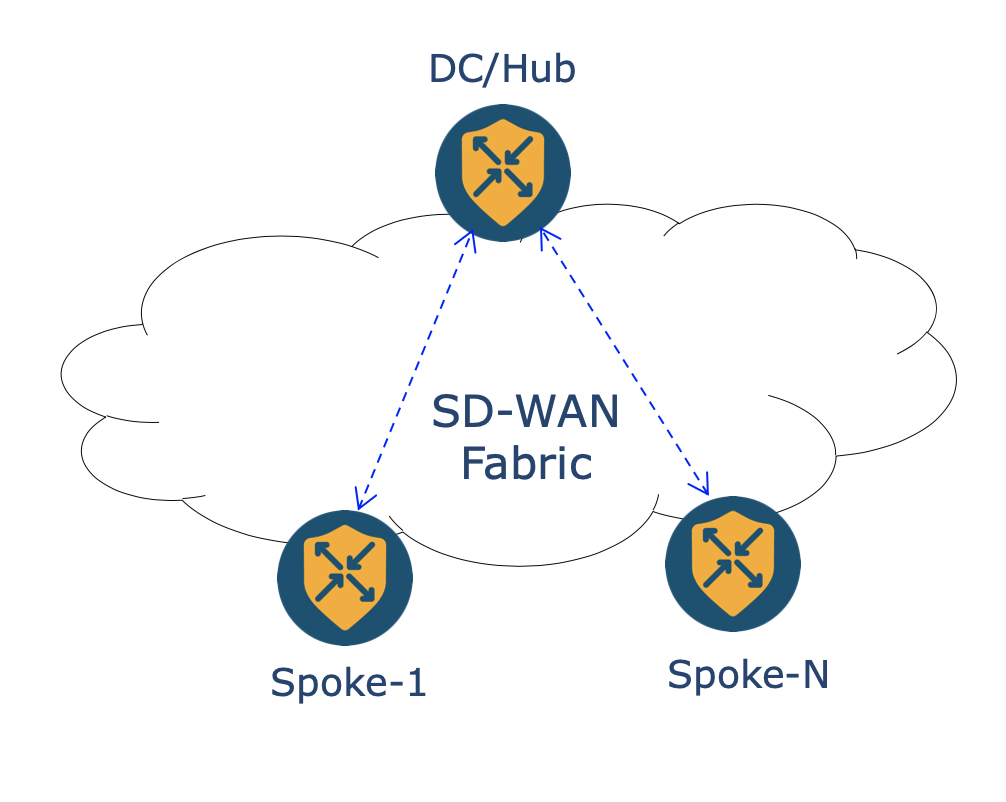
For a given Hub-n-Spoke topology, you use Cisco Catalyst SD-WAN Manager APIs to retrieve and create a report of Average App Route Statistics (loss/latency/jitter) and vQoE score based on the following conditions.
- User input - Start and end date for report
- Average of stats for every 24 hours
- For all tunnels(BFD sessions) originating from hub routers
Now let’s start using the Python script to fetch the app route statistics with the following steps:
- Log in and authenticate to a Cisco Catalyst SD-WAN Manager instance.
- Run a GET request to
https://<vManage-ip>/dataservice/statistics/approute/fieldsto retrieve the supported query fields. - Build a query to specify the rules on how to retrieve and aggregate Application Aware Routing statistics.
- Perform the POST operation by sending the query in payload.
App Route Query Fields
Step-1
At a Windows command prompt, run the command py -3.7 monitor-app-route-stats.py to get the list of options available
in the **monitor-app-route-stats.py** CLI-based Python application script.
Sample Response
C:\Users\Administrator\Desktop\sdwan_prog_lab>py -3.7 monitor-app-route-stats.py
Usage: monitor-app-route-stats.py [OPTIONS] COMMAND [ARGS]...

  Command line tool for monitoring Application Aware Routing
  statistics(Latency/Loss/Jitter/vQoE Score).

Options:
  --help  Show this message and exit.

Commands:
  approute-fields  Retrieve App route Aggregation API Query fields.
  approute-report  Create Average Approute statistics report.
  approute-stats   Create Average Approute statistics for all tunnels...

C:\Users\Administrator\Desktop\sdwan_prog_lab>
Step-2
At a Windows command prompt, run the command py -3.7 monitor-app-route-stats.py approute-fields to get the list of
Application Routing Aggregation API supported Query fields.
Sample Response
C:\Users\Administrator\Desktop\sdwan_prog_lab>py -3.7 monitor-app-route-stats.py approute-fields
vdevice_name(string)  local_system_ip(string)   src_ip(string)    loss_percentage(number)  name(string)
host_name(string)     remote_system_ip(string)  dst_ip(string)    jitter(number)           loss(number)
device_model(string)  local_color(string)       src_port(number)  tx_pkts(number)
statcycletime(date)   remote_color(string)      dst_port(number)  rx_pkts(number)
entry_time(date)      proto(string)             total(number)     tx_octets(number)
vip_idx(number)       window(number)            latency(number)   rx_octets(number)
Using the Application Routing Aggregation API query fields, let's define the Aggregation API Query Payload.
Aggregation API Query Payload
Create the Aggregation API query by using the following constructs.
Query Conditions
Aggregation components:
Field
Histogram
Metrics
For example, first define Query Conditions (rules). Based on these rules, Cisco Catalyst SD-WAN Manager returns the data records. Common supported rules include selecting records based on stats entry_time to get statistics in specific time intervals, then using query fields like local system-ip, local color, and remote color to retrieve records for specific vEdge router transport circuits in that interval.
Once you determine the query conditions, provide the fields, histogram, and metrics that determine how the system aggregates data.
Example 3.1
- The following example query retrieves average latency/loss/jitter and vqoe score for the last hour for all tunnels between routers with provided local and remote system-ip:
{
  "query": {
    "condition": "AND",
    "rules": [
      {
        "value": [
          "1"
        ],
        "field": "entry_time",
        "type": "date",
        "operator": "last_n_hours"
      },
      {
        "value": [
          "<Router-1 System-IP>"
        ],
        "field": "local_system_ip",
        "type": "string",
        "operator": "in"
      },
      {
        "value": [
          "<Router-2 System-IP>"
        ],
        "field": "remote_system_ip",
        "type": "string",
        "operator": "in"
      }
    ]
  },
  "aggregation": {
    "field": [
      {
        "property": "name",
        "sequence": 1,
        "size": 6000
      }
    ],
    "metrics": [
      {
        "property": "loss_percentage",
        "type": "avg"
      },
      {
        "property": "vqoe_score",
        "type": "avg"
      },
      {
        "property": "latency",
        "type": "avg"
      },
      {
        "property": "jitter",
        "type": "avg"
      }
    ]
  }
}
Example 3.2
- The following query retrieves the application route statistics between the start date and end date as query conditions so you get the average latency/loss/jitter between those two intervals.
Note Only the UTC timezone is supported in query conditions so you must convert the user input to UTC timezone if needed.
- Here, the script aggregates statistics in 24-hour intervals, so you can get a report for the provided start and end dates with the 24-hour averages.
{
      "query": {
          "condition": "AND",
          "rules": [
          {
              "value": [
                        start_date+"T00:00:00 UTC",
                        end_date+"T23:59:59 UTC"
                       ],
              "field": "entry_time",
              "type": "date",
              "operator": "between"
          },
          {
              "value": [
                      hub["system_ip"]
                      ],
              "field": "local_system_ip",
              "type": "string",
              "operator": "in"
          }
          ]
      },
      "aggregation": {
          "field": [
          {
              "property": "name",
              "size": 6000,
              "sequence": 1
          },
          {
              "property": "proto",
              "sequence": 2
          },
          {
              "property": "local_system_ip",
              "sequence": 3
          },
          {
              "property": "remote_system_ip",
              "sequence": 4
          }
          ],
          "histogram": {
          "property": "entry_time",
          "type": "hour",
          "interval": 24,
          "order": "asc"
          },
          "metrics": [
          {
              "property": "latency",
              "type": "avg"
          },
          {
              "property": "jitter",
              "type": "avg"
          },
          {
              "property": "loss_percentage",
              "type": "avg"
          },
          {
              "property": "vqoe_score",
              "type": "avg"
          }
          ]
      }
      }
Using the Example 3.1 and Example 3.2 query lets perform POST operation to retrieve the app route statistics latency/loss/jitter and Video Quality of Experience (vQoE) score.
POST Operation
Step-1
At a Windows command prompt, run the command py -3.7 monitor-app-route-stats.py approute-stats to run POST request
using the query in Example 3.1. For example, to retrieve average latency/loss/jitter and vQoE score between two routers for
 the last hour.

Enter 10.1.0.1 as Router-1 System IP address and 10.3.0.1 as Router-2 System IP address.
Sample Response
C:\Users\Administrator\Desktop\sdwan_prog_lab>py -3.7 monitor-app-route-stats.py approute-stats
Enter Router-1 System IP address : 10.1.0.1
Enter Router-2 System IP address : 10.3.0.1

Average application route statistics between 10.1.0.1 and 10.3.0.1 for the last hour

╒═════════════════════════════════════════════╤══════════════╤═══════════╤═══════════════════╤═══════════╕
│ Tunnel name                                 │   vQoE score │   Latency │   Loss percentage │    Jitter │
╞═════════════════════════════════════════════╪══════════════╪═══════════╪═══════════════════╪═══════════╡
│ 10.1.0.1:biz-internet-10.3.0.1:biz-internet │           10 │ 19.3356   │                 0 │ 9.02238   │
├─────────────────────────────────────────────┼──────────────┼───────────┼───────────────────┼───────────┤
│ 10.1.0.1:mpls-10.3.0.1:mpls                 │           10 │  0.960481 │                 0 │ 0.0549828 │
╘═════════════════════════════════════════════╧══════════════╧═══════════╧═══════════════════╧═══════════╛

Average application route statistics between 10.3.0.1 and 10.1.0.1 for the last hour

╒═════════════════════════════════════════════╤══════════════╤═══════════╤═══════════════════╤════════════╕
│ Tunnel name                                 │   vQoE score │   Latency │   Loss percentage │     Jitter │
╞═════════════════════════════════════════════╪══════════════╪═══════════╪═══════════════════╪════════════╡
│ 10.3.0.1:biz-internet-10.1.0.1:biz-internet │           10 │  17.505   │         0.447436  │ 10.2047    │
├─────────────────────────────────────────────┼──────────────┼───────────┼───────────────────┼────────────┤
│ 10.3.0.1:mpls-10.1.0.1:mpls                 │           10 │   1.27852 │         0.0279648 │  0.0604027 │
╘═════════════════════════════════════════════╧══════════════╧═══════════╧═══════════════════╧════════════╛
Step-2
At a Windows command prompt, run the command py -3.7 monitor-app-route-stats.py approute-report --help to run
POST request using the query in Example 3.2. For example, to retrieve average latency/loss/jitter and vQoE score between
hub and spoke routers for the provided start to end date.
Sample Response
C:\Users\Administrator\Desktop\sdwan_prog_lab>py -3.7 monitor-app-route-stats.py approute-report --help
Usage: monitor-app-route-stats.py approute-report [OPTIONS]

  Create Average Approute statistics report.
  Provide YAML file which includes list of Hub System IP addresses.
  Example command: ./monitor-app-route-stats.py approute-report
  --hub_list_file <.yaml>

Options:
  --hub_list_file TEXT  YAML file with list of hub system ip addresses
  --help                Show this message and exit.
C:\Users\Administrator\Desktop\sdwan_prog_lab>more hub_list.yaml
hub_routers:
  - system_ip: 10.1.0.1
  - system_ip: 10.1.0.2
Step-3
At a Windows command prompt, run the command py -3.7 monitor-app-route-stats.py approute-report --hub_list_file hub_list.yaml
to run POST request using the query in Example 3.2. For example, to retrieve average latency/loss/jitter and vQoE score.
Sample Response
C:\Users\Administrator\Desktop\sdwan_prog_lab>py -3.7 monitor-app-route-stats.py approute-report --hub_list_file hub_list.yaml
Please enter start date(YYYY-MM-DD): 2020-06-27
Please enter end date(YYYY-MM-DD): 2020-06-29

Created report of Average Application Route statistics for tunnels between hub routers and spokes for 2020-06-27 and 2020-06-29
Now Launch Google Chrome and use the built-in Excel viewer to see the spreadsheet, or use the CSVviewer application on Windows VM(Jumphost) to view the CSV file.
Conclusion
In this section you have learned how to build an Aggregation API Query to retrieve Average Application Aware Routing statistics and create report in Excel/csv format.
Example 4: Alarms APIs
Objective
How to retrieve alarms using Simple Query Cisco Catalyst SD-WAN Manager APIs.
Resource URL Structure Components
https://<vManage-ip:port>/dataservice/alarms
| Component | Description |
|---|---|
| http:// or https:// | Protocol over which the client sends data to the server and the server returns data to the client |
| Server or Host | Resolves to the IP and port to which to connect, for example: "vManage-ip:port" |
| Resource | The location of the data or object of interest, for example: "/dataservice/alarms" |
Now let’s start using the Python script to fetch the alarms by using below steps:
- Log in and authenticate to a Cisco Catalyst SD-WAN Manager instance.
- Build a query to specify the rules on how to retrieve alarms.
- Perform the POST operation by sending the query in a POST request payload.
Using the Authentication class, you authenticate with Cisco Catalyst SD-WAN Manager and get the session cookie (JSESSIONID) and token (the script retrieves the token only if Cisco Catalyst SD-WAN Manager version is 19.2 or above). Subsequent API calls use the session cookie and token to validate the user session.
Now let's define a query that you can use to collect alarms by using a POST operation on https://vManage-ip/dataservice/alarms.
Query Payload
Example 4.1
- You can use the between operator to fetch alarms for a custom interval, for example, 08:50:00 UTC to 8:55:00 UTC (5-minute interval).
{
  "query": {
    "condition": "AND",         # Logical AND operation among rules defined below
    "rules": [
      {
        "value": [              # Alarms between 08:50:00 and 08:55:00 on 06/20/2020
          "2020-06-20T08:50:00 UTC",
          "2020-06-20T08:55:00 UTC"
        ],
        "field": "entry_time",
        "type": "date",
        "operator": "between"
      }
    ]
  },
  "size": 10000
}
Example 4.2
- Collect only Active Critical, Medium alarms between 08:50 and 08:55.
{
  "query": {
    "condition": "AND",      # Logical AND operation among rules defined below
    "rules": [
      {
        "value": [           # Alarms between 08:50:00 and 08:55:00 on 06/20/2020
          "2020-06-20T08:50:00 UTC",
          "2020-06-20T08:55:00 UTC"
        ],
        "field": "entry_time",
        "type": "date",
        "operator": "between"
      },
      {
        "value": [           # Only alarms with severity level Critical and Medium
          "Medium",
          "Critical"
        ],
        "field": "severity",
        "type": "string",
        "operator": "in"
      },
      {
        "value": [
          "true"            # Set the value to false for cleared alarms and true for active alarms
        ],
        "field": "active",
        "type": "string",
        "operator": "in"
      }
    ]
  },
  "size": 10000
}
Example 4.3
- Collect Active/Cleared and Unacknowledged alarms for specific alarm type/tag during the last 24 hours.
{
    "query": {
        "condition": "AND",         # Logical AND operation among rules defined below
        "rules": [
        {
            "value": [              # last 24 hours
                "24"
            ],
            "field": "entry_time",
            "type": "date",
            "operator": "last_n_hours"
        },
        {
            "value": [              # Return both active and cleared alarms
            "false","true"
            ],
            "field": "active",
            "type": "string",
            "operator": "in"
        },
        {
            "value": [              # Alarm tag to filter specific type of alarms
            alarm_tag
            ],
            "field": "rule_name_display",
            "type": "string",
            "operator": "in"
        },
        {
            "value":[              # Alarms which are Unacknowledged
                "false",
            ],
            "field": "acknowledged",
            "type": "string",
            "operator": "in"
        }
        ]
    }
}
Using the query in Example 4.3 lets perform POST operation to retrieve the specific type of alarms.
POST Operation
Input parameters for POST operation
- endpoint (Cisco Catalyst SD-WAN Manager server ip address)
- resource or mountpoint represented by the URL
- Send the query that defines retrieval rules in the payload.
Now let's have a look at the sample responses to POST operation.
Sample Responses
- You can uniquely identify every alarm based on the uuid value that belongs to it.
- If an alarm is cleared, then the uuid of the alarm that cleared it maps to the key
cleared_by, and the cleared time maps to the keycleared_time.
Example
    {
      "values": [
        {
          "color": "biz-internet",
          "system-ip": "10.3.0.1",
          "host-name": "BR1-CEDGE1",
          "site-id": "300"
        }
      ],
      "values_short_display": [
        {
          "color": "biz-internet",
          "system-ip": "10.3.0.1",
          "host-name": "BR1-CEDGE1"
        }
      ],
      "message": "A tloc went down",
      "type": "tloc_down",
      "eventname": "rulename",
      "rulename": "tloc_down",
      "component": "Control",
      "severity": "Major",
      "severity_number": 2,
      "entry_time": 1592776950525,
      "statcycletime": 1592776950525,
      "receive_time": 1592776950525,
      "rule_name_display": "Control_TLOC_Down",
      "uuid": "16d95667-7f0e-4e84-91f3-72497ed7b913",
      "active": false,
      "devices": [
        {
          "color": "biz-internet",
          "system-ip": "10.3.0.1"
        }
      ],
      "consumed_events": [
        {
          "builtBy": "EventDataCollector",
          "vManage-system-ip": "12.12.12.12",
          "entry_time": 1592776894000,
          "eventname": "control-connection-state-change",
          "linkupdate": true,
          "component": "Control",
          "severity-level": "major",
          "system-ip": "12.12.12.12",
          "host-name": "vSmart-1",
          "personality": "vsmart",
          "peer-type": "vedge",
          "peer-system-ip": "10.3.0.1",
          "peer-vManage-system-ip": "0.0.0.0",
          "public-ip": "100.64.2.2",
          "public-port": "5079",
          "src-color": "default",
          "remote-color": "biz-internet",
          "uptime": "0:00:20:30",
          "new-state": "down",
          "receive_time": 1592776890527,
          "eventId": "a5dc4d54-f491-4d9d-91bb-8a68f4a88e9f",
          "eventCreationTime": 1592776890540
        },
        {
          "builtBy": "EventDataCollector",
          "vManage-system-ip": "22.22.22.22",
          "entry_time": 1592776893000,
          "eventname": "control-connection-state-change",
          "linkupdate": true,
          "component": "Control",
          "severity-level": "major",
          "system-ip": "22.22.22.22",
          "host-name": "vSmart-2",
          "personality": "vsmart",
          "peer-type": "vedge",
          "peer-system-ip": "10.3.0.1",
          "peer-vManage-system-ip": "0.0.0.0",
          "public-ip": "100.64.2.2",
          "public-port": "5079",
          "src-color": "default",
          "remote-color": "biz-internet",
          "uptime": "0:00:20:30",
          "new-state": "down",
          "receive_time": 1592776890525,
          "eventId": "3c4c1063-b1cd-478b-81af-a26f47c8b638",
          "eventCreationTime": 1592776890538
        },
        {
          "builtBy": "EventDataCollector",
          "vManage-system-ip": "10.10.10.10",
          "entry_time": 1592776890000,
          "eventname": "control-connection-state-change",
          "linkupdate": true,
          "component": "Control",
          "severity-level": "major",
          "system-ip": "10.10.10.10",
          "host-name": "vManage",
          "personality": "vManage",
          "peer-type": "vedge",
          "peer-system-ip": "10.3.0.1",
          "peer-vManage-system-ip": "0.0.0.0",
          "public-ip": "100.64.2.2",
          "public-port": "5079",
          "src-color": "default",
          "remote-color": "biz-internet",
          "uptime": "0:00:20:30",
          "new-state": "down",
          "receive_time": 1592776890524,
          "eventId": "69a504d1-7f09-4d43-80ff-2404b615969b",
          "eventCreationTime": 1592776890539
        }
      ],
      "acknowledged": false,
      "possible_causes": [
        "Trying to determine possible root causes"
      ],
      "tenant": "default",
      "cleared_by": "e8bd6f6e-0be0-429d-b5c8-e0bd90ef4989",
      "cleared_time": 1592776967212,
      "id": "AXLY54rgGEYcfPHKCx0_"
    }
The entry_time and cleared_time values are in epoch format.
Prerequisites(Step-0)
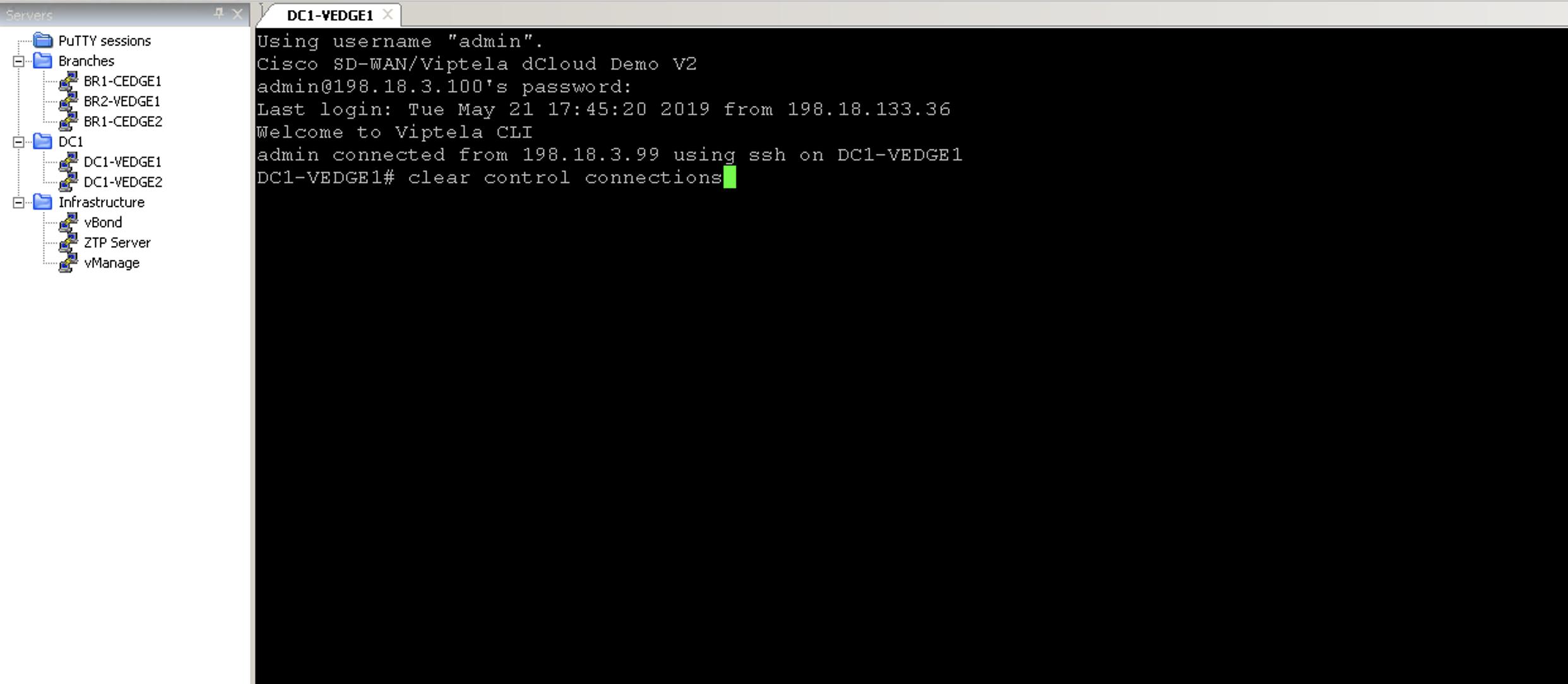
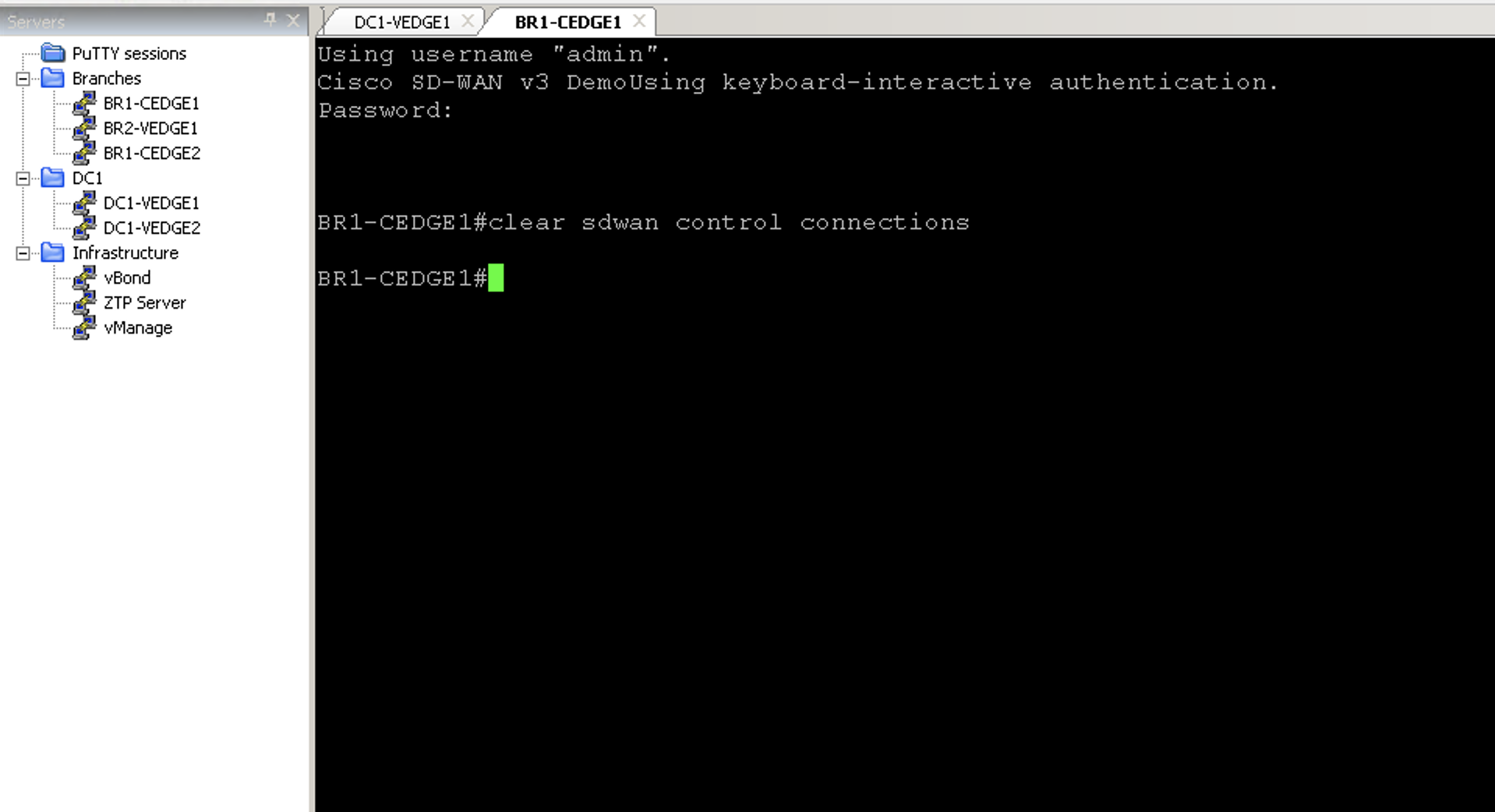
- Launch mputty and select any of the Branch or DC routers.
- Login detail for Branch or DC routers is admin/admin
- Run the command
clear control connections(for vEdge) orclear sdwan control connectionsto trigger alarms which can be retrieved in the next steps using APIs)
For DC1-VEDGE1 router
For BR1-CEDGE1 router
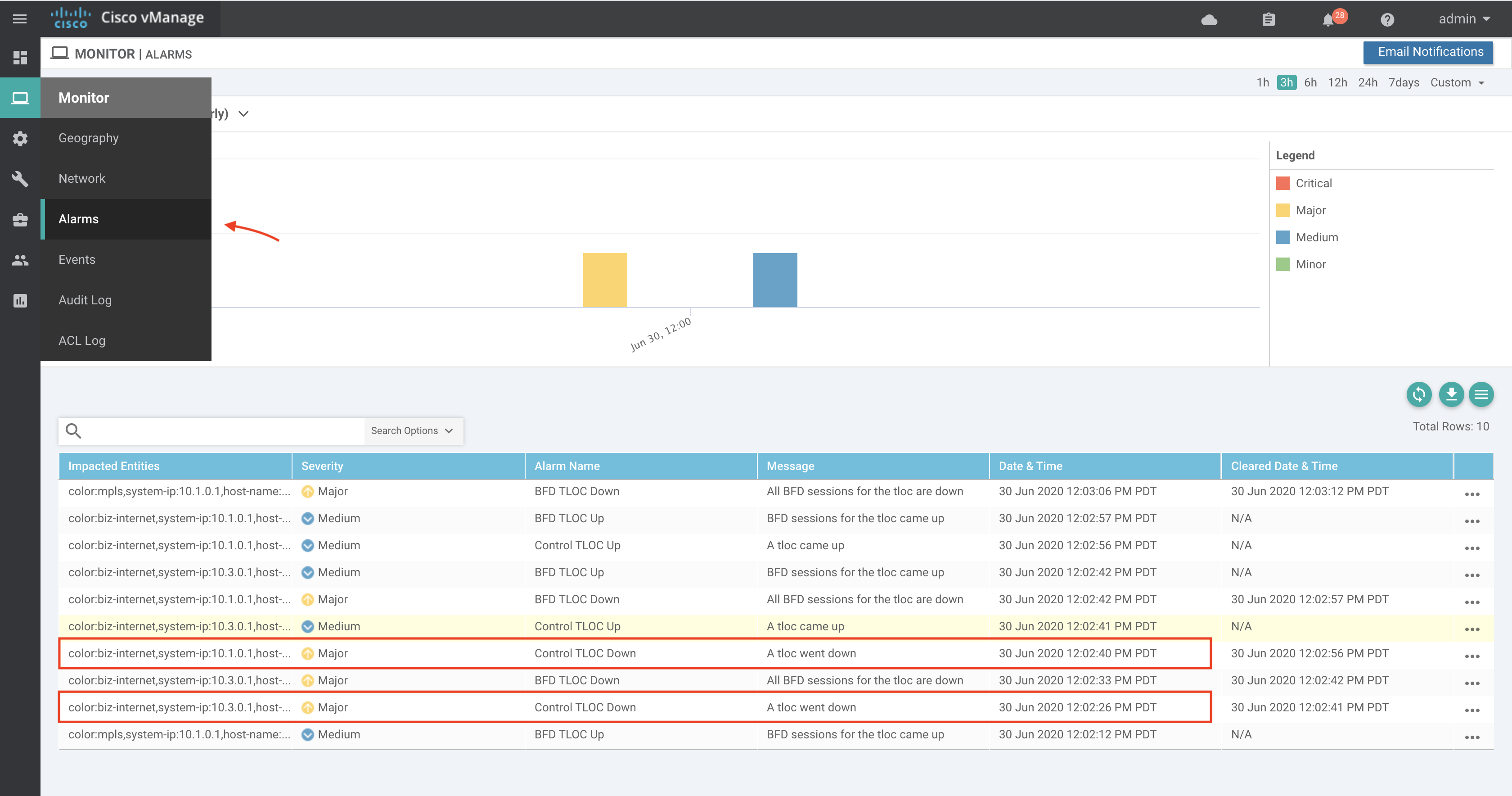
Confirm that Cisco Catalyst SD-WAN Manager receives the triggered alarm from vEdge routers.
- Go to section Monitor -> Alarms and confirm that the system reports the Control TLOC Down/Up alarm so that we can retrieve these alarm details by using APIs in the next steps.
Step-1
At a Windows command prompt run the command py -3.7 alarms_apis.py to see all the options supported by the script.
Sample Response
C:\Users\Administrator\Desktop\sdwan_prog_lab>py -3.7 alarms_apis.py
Usage: alarms_apis.py [OPTIONS] COMMAND [ARGS]...

  Command line tool for retrieving SD-WAN Alarms.

Options:
  --help  Show this message and exit.

Commands:
  ack-alarm         Acknowledge specific alarms of provided uuids.
  alarm-details     Retrieve consumed event details for provided alarm uuid.
  list-alarms       Retrieve list of alarms related to provided tag.
  list-alarms-tags  Retrieve list of alarm tags.
Step-2
Run the script with list-alarms-tags option. For example, py -3.7 alarms_apis.py list-alarms-tags to see all the alarm names/tags supported.
C:\Users\Administrator\Desktop\sdwan_prog_lab>py -3.7 alarms_apis.py list-alarms-tags

Retrieving the alarm tags

BFD_Node_Up               OMP_All_Vsmarts_Down                 Device Upgrade Failed
BFD_Between_Sites_Down    OMP_Site_Up                          Container upgrade failed
BFD_TLOC_Up               OMP_Node_Up                          New_CSR_Generated
BFD_TLOC_Down             BGP_Router_Down                      Root_Cert_Chain_Uninstalled
BFD_Site_Down             BGP_Router_Up                        Default App List Update
BFD_Site_Up               OSPF_Router_Down                     Interface_State_Change
BFD_Node_Down             OSPF_Router_Up                       aaa_Admin_Password_Change
BFD_Between_Sites_Up      Container reload failed              Unsupported_SFP_Detected
Control_Vsmart_Down       System_IP_Reuse                      Device Activation Failed
Control_Vsmart_Up         Pim_Interface_State_Change           System_Reboot_Issued
Control_Site_Down         Interface_Admin_State_Change         Devices Have No License Associated
Control_TLOC_Down         Container activate failed            Clear_Installed_Certificate
Control_vManage_Up        System-IP_Change                     Cloud On Ramp
Control_Site_Up           DHCP_Server_State_Change             UTD signature package installation failed
Control_vManage_Down      OMP_State_Change                     Org_Name_Change
Control_Vsmarts_Up        Site-ID_Change                       Container reset failed
Control_Node_Up           Disk_Usage                           ZTP Upgrade Failed
Control_TLOC_Up           Domain-ID_Change                     Pseudo_Commit_Status
Control_Node_Down         Memory_Usage                         Container App installation failed
Control_All_Vsmarts_Down  CPU_Load                             Control_vBond_State_Change
OMP_Site_Down             vEdge_Serial_File_Uploaded           Template_Rollback
OMP_Node_Down             Cloned_Vedge_Detected                Root_Cert_Chain_Installed
OMP_Vsmarts_Up            vSmart/vManage_Serial_File_Uploaded  Process_Restart


C:\Users\Administrator\Desktop\sdwan_prog_lab>
Step-3
Let's use the Control_TLOC_Down alarm tag to get all the Control TLOC Down alarms in the Overlay fabric for last 24 hours.
Run the script py -3.7 alarms_apis.py list-alarms --alarm_tag Control_TLOC_Down.
The script uses the Simple Query payload from Example 4.3 to query for all alarms with the provided tag for last the 24 hours that are acknowledged.
C:\Users\Administrator\Desktop\sdwan_prog_lab>py -3.7 alarms_apis.py list-alarms --help
Usage: alarms_apis.py list-alarms [OPTIONS]

  Retrieve a list of alarms related to the provided tag.
  Example command: ./alarms_apis.py list-alarms --alarm_tag OMP_Site_Up

Options:
  --alarm_tag TEXT  Alarm tag name
  --help            Show this message and exit

C:\Users\Administrator\Desktop\sdwan_prog_lab>
C:\Users\Administrator\Desktop\sdwan_prog_lab>py -3.7 alarms_apis.py list-alarms --alarm_tag Control_TLOC_Down

Retrieving the alarms with tag Control_TLOC_Down

╒═════════════════════╤═══════════════════╤══════════╤══════════╤════════════╤══════════════════════════════════════════════════╕
│ Date & Time (PDT)   │ Alarm tag         │ Active   │ Viewed   │ Severity   │ Details                                          │
╞═════════════════════╪═══════════════════╪══════════╪══════════╪════════════╪══════════════════════════════════════════════════╡
│ 06/21/2020 14:41:42 │ Control_TLOC_Down │ False    │ False    │ Major      │ UUID: dfdd7822-6c19-49f3-844b-47402ff1d616       │
│                     │                   │          │          │            │ Values:                                          │
│                     │                   │          │          │            │ [                                                │
│                     │                   │          │          │            │     {                                            │
│                     │                   │          │          │            │         "color": "biz-internet",                 │
│                     │                   │          │          │            │         "host-name": "BR1-CEDGE1",               │
│                     │                   │          │          │            │         "site-id": "300",                        │
│                     │                   │          │          │            │         "system-ip": "10.3.0.1"                  │
│                     │                   │          │          │            │     }                                            │
│                     │                   │          │          │            │ ]                                                │
│                     │                   │          │          │            │ Cleared By: 0fa4319d-3173-4918-93aa-4b064d46a3c2 │
│                     │                   │          │          │            │ Cleared Time: 06/21/2020 14:41:59 PDT            │
╘═════════════════════╧═══════════════════╧══════════╧══════════╧════════════╧══════════════════════════════════════════════════╛

C:\Users\Administrator\Desktop\sdwan_prog_lab>
Step-4
In Cisco SD-WAN solution components,(controllers and vEdge routers) sends various events to Cisco Catalyst SD-WAN Manager. On Cisco Catalyst SD-WAN Manager, these events go through the Alarms Engine which correlates the events and then triggers alarms.
For example, when Control Connection goes down, Cisco Catalyst SD-WAN Manager receives the control connection state change events from controllers and vEdge routers. The alarms engine co-relates these events and then triggers the Control Transport Locator (TLOC) Down/Up alarm, respectively.
Using the API end point /alarms/uuid/<uuid-value> you can retrieve the details of all the consumed events that have triggered a specific alarm.
Now let's run the script py -3.7 alarms_apis.py alarm-details --uuid <uuid-value> to retrieve the consumed events for a given alarm with a provided uuid value.
Copy the uuid-value of any alarm from the output in Step-3.
Sample Response
Use --help option to see the supported inputs-specific command option.
C:\Users\Administrator\Desktop\sdwan_prog_lab>py -3.7 alarms_apis.py alarm-details --help
Usage: alarms_apis.py alarm-details [OPTIONS]

  Retrieve consumed event details for provided alarm uuid.
  Example command: ./alarms_apis.py alarm-details --uuid <alarm uuid value>

Options:
  --uuid TEXT  Alarm uuid
  --help       Show this message and exit

C:\Users\Administrator\Desktop\sdwan_prog_lab>
Sample output of consumed events for the alarm with uuid value dfdd7822-6c19-49f3-844b-47402ff1d616.
C:\Users\Administrator\Desktop\sdwan_prog_lab>py -3.7 alarms_apis.py alarm-details --uuid dfdd7822-6c19-49f3-844b-47402ff1d616

Retrieving the consumed events for uuid dfdd7822-6c19-49f3-844b-47402ff1d616

╒═════════════════════╤═══════════════════╤══════════╤══════════╤════════════════════════════════════════════════════════════╕
│ Date and time (PDT)   │ Alarm tag         │ Active   │ Viewed   │ Consumed events                                            │
╞═════════════════════╪═══════════════════╪══════════╪══════════╪════════════════════════════════════════════════════════════╡
│ 06/21/2020 14:41:42 │ Control_TLOC_Down │ False    │ False    │ [                                                          │
│                     │                   │          │          │     {                                                      │
│                     │                   │          │          │         "builtBy": "EventDataCollector",                   │
│                     │                   │          │          │         "component": "Control",                            │
│                     │                   │          │          │         "entry_time": 1592775645000,                       │
│                     │                   │          │          │         "eventCreationTime": 1592775642877,                │
│                     │                   │          │          │         "eventId": "256a6b8a-c84e-41ec-b339-0e7707293ba8", │
│                     │                   │          │          │         "eventname": "control-connection-state-change",    │
│                     │                   │          │          │         "host-name": "vSmart-2",                           │
│                     │                   │          │          │         "linkupdate": true,                                │
│                     │                   │          │          │         "new-state": "down",                               │
│                     │                   │          │          │         "peer-system-ip": "10.3.0.1",                      │
│                     │                   │          │          │         "peer-type": "vedge",                              │
│                     │                   │          │          │         "peer-vManage-system-ip": "0.0.0.0",               │
│                     │                   │          │          │         "personality": "vsmart",                           │
│                     │                   │          │          │         "public-ip": "100.64.2.2",                         │
│                     │                   │          │          │         "public-port": "5079",                             │
│                     │                   │          │          │         "receive_time": 1592775642867,                     │
│                     │                   │          │          │         "remote-color": "biz-internet",                    │
│                     │                   │          │          │         "severity-level": "major",                         │
│                     │                   │          │          │         "src-color": "default",                            │
│                     │                   │          │          │         "system-ip": "22.22.22.22",                        │
│                     │                   │          │          │         "uptime": "1:19:48:29",                            │
│                     │                   │          │          │         "vManage-system-ip": "22.22.22.22"                 │
│                     │                   │          │          │     },                                                     │
│                     │                   │          │          │     {                                                      │
│                     │                   │          │          │         "builtBy": "EventDataCollector",                   │
│                     │                   │          │          │         "component": "Control",                            │
│                     │                   │          │          │         "entry_time": 1592775646000,                       │
│                     │                   │          │          │         "eventCreationTime": 1592775642871,                │
│                     │                   │          │          │         "eventId": "00c506f5-6d4e-4a5b-9c9f-5b83468edd81", │
│                     │                   │          │          │         "eventname": "control-connection-state-change",    │
│                     │                   │          │          │         "host-name": "vSmart-1",                           │
│                     │                   │          │          │         "linkupdate": true,                                │
│                     │                   │          │          │         "new-state": "down",                               │
│                     │                   │          │          │         "peer-system-ip": "10.3.0.1",                      │
│                     │                   │          │          │         "peer-type": "vedge",                              │
│                     │                   │          │          │         "peer-vManage-system-ip": "0.0.0.0",               │
│                     │                   │          │          │         "personality": "vsmart",                           │
│                     │                   │          │          │         "public-ip": "100.64.2.2",                         │
│                     │                   │          │          │         "public-port": "5079",                             │
│                     │                   │          │          │         "receive_time": 1592775642853,                     │
│                     │                   │          │          │         "remote-color": "biz-internet",                    │
│                     │                   │          │          │         "severity-level": "major",                         │
│                     │                   │          │          │         "src-color": "default",                            │
│                     │                   │          │          │         "system-ip": "12.12.12.12",                        │
│                     │                   │          │          │         "uptime": "1:19:48:30",                            │
│                     │                   │          │          │         "vManage-system-ip": "12.12.12.12"                 │
│                     │                   │          │          │     }                                                      │
│                     │                   │          │          │ ]                                                          │
╘═════════════════════╧═══════════════════╧══════════╧══════════╧════════════════════════════════════════════════════════════╛

C:\Users\Administrator\Desktop\sdwan_prog_lab>
Step-5
Once the network operations team reviews the alarms, we can mark those alarms as viewed and filter them in the response for subsequent API calls used to poll the alarms.
To mark an alarm as viewed, run the POST request to API end point /alarms/markviewed with POST below payload request.
{
    "uuid" : <list of alarm uuids to mark as viewed>
}
Sample Response
Use --help option to see the supported inputs-specific command option i.e. py -3.7 alarms_apis.py ack-alarm --help
C:\Users\Administrator\Desktop\sdwan_prog_lab>py -3.7 alarms_apis.py ack-alarm --help
Usage: alarms_apis.py ack-alarm [OPTIONS]

  Acknowledge specific alarms of provided uuids.
  Example command: ./alarms_apis.py ack-alarm --uuid <alarm uuid value>
  To ack multiple uuids seperate uuid using "," i.e. --uuid uuid-1,uuid-2

Options:
  --uuids TEXT  Alarm uuid/s
  --help        Show this message and exit.

C:\Users\Administrator\Desktop\sdwan_prog_lab>
Now let's run the script py -3.7 alarms_apis.py ack-alarm --uuids dfdd7822-6c19-49f3-844b-47402ff1d616 to mark the specific alarm as viewed or acknowledged.
Sample Response
C:\Users\Administrator\Desktop\sdwan_prog_lab>py -3.7 alarms_apis.py ack-alarm --uuids dfdd7822-6c19-49f3-844b-47402ff1d616
Acknowledged the alarms with uuid ['dfdd7822-6c19-49f3-844b-47402ff1d616']

C:\Users\Administrator\Desktop\sdwan_prog_lab>
Step-6
At a Windows command prompt, run the script py -3.7 alarms_apis.py list-alarms --alarm_tag Control_TLOC_Down to confirm that the response from the Cisco Catalyst SD-WAN Manager Alarms API no longer shows the acknowledged alarm.
C:\Users\Administrator\Desktop\sdwan_prog_lab>py -3.7 alarms_apis.py list-alarms --alarm_tag Control_TLOC_Down

Retrieving the alarms with tag Control_TLOC_Down

╒═════════════════════╤═════════════╤══════════╤══════════╤════════════╤═══════════╕
│ Date & Time (PDT)   │ Alarm tag   │ Active   │ Viewed   │ Severity   │ Details   │
╞═════════════════════╪═════════════╪══════════╪══════════╪════════════╪═══════════╡
╘═════════════════════╧═════════════╧══════════╧══════════╧════════════╧═══════════╛

C:\Users\Administrator\Desktop\sdwan_prog_lab>
Note: You would see a different output based on the alarms reported in Cisco Catalyst SD-WAN Manager of your dCloud setup.
Conclusion
In this section, you learned how to build a query for different scenarios to retrieve the alarms and how to parse the alarm data from Cisco Catalyst SD-WAN Manager.
Python scripts used in this Lab
Python scripts from: Lab