Registering and Enabling Context Service
Cisco Context Service is a cloud-based Omni-Channel solution for Cisco Contact Center Enterprise Solutions. It enables you to capture your customer's interaction history by providing flexible storage of customer-interaction data across any channel.
Various components in the CCE Solution provide out of the box integration with Context Service. Context Service also provides an API for integration with your own applications or third-party applications to capture end-to-end customer-interaction data.
For more information about Context Service and to check service availability, see http://cisco.com/go/contextservice.
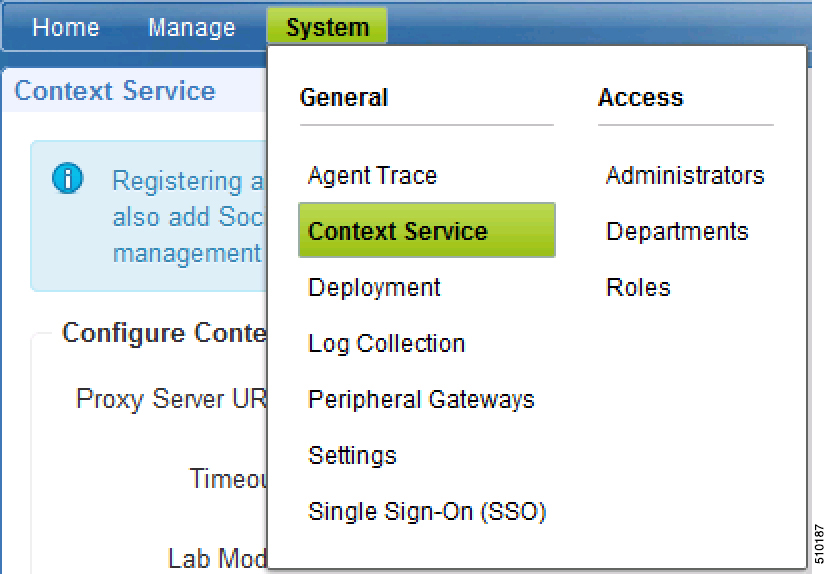
| Step 1 | Select
Context
Service from the
System
menu.
|
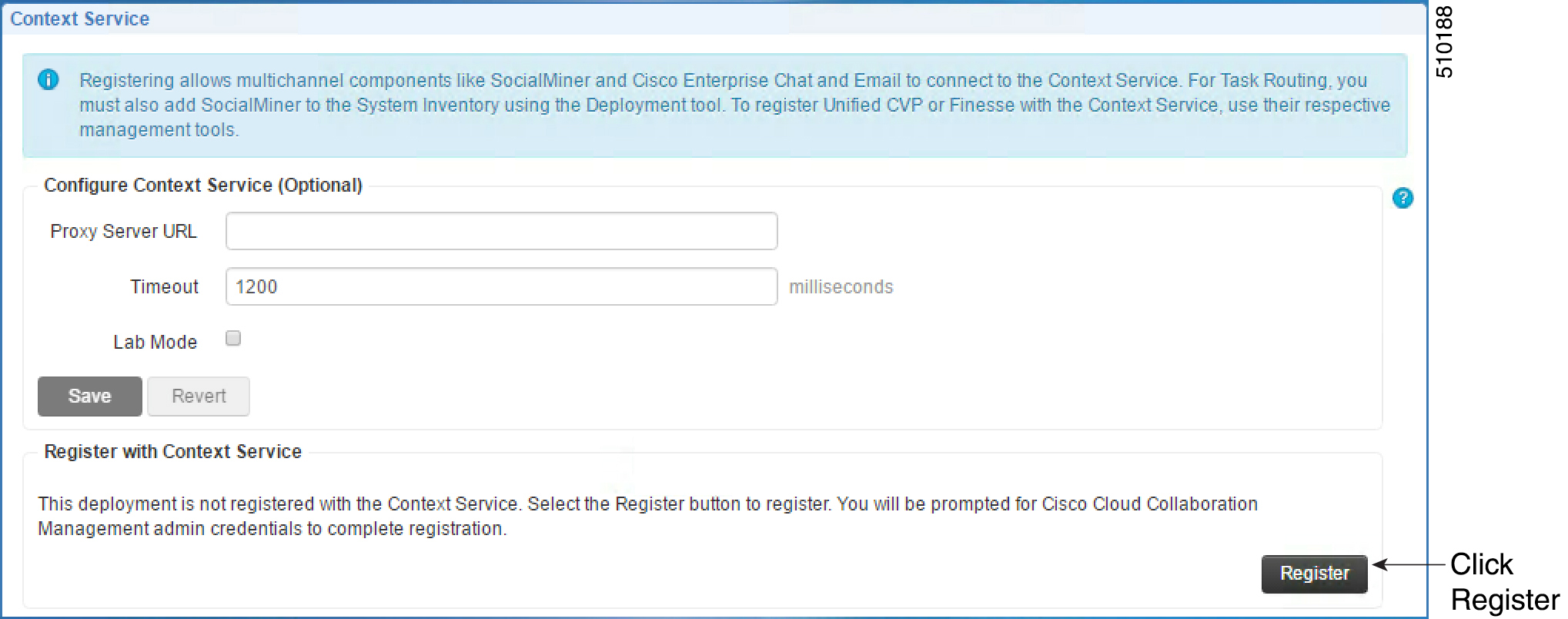
| Step 2 | Enter the
Proxy Server URL and Timeout in Milliseconds, and click Register.
|
Context Service for Task Routing Tasks
If you have already saved the task request information in a POD and include that POD reference URL in the task request, Customer Collaboration Platform doesn't create a new POD. Customer Collaboration Platform passes the existing POD ID directly to Unified CCE for use by the Finesse clients.
When creating a new POD, Customer Collaboration Platform looks up the customer by the author field of the Customer Collaboration Platform social contact. The results of the lookup determine whether the POD includes a customer reference, as follows:
- If zero or many customers are returned, the POD doesn't include a customer reference.
- If one customer is returned, the POD includes that customer reference.
Customer Collaboration Platform populates the following fields from the Context Service cisco.base.pod field set for Task Routing task contacts:
- Context_Notes: This field is populated with the value of SocialContact.description.
- Context_POD_Source_Cust_Name: This field is populated with the value of SocialContact.author.
- Context_POD_Source_Email: To populate this field, Customer Collaboration Platform looks up the email address using the SocialContact.author field.
Context Service Network Connectivity Requirements
Context Services uses port 443 (HTTPS).
Whitelist these URLs in your firewall to allow your Contact Center components to connect to, and receive data from the Internet.
-
*.webex.com
-
*.wbx2.com
-
*.ciscoccservice.com
 Note | You must use wildcard URLs in your whitelist because Context Service is accessed through multiple subdomains. Context Service subdomain names can dynamically change. |
Configuring Context Service Settings
| Command or Action | Purpose | |||||||||
|---|---|---|---|---|---|---|---|---|---|---|
| Step 1 | In Unified CCE Administration, navigate to System > Context Service. | |||||||||
| Step 2 | Complete
the following parameters and click
Save.
| |||||||||
| Step 3 | To register with Context Service, click Register. | |||||||||
| Step 4 | After a successful registration, you can deregister from the Context Service by clicking Deregister. |
If you configured a proxy server for Context Service, configure the browser proxy with the proxy server URL you specified. Refer to your browser’s documentation for information about configuring proxy settings.
Enabling the POD.ID Expanded Call Variable
| Command or Action | Purpose | |
|---|---|---|
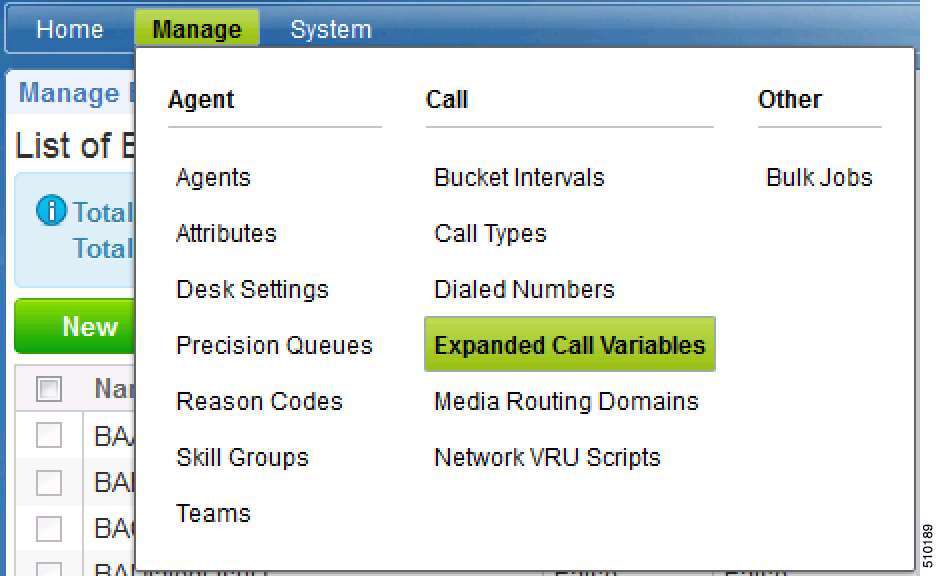
| Step 1 | Sign in
to Unified CCE Administration. Navigate to Manage > Expanded Call Variables.
| |
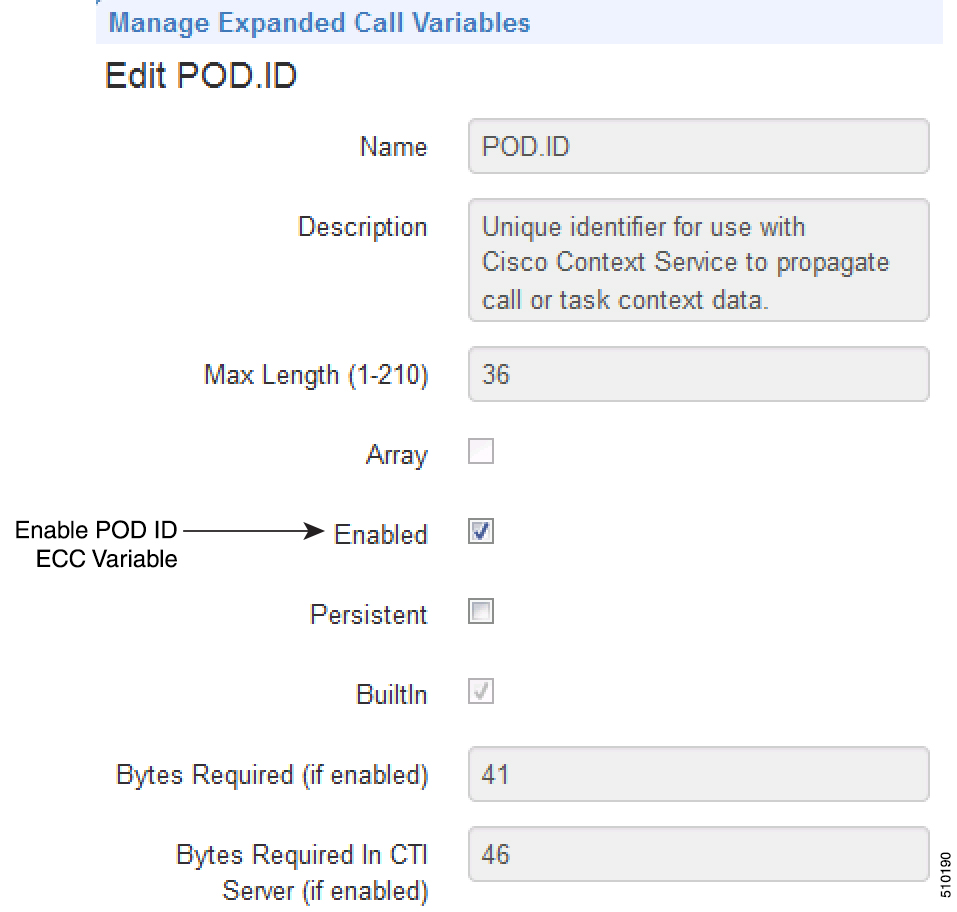
| Step 2 | Click the POD.ID row in the Expanded Call Variables list. | The Edit POD.ID window opens |
| Step 3 | Check the Enabled check box. | |
| Step 4 | Click
Save.
|