Overview
Meraki Webhooks are a powerful and lightweight solution to send networks alerts to a remote service.
These messages are sent to a unique URL where they can be processed, stored or used to trigger automations. For a comprehensive list of alerts, please see the Webhook Sample Alerts section of this doc or use the Dashboard API Alert Types endpoint to get the most up to date list.
Setup and Configuration
Add an HTTP Server
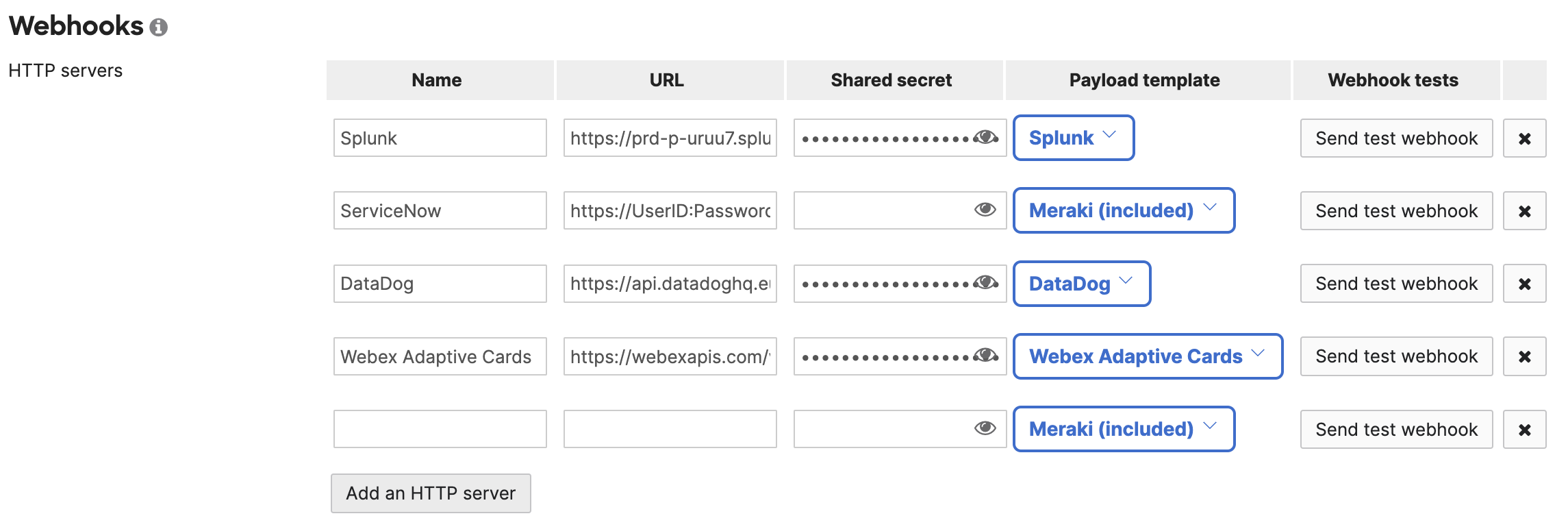
Add one or more HTTP servers. Include a name, unique HTTPS (TLS) URL and shared secret (see Security below for more details). You can optionally select a payload template.
Network-wide --> alerts
Assign Alerts
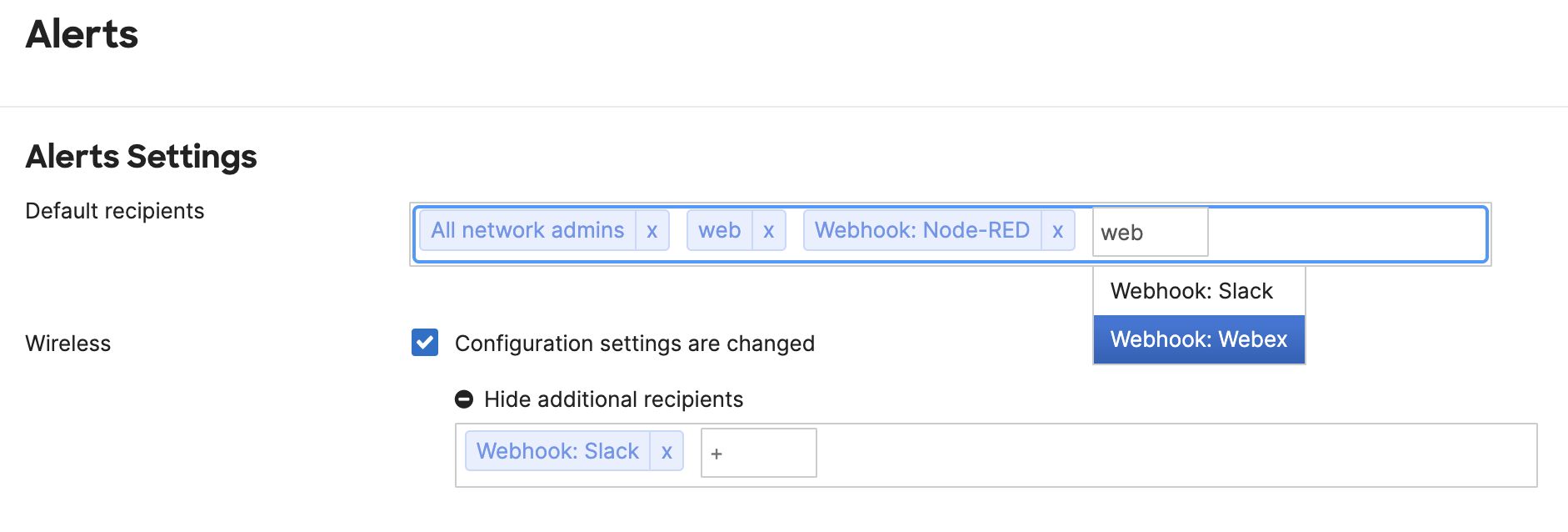
Configured HTTP servers can be selected as a recipient (destination) for any alert within dashboard, or via the alert configuration endpoint via API.
Common JSON Parameters
| Name | Format | Description |
|---|---|---|
| alertData | object | Object of unique parameters for each alert |
| alertId | string | ID for this alert message |
| alertType | string | Type of alert (“Network usage alert”, “Settings changed”, etc.) |
| networkId | string | ID for the Meraki network |
| networkName | string | Name for the Meraki network |
| networkUrl | string (URL) | URL of the Meraki Dashboard network |
| occurredAt | UTC | Timestamp of the alert |
| organizationId | string | ID of the Meraki organization |
| organizationName | string | Name of the Meraki organization |
| organizationUrl | string (URL) | URL of the Meraki Dashboard organization |
| sentAt | UTC | Timestamp of the sent message |
| sharedSecret | string | User defined secret to be validated by the webhook receiver (optional) |
| version | float | Current version of webhook format |
Security
Securing data in transport
Webhook HTTP server URLs must use a TLS-enabled HTTPS URL located on a public server with a valid SSL certificate.
Shared Secret
- The optional sharedSecret parameter is defined when configuring the HTTP server on the Meraki Dashboard. The value of the sharedSecret can be evaluated by the webhook receiving service before saving the information. If the webhook receiver does not support this option, the parameter will simply be ignored.
Example logic to evaluate the sharedSecret parameter
if (meraki.sharedSecret === "asdf1234"){
     saveData(meraki);
}else{
     // invalid secret
}
HTTP deprecation notice
As part of Cisco Meraki's efforts to continually improve our platform and enable customers to securely deploy Meraki networks, an update is being implemented to the Webhook services and configuration options.
What is changing?
Beginning May 22nd, 2019 Meraki will require all newly-configured receivers to use HTTPS and will no longer support configuring non-HTTPS receivers. All currently active Webhook services have until August 20, 2019 to upgrade receiver(s) configurations to HTTPS (SSL/TLS).
Will existing receivers stop working?
The option to use non-secure receivers will end on August 20, 2019, after which all active non-HTTPS receivers will be disabled. All newly configured receivers will be required to use HTTPS (SSL/TLS). In order to avoid any impact to services and applications using the Webhooks API, please make these changes on or before August 20, 2019. If you have not made the required changes by August 20, 2019 we will stop sending data to any remaining HTTP receivers.
Are self-signed SSL/TLS certificates supported?
Self-signed certificates are not supported for webhooks. The receiving web server must have a valid SSL/TLS certificate, signed by a globally trusted certificate authority (CA).
Need a certificate?
Consider one of these free or low-cost solutions for obtaining a certificate:
- Let's Encrypt - Free SSL certificates
- ngrok - Instant local secure proxy, ideal for development.
Frequency
- The Meraki Alerts will vary in delivery times. This will depend on the nature of the event and any configurable options. The occurredAt parameter can be used to derive the time the reported alert occurred at, which will often differ from the sentAt value.
- On average, an alert will be sent within 90 seconds of the event.
- Many alerts have a configurable threshold, such as waiting 5 minutes of downtime before the message will be sent.
- Some alerts require additional computational time or aggregate multiple events. This will cause additional delays, but will likely not exceed 10 minutes.
- Experiences may vary, so it’s best to test with your own environment to ensure it fits your needs.
Receiver Health Monitoring
Auto-Disable Policy
Meraki continuously monitors the health of all configured webhook receivers. If a receiver fails consistently over an extended period, it will be automatically disabled. A webhook receiver will be automatically disabled if delivery consistently fails for > 100 attempts in 24 hours.
Note: Temporary failures (brief downtime, intermittent errors) will not trigger auto-disable. Only sustained, consistent failures result in disabling.
When a receiver is disabled, an email notification will be sent to the organization administrator(s)
Re-Enabling Disabled Receivers
- Once you've fixed the underlying issue with your Webhook endpoint:
- Go to Organization > Configure > API & Webhooks > Webhooks tab in the Meraki Dashboard
- Delete the disabled webhook receiver
- Create a new webhook receiver with the same (now-working) URL
- Save the URL and click "Send test" to ensure you get a "Webhook test was successful!" message
Common Failures & Prevention
- Your webhook receiver service crashed or server is offline
- There is Typo in URL, or endpoint path has changed
- HTTPS endpoint has an expired, self-signed, or mismatched certificate
- Endpoint requires authentication but credentials are wrong/missing
- Firewall does not allow connections from Meraki IP ranges
- Ensure that the webhook endpoint responds with HTTP 2xx status codes (You can use https://webhook.site/ to test if the webhook receiver is functional)
Resources
Postman
Use the Postman collection to examine several sample alert messages and send them on demand for testing.