Reporting
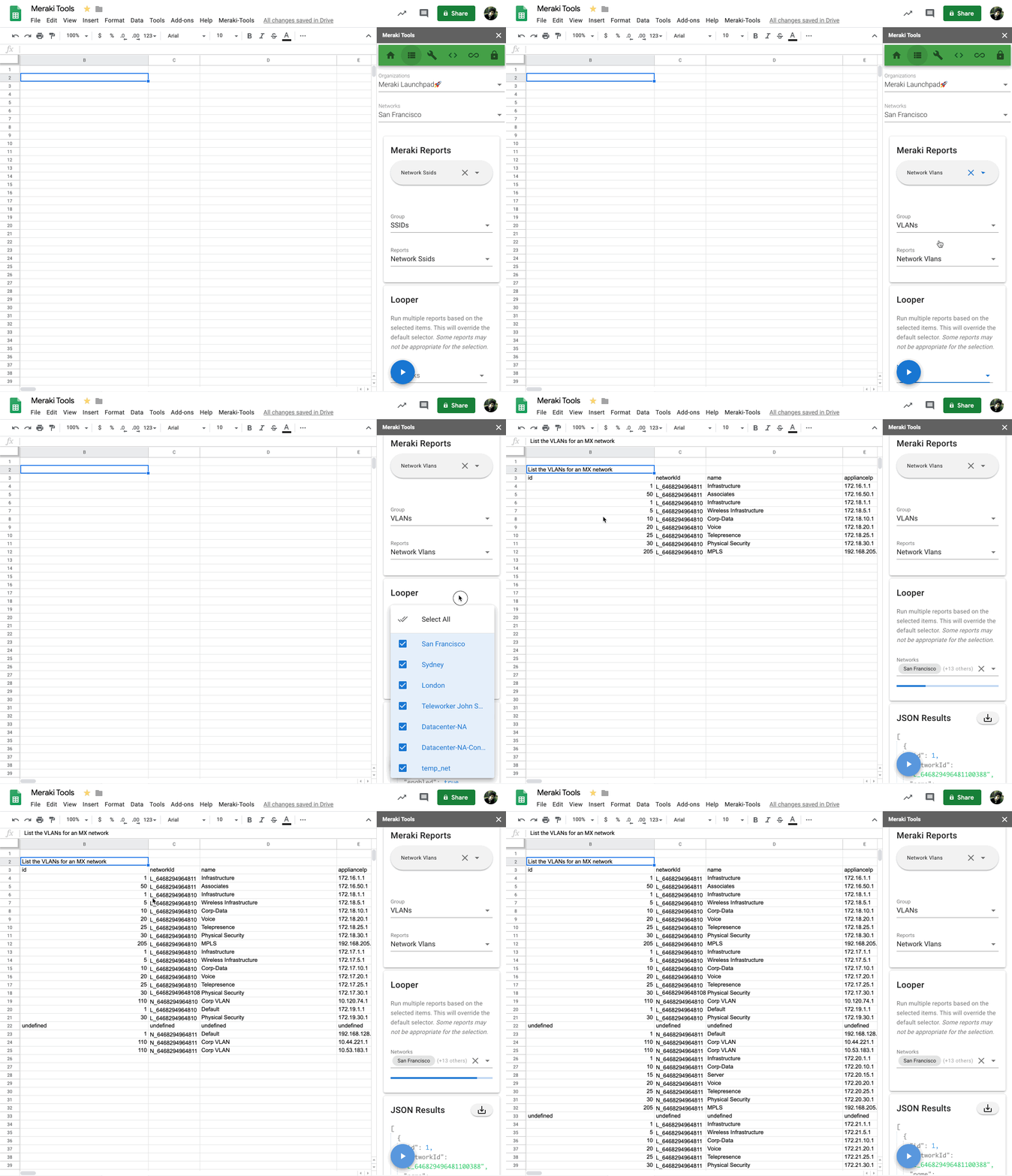
Run reports against your Meraki networks.
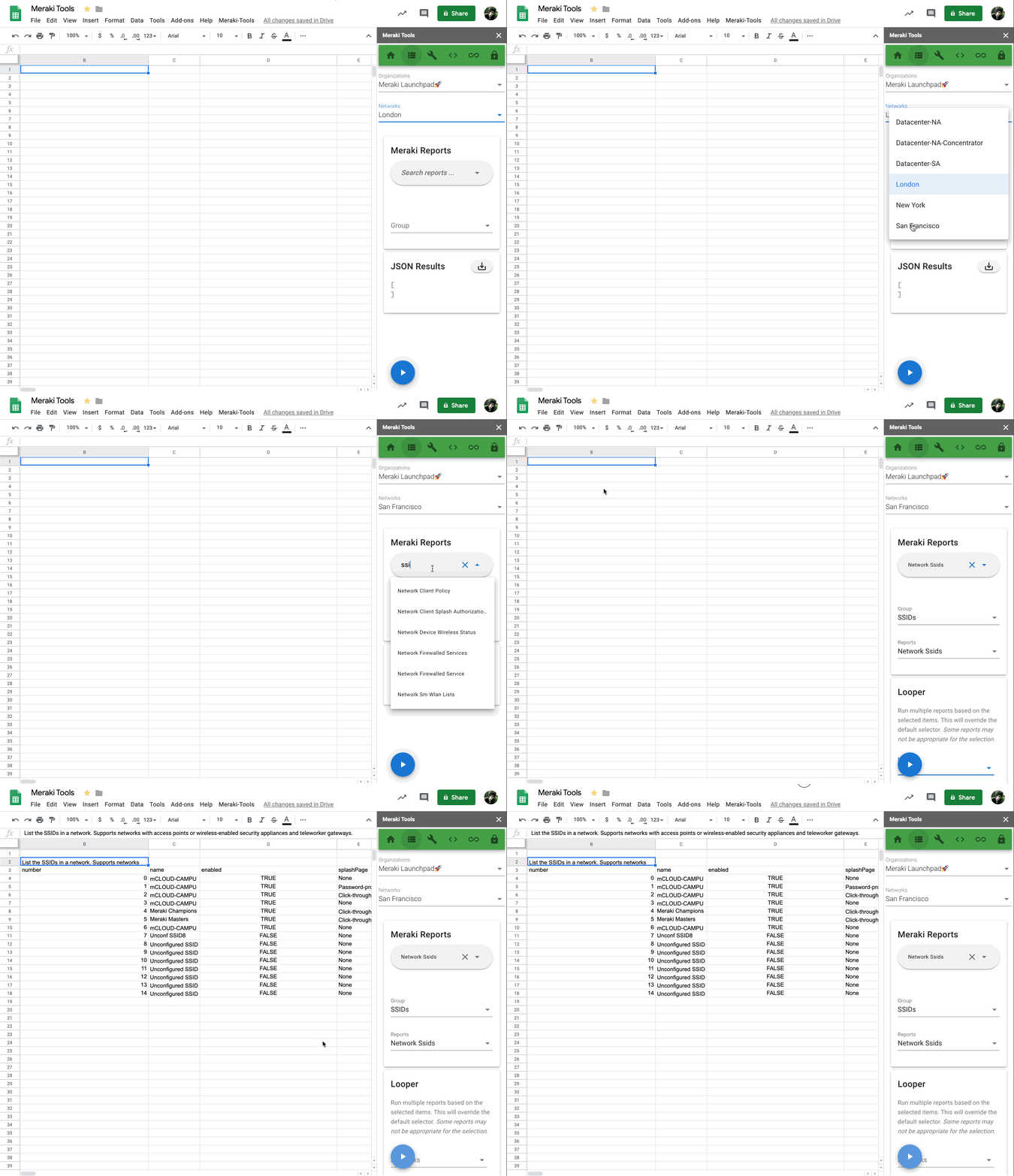
Either Search for a report or browse by Group
Once you have selected a report, add additional parameters as needed.
Select a spreadhsheet cell where you intend to place the report data.
Run the report by pressing the blue play button.
Dynamic Reporting
Run a report everytime the page is loaded or refreshed.
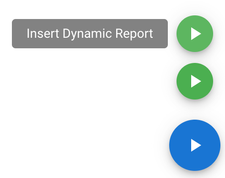
By inserting the report with the green play button, the report will be inserted as a custom cell function, described below, to call the Meraki API.
Cell Functions
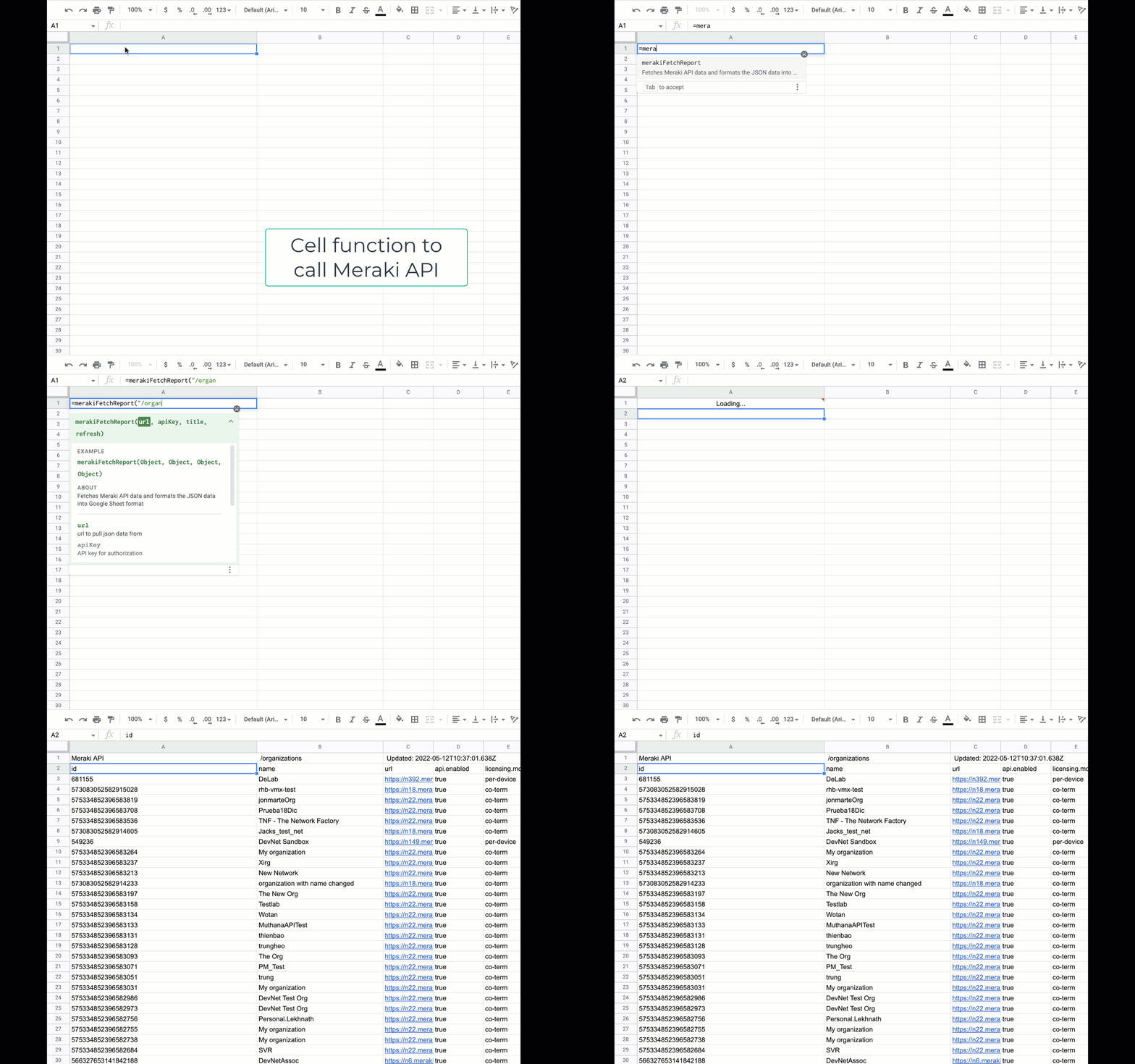
Fetch a Meraki API endpoint and automatically format the data into the adjacent cells.
=merakiFetchReport(url, apiKey, title, refresh)
Note: returned data cannot be modified when using this method and cells must be available for the insert without conflict.
Basic Usage
=merakiFetchReport("/organizations")Advanced Usage
=merakiFetchReport("/organizations", "00000APIKEY00000","MyReport","'_meraki_tools'!B1")| Parameter | Details |
url |
URL to pull JSON data from. This can either be a complete
or short API URL (i.e
"https://api.meraki.com/api/v1/organizations"
or "/organizations") |
apiKey |
API key for authorization. If left blank, it will default
to the stored key entered in the |
title |
The title text to display in the cell |
refresh |
Triggers a refresh of the report when changed.
Google does not permit the use of now() or random functions to be used here. Instead, a hidden _meraki_tools sheet is created and stores a timestamp at cell '_meraki_tools'!B1 that gets updated when the Refresh Reports function is run from the taskbar menu. |
Looper
If a report needs to be run multiple times against a specific scope, use the Looper to iterate over a selected option.