cat9k-device-monitoring-app
Cisco Catalyst 9K Device Status Monitoring Application
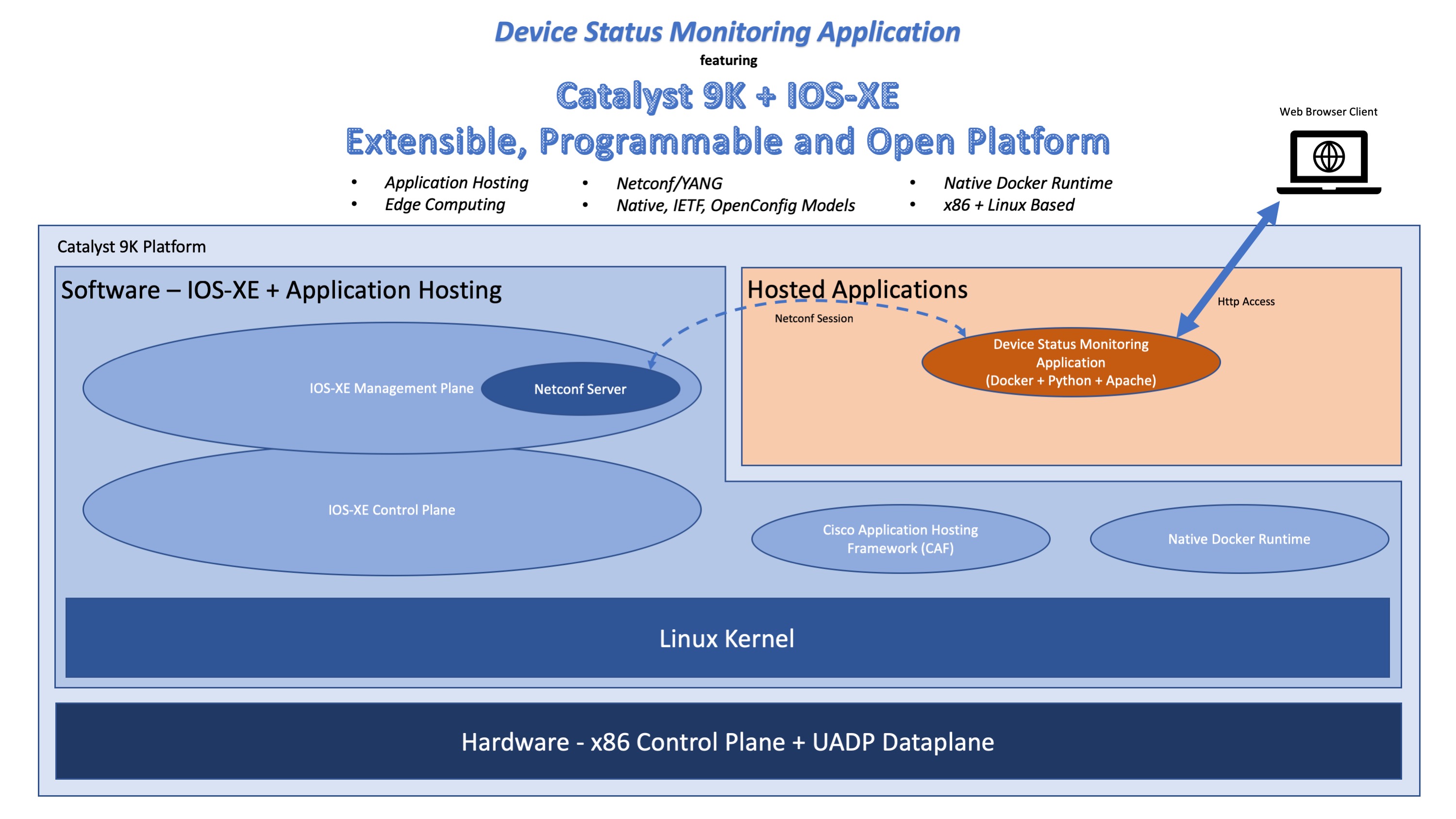
A sample docker container based application that is hosted and run on a Cisco Catalyst 9K switch, and monitors the status and health of that switch.
The application connects to the switch's IOS-XE management plane using a Netconf connection to collect status information, and publishes that information through a web server running in the application.
This simple application demonstrates how the Catalyst 9K platform's support for application hosting and programmability can be harnessed to easily customize or extend the capability of the platform, and to seamlessly integrate it into ecosystems consisting of other open and proprietary infrastructure. In certain cases, the ability to move computation onto the platform itself obviates the need for additional hardware to do that computation and allows for infrastructure consolidation.
The approach used by this sample application can be used to develop applications for these additional use cases:
- Edge analytics: Monitoring agents that collect data from a switch, optionally filter/analyze/transform the data locally, and then send the resulting information to a remote collector.
- Network automation: Configuration and automation agents that accept platform agnostic commands from a remote controller, and then translate and apply them to the switch.
Core Components:
- Python script:
Collects switch status information and presents it as html. - Python ncclient library:
Used to establish Netconf connection to switch. - Apache Web Server:
Publishes status information over http. - Docker
Used to package application as Linux container.
Status:
Initial revision.

Getting the source code
The source code repository can be cloned from GitHub.
git clone https://github.com/CiscoDevNet/cat9k-device-monitoring-app
Building the application
Prerequisites:
- Docker installed
- An Internet connection
cd <top-dir>/src
docker build -t cat9k_monitor .
Configuring the application
Edit the file src/device_status.py to add switch IP address or hostname, Netconf port, login username and password, and name of the switch interface to monitor.
Testing the application
For testing, the application can be run locally on the same machine where it is built, provided the target switch is reachable over the network from the local machine, and is configured for Netconf access over the management interface.
To configure the switch for Netconf access, follow the applicable steps under "Configuring the switch".
docker run -p 8080:80 -d --name=cat9k_monitor cat9k_monitor
The output can be seen from a web browser by accessing the URL:
http://localhost:8080/cgi-bin/device_status.py
Click the 'Refresh' link to update interface status.
Configuring the switch
Application hosting and Netconf need to be enabled and configured on the switch.
For application hosting to work, a Cisco USB SSD drive must be plugged into the back-panel USB port of the switch.
In addition, the switch management interface also needs to be configured, and a login username and password need to be configured for access over the management interface.
Configuring Netconf:
ip ssh version 2

netconf ssh
netconf-yang
Configuring application hosting:
iox

app-hosting appid cat9k_monitor
 app-vnic management guest-interface 0
  guest-ipaddress <app_ip_address> netmask <app_ip_netmask>
 app-default-gateway <app_ip_gateway> guest-interface 0
 app-resource docker
  run-opts "-p 80:80"
 app-resource profile custom
  cpu 7400
  memory 2048
Configuring the management interface:
interface GigabitEthernet0/0
 vrf forwarding Mgmt-vrf
 ip address <mgmt_ip_address> <mgmt_ip_netmask>
 negotiation auto
ip tftp source-interface GigabitEthernet0/0
Note:
- The application's virtual Ethernet interface is bridged with the switch management interface, hence <mgmt_ip_address> and <app_ip_address> must belong to the same subnet and both interfaces should use the same gateway.
- The tftp configuration is required if the application package file will be copied to the switch using tftp.
Configuring login over the management interface:
no aaa new-model

username <username> privilege 15 password 0 <password>
line vty 0 4
 login local
 transport input all
line vty 5 15
 login local
 transport input all
Deploying the application to the switch
- Save the docker application image as a tarball.
docker save -o cat9k_monitor.tar cat9k_monitor
Note: Depending on the version of IOS-XE being used, an additional step involving re-packaging the application tarball using a tool called 'ioxclient' may be needed. Further details can be found at https://developer.cisco.com/docs/iox/#!what-is-ioxclient/what-is-ioxclient.
- Copy the application tarball to the USB SSD inserted into the switch.
First copy the application tarball to the tftp server.
switch#copy tftp://<tftp_server_ip_address>/cat9k_monitor.tar usbflash1:
- Install and activate the application on the switch.
The 'activate' step allocates the necessary system resources to the application.
switch#app-hosting install appid cat9k_monitor package usbflash1:cat9k_monitor.tar
Installing package 'usbflash1:cat9k_monitor.tar' for 'cat9k_monitor'. Use 'show app-hosting list' for progress.

switch#show app-hosting list
App id                                   State
cat9k_monitor                            DEPLOYED
switch#app-hosting activate appid cat9k_monitor
monitor_iox activated successfully
Current state is: ACTIVATED
- Run the application on the switch.
switch#app-hosting start appid cat9k_monitor
cat9k_monitor started successfully
Current state is: RUNNING

switch#show app-hosting list
App id                                   State
monitor_iox                              RUNNING
The output can be seen from a web browser by accessing the URL:
http://<app_ip_address>/cgi-bin/device_status.py
Click the 'Refresh' link to update interface status.
Congratulations on successfully deploying the application!
Getting help
If you have questions, concerns, bug reports, etc., please file an issue in this repository's Issue Tracker.
Licensing info
The code is licensed under the Cisco Sample Code License, Version 1.1.
References
- Application Hosting on Catalyst 9K, https://developer.cisco.com/docs/app-hosting/
- Cisco IOS XE Programmability: Automating Device Lifecycle Management, https://www.cisco.com/c/dam/en/us/products/collateral/enterprise-networks/nb-06-ios-xe-prog-ebook-cte-en.pdf
- IOx App Concepts, https://developer.cisco.com/docs/iox/#!application-development-concepts/application-development-concepts
- IOx App Tutorials, https://developer.cisco.com/docs/iox/#!overview
Use Case
The approach used by this sample application can be used to develop applications for these additional use cases:
- Edge analytics: Monitoring agents that collect data from a switch, optionally filter/analyze/transform the data locally, and then send the resulting information to a remote collector.
- Network automation: Configuration and automation agents that accept platform agnostic commands from a remote controller, and then translate and apply them to the switch.
Core Components:
- Python script: Collects switch status information and presents it as html.
- Python ncclient library: Used to establish Netconf connection to switch.
- Apache Web Server: Publishes status information over http.
- Docker Used to package application as Linux container.
Code Exchange Community
Get help, share code, and collaborate with other developers in the Code Exchange community.View CommunityCisco provides Code Exchange for convenience and informational purposes only, with no support of any kind. This page contains information and links from third-party websites that are governed by their own separate terms. Reference to a project or contributor on this page does not imply any affiliation with or endorsement by Cisco.