Getting Started
You can get started making your first CER Configuration API request, by following the steps below:
Getting Ready
- Recommended: create a new CER user with administator privileges for use with the API, and have the credentials available.
- Ensure all CER users are present in the associated CUCM as well.
Note the CER Configuration API is always enabled: no configuration needed.
Don't have a CER for development/testing? Try out the DevNet Sandbox
Determine the Base URI
Every API Request should be sent to the following base URI, including the hostname/IP address of the CER Publisher host:
Base URI
https://{CER}/cerappservices/service
...followed by the specific API resource path to use, e.g. /user :
Example Request URI
https://{CER}/cerappservices/service/user/
**Note:**the CER Configuration API service is enabled on the Publisher (only) in a CER cluster.
See the API Reference for details on other available API resources.
Authorization
All API HTTP requests should include an Authorization header (see Authentication for details on how to construct the header.)
Example Authorization Header
Authorization: QWxhZGRpbjpvcGVuIHNlc2FtZQ==
Note: If the request credentials are incorrect, a HTTP
401 Not Authorizedstatus code will be returned.
Accept Header
Typically applications will want to request response data in JSON format, by providing an Accept header like:
Accept: application/json
See Introduction for more supported response types.
Sample HTTP Request/Response
Putting these all together, below is an example of a complete HTTP request fetching a listing of all CER users:
Example GET /users Request
GET /cerappservices/service/user HTTP/1.1
Accept: application/json
Authorization: Basic QWxhZGRpbjpvcGVuIHNlc2FtZQ==
Host: CER
Example Response
{
    "status": "User Details Info",
    "users": {
        "user": [
            {
                "pKid": "06bae444-79f0-34bc-0b73-042e90ad941b",
                "userName": "administrator",
                "isStandard": "true",
                "isRemoteAuth": "0",
                "links": {
                    "publisherURL": "https://CER/cerappservices/service/user?userName=administrator"
                },
                "userGroups": {
                    "userGroup": [
                        "CER Admin Utility",
                        "CER Audit Administrator",
                        "CER Serviceability",
                        "CER System Administrator",
                        "CER User"
                    ]
                },
                "userRoles": {
                    "userRole": [
                        "CER System Admin",
                        "CER Serviceability",
                        "CER Admin Utility",
                        "CER User",
                        "CER Audit Admin"
                    ]
                }
            }
        ]
    }
}
Using Postman REST Client
A handy developer tool for exploring/testing REST API is Postman
The screenshot below shows making the same API request as above using the Postman GUI:
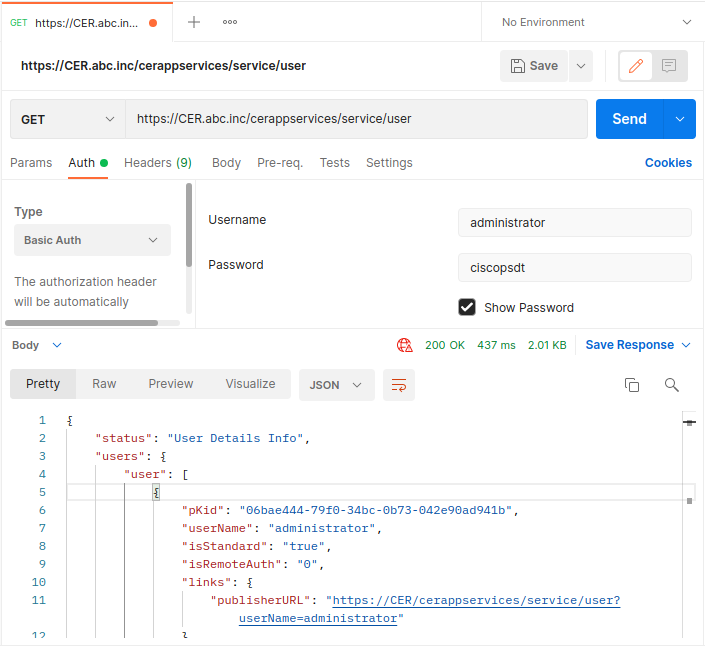
Note: If you lab CER host is using a self-signed certificate not installed on your PC, you can disable SSL certificate verification in the Postman settings to avoid SSL errors.